හැඳින්වීම
The Cisco Headset 721 is a wireless on-ear Bluetooth headset designed for professional use, offering comfort and advanced features for communication and collaboration. This manual provides comprehensive instructions for its setup, operation, and maintenance.
පෙට්ටියේ ඇති දේ
සියලුම අයිතම පැකේජයේ ඇති බව තහවුරු කරගන්න:
- සිස්කෝ හෙඩ්සෙට් 721 (තනි කනක හෙඩ්සෙට්)
- USB-A HD බ්ලූටූත් ඇඩැප්ටරය
- ආරෝපණ ස්ථාවරය
- USB-A ආරෝපණ කේබලය
- Soft Protective Case
- Ear Cushions (pre-installed or spare)
- හෙඩ්බෑන්ඩ් (ඒකාබද්ධ)

Image: The Cisco Headset 721 shown alongside its soft protective case, highlighting its portability.
සැලසුම
1. හෙඩ්සෙට් එක ආරෝපණය කිරීම
Before initial use, fully charge the headset. The headset has a battery life of approximately 23 hours of talk time.
- USB-A ආරෝපණ කේබලය ආරෝපණ ස්ථාවරයට සම්බන්ධ කරන්න.
- Connect the other end of the USB-A charging cable to a powered USB port (e.g., computer, wall adapter).
- Place the headset onto the charging stand, ensuring proper alignment. The LED indicator on the headset will show charging status.
2. බ්ලූටූත් හරහා සම්බන්ධ වීම
The headset can connect wirelessly to two devices simultaneously via Bluetooth.
- බල ගැන්වීම: Press and hold the Power button on the headset until the LED indicator flashes.
- යුගල කිරීමේ මාදිලිය: With the headset powered on, press and hold the Bluetooth button until the LED indicator flashes blue and red alternately. This indicates pairing mode.
- උපාංග යුගල කිරීම: On your device (e.g., smartphone, laptop), go to Bluetooth settings and select "Cisco Headset 721" from the list of available devices.
- තහවුරු කිරීම: The headset LED will turn solid blue when successfully paired.
3. Connecting with USB-A HD Bluetooth Adapter
For optimal performance and integration with Cisco applications, use the provided USB-A HD Bluetooth Adapter.
- Plug the USB-A HD Bluetooth Adapter into an available USB-A port on your computer.
- The adapter will automatically attempt to pair with your Cisco Headset 721. The LED on the adapter will indicate connection status.
- Ensure your headset is in pairing mode if it does not connect automatically.
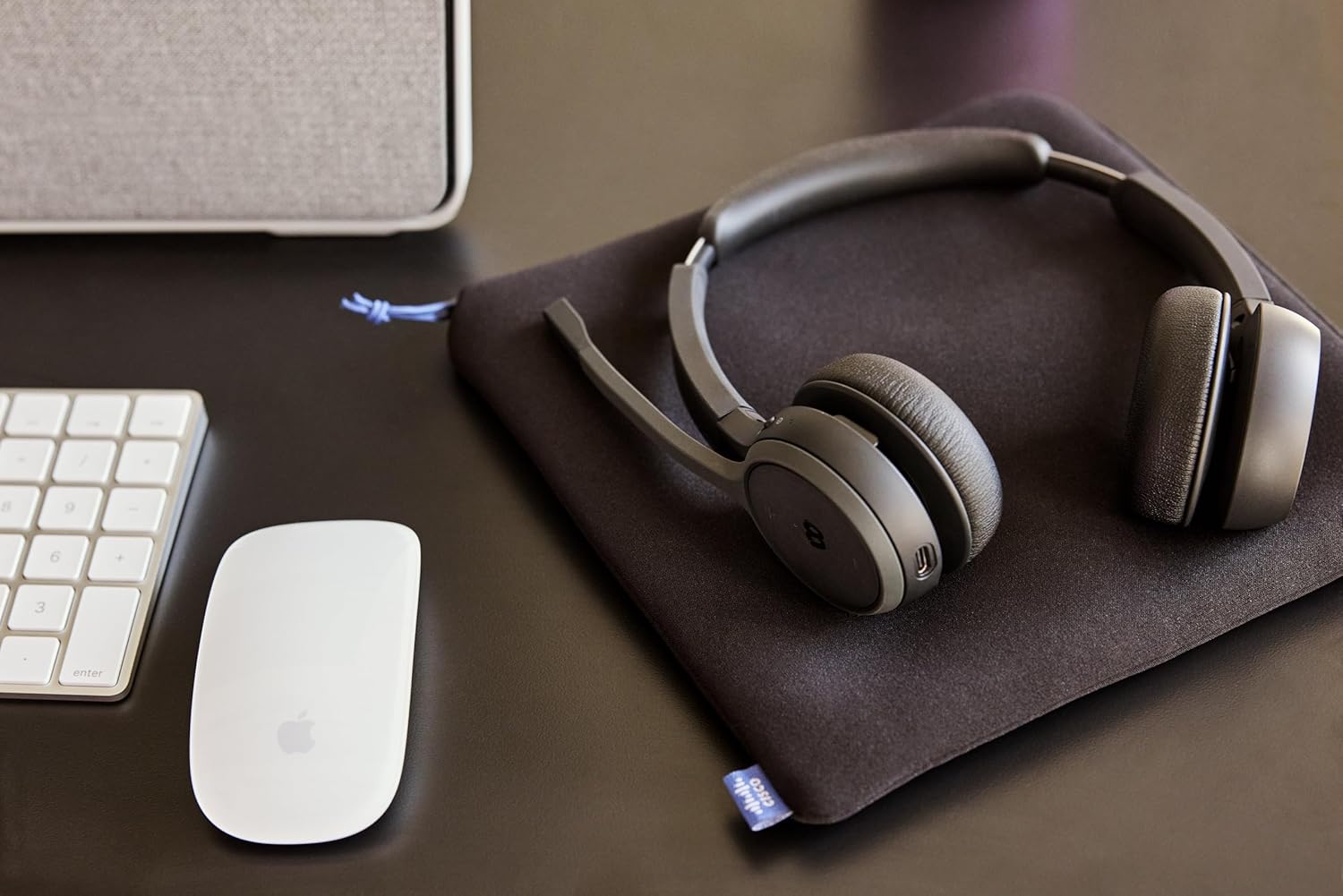
Image: The Cisco Headset 721, USB-A adapter, and charging stand arranged on a desk, illustrating a typical setup.
4. Adjusting the Microphone Boom Arm
The microphone boom arm rotates 276 degrees for optimal placement and features a flip-to-mute function.
- Position the microphone approximately two finger-widths from the corner of your mouth for clear audio.
- To mute the microphone, flip the boom arm upwards. Flip it down to unmute.
මෙහෙයුම් උපදෙස්
ඔන්-කන් පාලන
The headset features intuitive on-ear controls for managing calls and media.
- ශබ්දය වැඩි/පහළ: Use the dedicated volume buttons to adjust audio levels.
- පිළිතුර/අවසන් ඇමතුම: Press the Call button once to answer an incoming call or end an active call.
- නිශ්ශබ්ද කරන්න/නිශ්ශබ්ද කරන්න: In addition to the flip-to-mute boom arm, a dedicated mute button may be present for quick toggling.
- මාධ්ය වාදනය/විරාම කරන්න: Press the Call button once to play or pause media playback.
- ඊළඟ / පෙර ධාවන පථය: Use specific media control buttons if available, or double-press/triple-press the Call button (refer to specific model documentation for exact functionality).
Webex Button Integration
කැපවූ Webex button provides seamless integration with Cisco Webex applications.
- එක්වන්න Webහිටපු රැස්වීම: ඔබන්න Webex button to quickly join an active or scheduled Webහිටපු රැස්වීම.
- Webex Control: The button may also provide quick access to other Webex-specific functions depending on the application version.
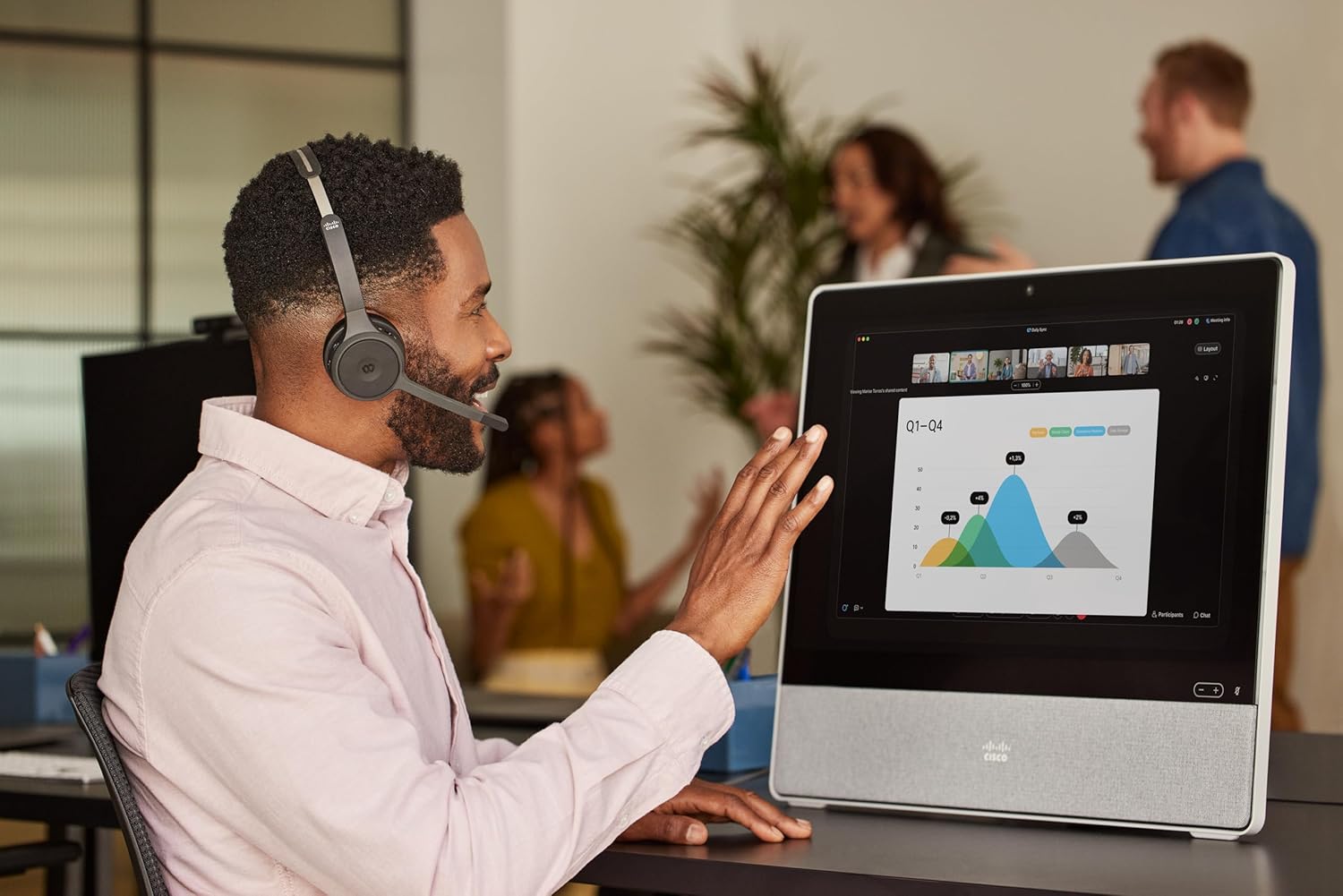
Image: A person wearing the Cisco Headset 721 while engaged in a video conference on a large display, demonstrating its use in a professional setting.
AI Voice-Activated Microphones
The headset features AI voice-activated microphones designed to minimize background noise, ensuring clear communication.
- These microphones automatically focus on your voice and suppress ambient sounds.
- No specific user action is required for this feature; it operates automatically.
බහු ලක්ෂ්ය යුගලනය
The headset supports multipoint pairing, allowing it to be connected to two Bluetooth devices simultaneously.
- Once paired with two devices, the headset can seamlessly switch between them for calls or media.
- උදාහරණයක් ලෙසample, you can be connected to your laptop for a video conference and your smartphone for incoming calls.
නඩත්තු කිරීම
හෙඩ්සෙට් එක පිරිසිදු කිරීම
Regular cleaning helps maintain the headset's hygiene and performance.
- Use a soft, dry, lint-free cloth to wipe the surfaces of the headset.
- කන් කුෂන් සඳහා, තරමක් d ස්ක්රබ් එකකින් මෘදු ලෙස පිස දමන්න.amp cloth (water only) and allow to air dry completely before use.
- සැර රසායනික ද්රව්ය, ද්රාවක හෝ උල්ෙල්ඛ ද්රව්ය භාවිතා කිරීමෙන් වළකින්න.
ගබඩා කිරීම
When not in use, store the headset properly to protect it from damage.
- Use the provided soft protective case for storage and transport.
- සෘජු හිරු එළියෙන් සහ අධික උෂ්ණත්වයන්ගෙන් ඈත්ව සිසිල් වියළි ස්ථානයක ගබඩා කරන්න.
දෝෂගවේෂණය
පොදු ගැටළු සහ විසඳුම්
| කලාපය | විසඳුම |
|---|---|
| හෙඩ්සෙට් එක ක්රියාත්මක නොවේ. | Ensure the headset is fully charged. Connect it to the charging stand and check the LED indicator. |
| උපාංගයක් සමඟ යුගල කළ නොහැක. | Ensure the headset is in pairing mode (LED flashing blue/red). Check your device's Bluetooth settings. Try restarting both the headset and the device. |
| ශ්රව්ය නැත හෝ දුර්වල ශ්රව්ය ගුණාත්මකභාවය. | Check the volume levels on both the headset and the connected device. Ensure the headset is selected as the audio output device. Move closer to the connected device to avoid interference. |
| මයික්රෆෝනය ක්රියා නොකරයි. | Ensure the microphone boom arm is flipped down (unmuted). Check microphone settings on your connected device/application (e.g., Webහිටපු). |
| Webex button not responding. | Ensure the headset is properly connected to a device running the Webex application. Verify that the Webex application is up to date. |
පිරිවිතර
| විශේෂාංගය | විස්තර |
|---|---|
| ආදර්ශ අංකය | HS-WL-721-BUNAS-C |
| සම්බන්ධතා තාක්ෂණය | රැහැන් රහිත (බ්ලූටූත්) |
| බ්ලූටූත් අනුවාදය | 4.0 |
| බ්ලූටූත් පරාසය | මීටර් 10 |
| කන් ස්ථානගත කිරීම | කණ මත |
| ආකෘති සාධකය | කණ මත |
| ශබ්ද පාලනය | Passive Noise Cancellation, Sound Isolation |
| බැටරි ආයු කාලය | පැය 23 (කතා කාලය) |
| පාලන වර්ගය | Call Control, Button, App |
| විශේෂ ලක්ෂණ | Adjustable Headband, Fast Charging, Lightweight, Multipoint Pairing, Noise Isolation |
| ගැළපෙන උපාංග | ජංගම දුරකථන, ඩෙස්ක්ටොප්, ලැප්ටොප්, ටැබ්ලට් |
| අයිතමයේ බර | කිලෝග්රෑම් 0.12 (අවුන්ස 4.2) |
| ද්රව්ය | Aluminum, Stainless Steel, Leather or Faux Leather, Memory Foam |
| ඇතුළත් සංරචක | Cable, Charging Station, Ear Cushions, Headband, Protective Case |
වගකීම් සහ සහාය
Cisco Headset 721 එක එන්නේ Two-Year Limited Liability Warranty, ensuring peace of mind regarding manufacturing defects and performance issues.
For technical support, warranty claims, or further assistance, please visit the official Cisco support website or contact your Cisco product provider. Ensure you have your product model number (HS-WL-721-BUNAS-C) and proof of purchase available.
විකල්ප ආරක්ෂණ සැලසුම්
Additional protection plans may be available for extended coverage:
- අවුරුදු 2ක ආරක්ෂණ සැලැස්ම: Extends coverage for 24 months.
- අවුරුදු 3ක ආරක්ෂණ සැලැස්ම: Extends coverage for 36 months.
- සම්පූර්ණ ආරක්ෂාව: සුදුසුකම් ලත් අතීත සහ අනාගත මිලදී ගැනීම් ආවරණය වන මාසික සැලැස්මක්.
සම්පූර්ණ විස්තර සඳහා කරුණාකර මෙම සැලසුම්වල නියමයන් සහ කොන්දේසි බලන්න.


