1. හැඳින්වීම
The ZEBRONICS Pulse Wireless Mouse is designed for versatile and comfortable use across various devices. Featuring multi-connectivity options including dual Bluetooth and a 2.4GHz USB nano receiver, it offers seamless switching between systems. Its ergonomic design and 1200 DPI optical sensor ensure precise and smooth cursor control for enhanced productivity.

රූපය 1.1: ඉහළට view of the ZEBRONICS Pulse Wireless Mouse, showcasing එහි සිනිඳු කළු මෝස්තරය සහ අනුචලන රෝදය.
2. පැකේජ අන්තර්ගතය
කරුණාකර ඔබගේ පැකේජයේ සියලුම අයිතම ඇති බව තහවුරු කරගන්න:
- ZEBRONICS Pulse Wireless Mouse
- USB නැනෝ ලබන්නා
- පරිශීලක අත්පොත
3 ප්රධාන ලක්ෂණ
- බහු සම්බන්ධතාව: Supports dual Bluetooth and 2.4GHz wireless connections.
- ඉහළ නිරවද්යතාව: 1200 DPI optical sensor for accurate tracking.
- Ergonomic Design: Comfortable and lightweight for extended use.
- 3 බොත්තම්: Standard left, right, and scroll wheel buttons.
- Removable USB Nano Receiver: Conveniently stored in the mouse's bottom panel.
- පුළුල් අනුකූලතාව: Works with desktop PCs, laptops, Mac OS, tablets, and more.
- බලශක්ති ඉතිරිකිරීම්: Features an auto-shutoff function to conserve battery life.

Image 3.1: A visual summary of the mouse's key features, including its comfortable design, power switch, plug-and-play functionality, and high precision.
4. සැකසුම් මාර්ගෝපදේශය
4.1. බැටරි ස්ථාපනය
- Flip the mouse over to access the bottom panel.
- Locate the battery compartment cover and slide it open.
- නිවැරදි ධ්රැවීයතාව (+/-) සහතික කරමින්, එක් AA බැටරියක් ඇතුළු කරන්න.
- බැටරි මැදිරි කවරය ආරක්ෂිතව වසා දමන්න.
4.2. Connecting via 2.4GHz USB Nano Receiver
- Locate the USB nano receiver stored in the slot on the bottom of the mouse.
- Remove the receiver from its storage slot.
- Plug the USB nano receiver into an available USB port on your computer or laptop.
- Slide the power switch on the bottom of the mouse to the 'ON' position.
- The mouse should automatically connect. If not, press the connection toggle button on the bottom of the mouse to select the 2.4GHz mode (indicated by '2.4G').

Image 4.1: The underside of the mouse, highlighting the battery slot, nano receiver storage, power switch, and connection toggle button.

Image 4.2: The USB nano receiver plugged into a laptop, demonstrating the 2.4GHz wireless connection.
4.3. Connecting via Bluetooth (BT1 / BT2)
- Ensure the mouse has a fresh battery and the power switch is in the 'ON' position.
- Press the connection toggle button on the bottom of the mouse to select either 'BT1' or 'BT2' mode. The corresponding LED indicator will blink.
- On your device (laptop, tablet, etc.), go to Bluetooth settings.
- ඒ සඳහා සොයන්න new devices. The mouse should appear as 'ZEB-PULSE' or similar.
- Select the mouse to pair. Once paired, the LED indicator will stop blinking and remain solid for a few seconds before turning off.
- You can pair a second device using the other Bluetooth channel (BT2) by repeating steps 2-5.
5. මෙහෙයුම් උපදෙස්
5.1. මූලික කාර්යයන්
- වම් බොත්තම: මූලික ක්ලික් කිරීමේ කාර්යය.
- දකුණු බොත්තම: ද්විතියික ක්ලික් ශ්රිතය (සන්දර්භ මෙනුව).
- අනුචලන රෝදය: ඉහළට/පහළට අනුචලනය කරන්න, සහ මැද-ක්ලික් ශ්රිතය.

Image 5.1: Illustration of the mouse's three buttons: left, right, and the scroll wheel/middle button.
5.2. සම්බන්ධතා මාතයන් මාරු කිරීම
To switch between the 2.4GHz wireless mode and Bluetooth modes (BT1, BT2), press the connection toggle button located on the bottom of the mouse. The mouse will cycle through the available modes, indicated by the corresponding LED.
5.3. DPI සැකසීම
The ZEBRONICS Pulse mouse operates at a fixed 1200 DPI (Dots Per Inch), providing a balance of speed and precision suitable for general use. This setting ensures smooth and responsive cursor movement.

Image 5.2: Visual representation of the mouse's 1200 DPI precision for accurate tracking.
6. නඩත්තු කිරීම
- පිරිසිදු කිරීම: මූසිකය පිරිසිදු කිරීම සඳහා මෘදු වියළි රෙද්දක් භාවිතා කරන්න. රළු රසායනික ද්රව්ය හෝ උල්ෙල්ඛ ද්රව්ය භාවිතා කිරීමෙන් වළකින්න.
- බැටරි ආදේශනය: මූසිකයේ ක්රියාකාරිත්වය පහත වැටුණු විට හෝ එය ප්රතිචාර දැක්වීම නැවැත්වූ විට AA බැටරිය ප්රතිස්ථාපනය කරන්න.
- ගබඩා: When not in use for extended periods, turn off the mouse to conserve battery life. Store the USB nano receiver in its dedicated slot on the mouse's bottom.
- පරිසරය: Avoid exposing the mouse to extreme temperatures, direct sunlight, or excessive moisture.
7. දෝශ නිරාකරණය
7.1. මූසිකය ප්රතිචාර නොදක්වයි
- Ensure the mouse is turned 'ON'.
- බැටරිය පරීක්ෂා කරන්න. අවශ්ය නම් එය ප්රතිස්ථාපනය කරන්න.
- For 2.4GHz connection: Ensure the USB nano receiver is securely plugged into a working USB port and the mouse is in 2.4GHz mode.
- For Bluetooth connection: Ensure Bluetooth is enabled on your device and the mouse is in the correct BT1/BT2 mode. Try re-pairing the mouse.
- Try connecting the mouse to a different USB port or a different device to rule out port or device issues.
7.2. අක්රමවත් කර්සර චලනය
- මෘදු, වියළි රෙද්දකින් මූසිකයේ පතුලේ ඇති දෘශ්ය සංවේදකය පිරිසිදු කරන්න.
- ඔබ මූසිකය භාවිතා කරන්නේ පිරිසිදු, පරාවර්තනය නොවන මතුපිටක් මත බව සහතික කර ගන්න.
- වෙනත් රැහැන් රහිත උපාංගවලින් බාධා කිරීම් සඳහා පරීක්ෂා කරන්න.
7.3. Difficulty Switching Modes
- බැටරියට ප්රමාණවත් බලයක් ඇති බවට සහතික වන්න.
- Press the connection toggle button firmly and observe the LED indicators to confirm mode changes.
8. පිරිවිතර
| විශේෂාංගය | විස්තර |
|---|---|
| වෙළඳ නාමය | සෙබ්රොනික්ස් |
| ආකෘතිය | Zeb-Pulse |
| සම්බන්ධතා තාක්ෂණය | Wireless (2.4GHz, Dual Bluetooth) |
| චලන හඳුනාගැනීමේ තාක්ෂණය | ඔප්ටිකල් |
| DPI | 1200 |
| බොත්තම් ගණන | 3 |
| බලශක්ති ප්රභවය | බැටරි බලයෙන් ක්රියාත්මක (1x AA) |
| අයිතමයේ බර | 160 ග්රෑම් |
| නිෂ්පාදන මානයන් | 16.6 x 9.5 x 0.1 සෙ.මී |
| මෙහෙයුම් පද්ධති අනුකූලතාව | Windows, Mac OS, etc. |
| මුල් රට | චීනය |
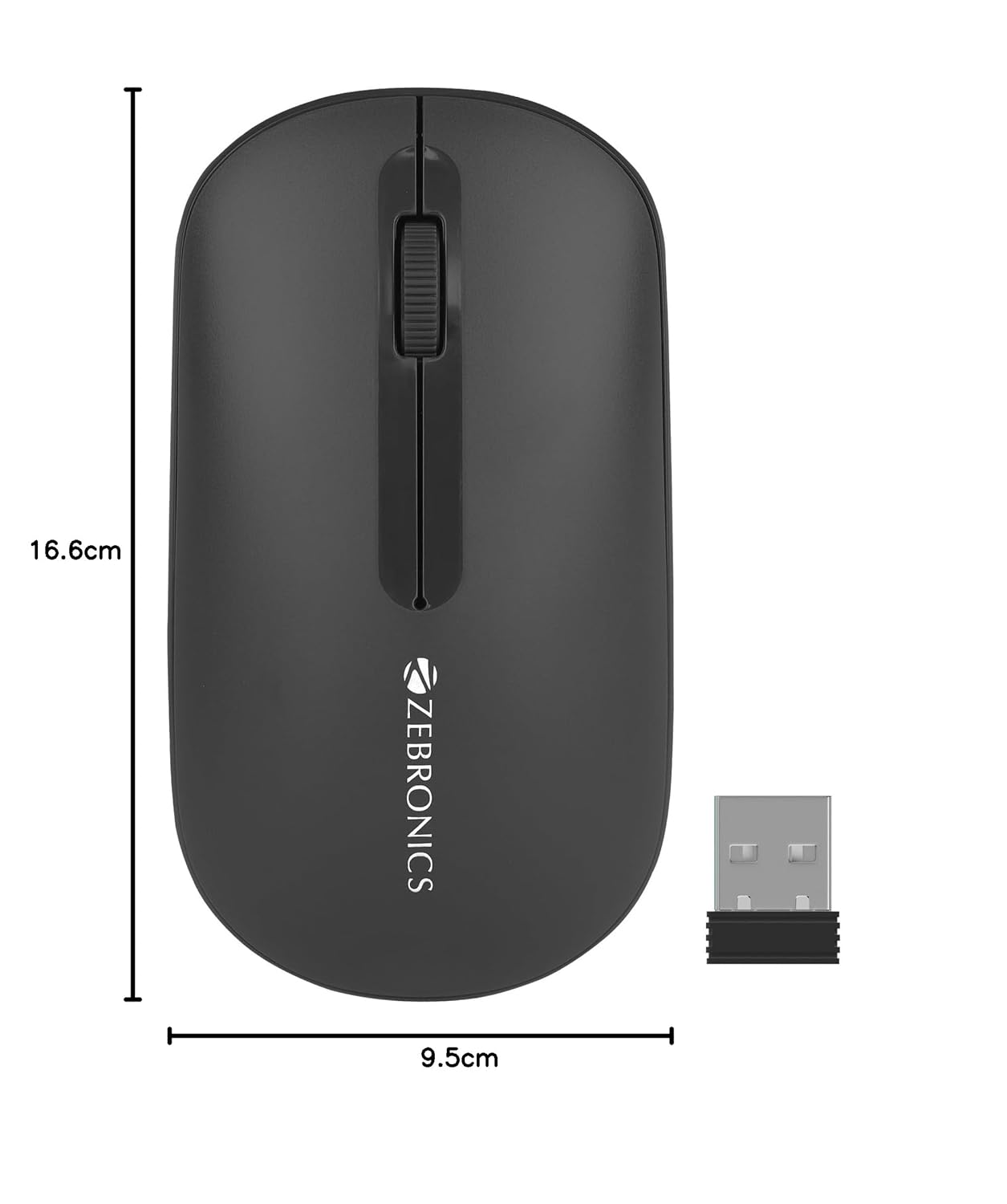
Image 8.1: Diagram showing the physical dimensions of the ZEBRONICS Pulse Wireless Mouse.
9. වගකීම් සහ සහාය
වගකීම් තොරතුරු, තාක්ෂණික සහාය හෝ සේවා විමසීම් සඳහා, කරුණාකර ඔබේ නිෂ්පාදනය සමඟ ඇතුළත් කර ඇති වගකීම් කාඩ්පත බලන්න හෝ නිල ZEBRONICS වෙත පිවිසෙන්න. webවෙබ් අඩවිය. වගකීම් හිමිකම් සඳහා මිලදී ගැනීමේ සාක්ෂියක් ලෙස ඔබේ මිලදී ගැනීමේ රිසිට්පත තබා ගන්න.
නිල සෙබ්රොනික්ස් Webඅඩවිය: www.zebronics.com


