1. හැඳින්වීම
This manual provides detailed instructions for the setup, operation, and maintenance of your KTC 32-Inch 2K QHD IPS Monitor, model H32T13. Please read this manual thoroughly before using the monitor to ensure proper functionality and to prevent damage.
The KTC H32T13 monitor features a 32-inch IPS panel with 2K QHD (2560x1440) resolution, a 100Hz refresh rate, and support for FreeSync/G-Sync technologies. It is designed for both office productivity and gaming, offering vibrant colors, wide viewing angles, and eye-care features.
2. පෙට්ටියේ ඇති දේ
සියලුම සංරචක පැකේජයේ ඇති බව තහවුරු කර ගන්න:
- KTC 32-Inch 2K QHD IPS Monitor (H32T13)
- මොනිටර් ස්ටෑන්ඩ් (පාදය සහ බෙල්ල)
- HDMI කේබලය
- විදුලි රැහැන්
- බල ඇඩැප්ටරය
- ඉස්කුරුප්පු නියනක්
- පරිශීලක අත්පොත (මෙම ලේඛනය)

Image: Contents of the KTC H32T13 monitor package.
3. නිෂ්පාදන අවසන්view
The KTC H32T13 monitor is designed for a superior visual experience. Key features include:
- 32-inch QHD (2560x1440) IPS Panel: Delivers crisp, detailed images with accurate colors and wide viewing කෝණ.
- 100Hz නැවුම් කිරීමේ අනුපාතය: Provides smoother motion for gaming and fast-paced content.
- FreeSync/G-Sync Compatibility: තිරය ඉරීම සහ පැකිලීම අඩු කර තරල ක්රීඩා අත්දැකීමක් ලබා දෙයි.
- HDR සහාය: Enhances contrast and color for more realistic visuals.
- අක්ෂි ආරක්ෂණ තාක්ෂණය: Features Flicker-Free and Low Blue Light modes to reduce eye strain during prolonged use.
- බහුකාර්ය සම්බන්ධතාවය: Equipped with multiple HDMI 2.0 and DisplayPort 1.4 inputs.
- Ergonomic Design: Offers tilt adjustment and VESA mount compatibility for flexible positioning.
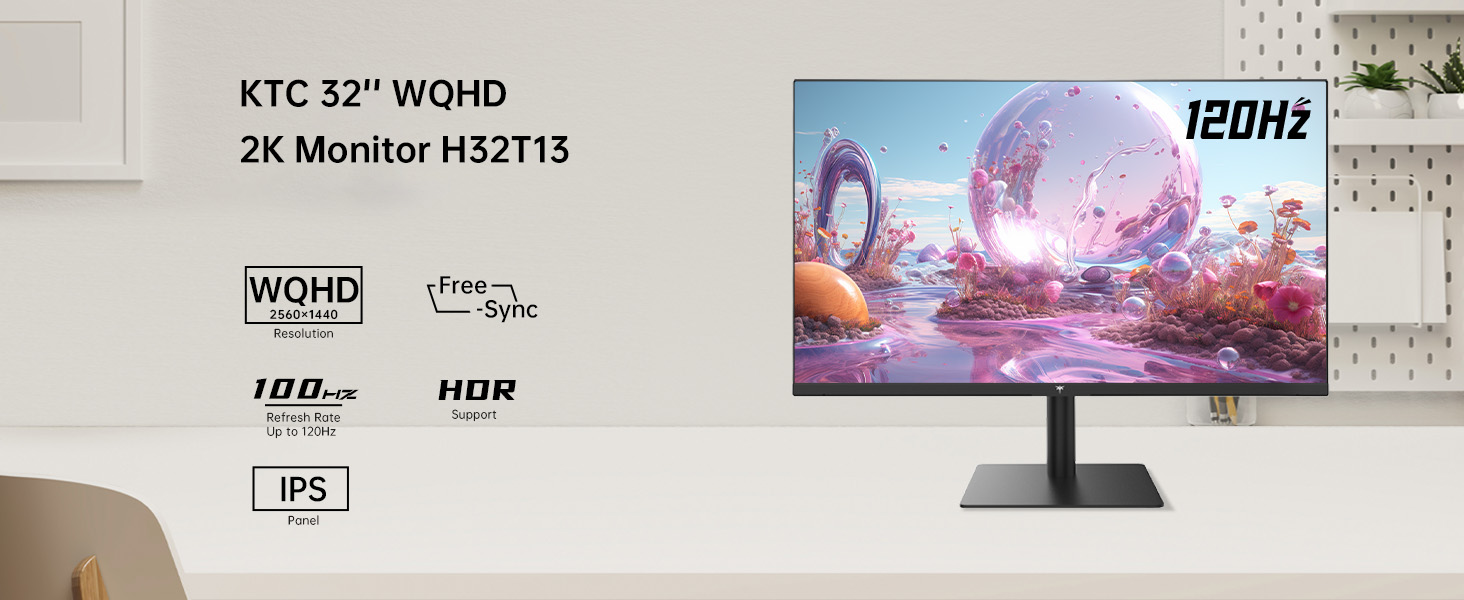
Image: KTC H32T13 monitor showcasing its key display technologies.

Image: The 32-inch screen size of the KTC H32T13 monitor.
4. පිහිටුවීම
4.1 ස්ථාවරය එකලස් කිරීම
- ඇසුරුම්කරණයෙන් මොනිටරය සහ ස්ටෑන්ඩ් සංරචක ප්රවේශමෙන් ඉවත් කරන්න.
- Attach the stand neck to the monitor panel using the provided screws and screwdriver.
- ආධාරක පාදය ආධාරක බෙල්ලට සවි කරන්න.
- එකලස් කරන ලද මොනිටරය ස්ථාවර, පැතලි මතුපිටක් මත තබන්න.
4.2 VESA සවි කිරීම (විකල්ප)
The monitor supports VESA 100mm x 100mm mounting. If you wish to use a VESA-compatible arm or wall mount (not included), remove the stand and attach the VESA mount according to its instructions.

රූපය: පසුපස view of the monitor with VESA 100x100mm mounting points.
4.3 පරිගණකයකට සම්බන්ධ වීම
- මොනිටරය සහ ඔබේ පරිගණකය යන දෙකම ක්රියා විරහිත කර ඇති බවට වග බලා ගන්න.
- Connect one end of the provided HDMI cable to an HDMI port on your computer's graphics card.
- Connect the other end of the HDMI cable to one of the HDMI 2.0 ports on the monitor. Alternatively, use a DisplayPort cable to connect to a DP 1.4 port for higher refresh rates and FreeSync/G-Sync functionality.
- Connect the power adapter to the monitor's DC input and then plug the power cord into a power outlet.
- ඔබේ පරිගණකය සක්රිය කරන්න, පසුව මොනිටරය සක්රිය කරන්න.

Image: Monitor connectivity ports (DC, HDMI 1, HDMI 2, DP 1).
5. මෙහෙයුම් උපදෙස්
5.1 බලය සක්රිය / අක්රිය
මොනිටරය සක්රිය හෝ අක්රිය කිරීමට එහි ඇති බල බොත්තම ඔබන්න. මොනිටරය සක්රිය වූ විට බල දර්ශක ආලෝකය දැල්වෙනු ඇත.
5.2 ආදාන මූලාශ්ර තේරීම
Use the OSD (On-Screen Display) menu buttons to navigate and select your desired input source (HDMI 1, HDMI 2, or DisplayPort).
5.3 දර්ශන සැකසුම් සකස් කිරීම (OSD මෙනුව)
The OSD menu allows you to customize various display settings. Typically, buttons are located on the back or bottom of the monitor. Refer to the quick start guide for specific button functions.
- දීප්තිය / ප්රතිවිරුද්ධතාව: සමස්ත දීප්තිය සහ ප්රතිවිරුද්ධ අනුපාතය සකසන්න.
- වර්ණ සැකසුම්: Modify color temperature, gamma, and individual RGB levels. The monitor supports 1.07 billion colors and 103% sRGB.
- පින්තූර මාදිලිය: Select from preset modes optimized for different content (e.g., Standard, Game, Movie, Text).
- නැවුම් කිරීමේ අනුපාතය: The monitor supports up to 100Hz. Ensure your graphics card settings are configured to match.
- නිදහස් සමමුහුර්තකරණය/ජී-සමමුහුර්තකරණය: Enable this feature in the OSD menu and your graphics card control panel for adaptive synchronization.
- Eye Care Modes: Activate Flicker-Free and Low Blue Light modes to reduce eye strain.
- HDR: Enable HDR for compatible content and devices.

Image: Monitor displaying enhanced colors and brightness with HDR enabled.

Image: Visual comparison of FreeSync/G-Sync enabled and disabled, demonstrating smoother gameplay.

Image: IPS panel advantages in brightness and color over VA panels.
5.4 භෞතික ගැලපීම්
The monitor stand allows for tilt adjustment from -5° to 15° to optimize your viewing කෝණය.

Image: Monitor tilt adjustment range and eye care features.
වීඩියෝ: අවසන්view of the KTC 2K IPS Office Monitor, highlighting its features and suitability for office use. This video demonstrates the monitor's visual quality and design.
6. නඩත්තු කිරීම
6.1 මොනිටරය පිරිසිදු කිරීම
- පිරිසිදු කිරීමට පෙර සෑම විටම මොනිටරය ක්රියා විරහිත කර විදුලි රැහැන විසන්ධි කරන්න.
- මෘදු, ලින්ට් රහිත රෙද්දක් සැහැල්ලුවෙන් භාවිතා කරන්නampජලය හෝ මෘදු, සීරීම් ඇති නොවන තිර පිරිසිදු කරන්නෙකු සමඟ ආලේප කර ඇත.
- Wipe the screen gently to remove dust and smudges. Avoid applying direct pressure to the screen.
- මධ්යසාර, ඇමෝනියා මත පදනම් වූ පිරිසිදු කරන්නන් හෝ උල්ෙල්ඛ ද්රව්ය භාවිතා නොකරන්න, මන්ද මේවා තිරයේ මතුපිටට හානි කළ හැකිය.
- මොනිටරය පිරිසිදු කරන්න casinමෘදු, වියළි රෙද්දකින් g.
6.2 ගබඩා කිරීම
If storing the monitor for an extended period, ensure it is powered off, unplugged, and stored in a cool, dry place away from direct sunlight and extreme temperatures. Use the original packaging if available for best protection.
7. දෝශ නිරාකරණය
| ගැටලුව | විය හැකි හේතුව | විසඳුම |
|---|---|---|
| තිරයේ රූපයක් නොමැත | Monitor not powered on; Incorrect input source; Loose video cable; Computer in sleep mode. | Ensure power is connected and monitor is on. Select correct input source. Check video cable connections. Wake up computer. |
| රූපය නොපැහැදිලි හෝ විකෘති වී ඇත. | Incorrect resolution; Faulty video cable; Graphics driver issues. | Set display resolution to 2560x1440. Try a different video cable. Update graphics drivers. |
| තිරය දැල්වීම හෝ ඉරී යාම | Refresh rate mismatch; FreeSync/G-Sync not enabled or incompatible. | Ensure refresh rate is set to 100Hz. Enable FreeSync/G-Sync in monitor OSD and graphics card settings. Use DisplayPort for FreeSync/G-Sync. |
| හෙඩ්ෆෝන් වලින් ශබ්දයක් නැත | Headphones not connected properly; Audio output not set to monitor. | Check headphone connection. Set monitor as default audio output in your computer's sound settings. |
| බොත්තම් ප්රතිචාර නොදක්වයි | OSD lock enabled; Temporary software glitch. | Check if OSD lock is active (refer to quick start guide). Power cycle the monitor. |
8. පිරිවිතර
| විශේෂාංගය | විස්තර |
|---|---|
| ආදර්ශ අංකය | H32T13 |
| තිර ප්රමාණය | අඟල් 32 |
| පැනල් වර්ගය | IPS |
| විභේදනය | 2560 x 1440 (QHD පළල 1440p) |
| දර්ශන අනුපාතය | 16:9 |
| Refresh Rate | 100Hz |
| දීප්තිය | 350 Candela (typ.) |
| වර්ණ ගැමට් | 103% sRGB |
| වර්ණ ගැඹුර | වර්ණ බිලියන 1.07 |
| HDR සහාය | ඔව් |
| අනුවර්තන සමමුහුර්තකරණය | FreeSync/G-Sync Compatible |
| සම්බන්ධතාවය | 2x HDMI 2.0, 1x ඩිස්ප්ලේපෝට් 1.4 |
| ඇල ගැලපීම | -5 ° සිට 15 ° දක්වා |
| වෙසා කන්ද | 100mm x 100mm |
| අක්ෂි සත්කාර විශේෂාංග | Flicker-Free, Eye Protection Mode (Low Blue Light) |
| නිෂ්පාදන මානයන් | අඟල් 5.31 x 32.48 x 21.2 |
| අයිතමයේ බර | රාත්තල් 18.81 කි |
9. වගකීම් සහ සහාය
9.1 වගකීම් තොරතුරු
KTC products are covered by a limited warranty. Please refer to the warranty card included in your product packaging or visit the official KTC webසවිස්තරාත්මක වගකීම් නියමයන් සහ කොන්දේසි සඳහා වෙබ් අඩවිය. වගකීම් හිමිකම් සඳහා ඔබේ මිලදී ගැනීමේ සාක්ෂි තබා ගන්න.
9.2 පාරිභෝගික සහාය
For technical assistance, troubleshooting not covered in this manual, or warranty inquiries, please contact KTC customer support through the following channels:
- මාර්ගගත සහාය: Visit the KTC official website for FAQs, driver downloads, and support contact forms.
- ඊමේල් සහාය: Refer to your warranty card or the KTC webසුදුසු සහාය විද්යුත් තැපැල් ලිපිනය සඳහා අඩවිය.
- Amazon සහාය: If purchased via Amazon, you can contact the seller directly through your Amazon order history for assistance.
Image: Steps to contact KTC customer support via Amazon.


