හැඳින්වීම
The Discovery Bright Doodles LCD Art Tablet provides a mess-free and engaging platform for creative expression. Designed for children aged 3 and up, this portable drawing pad allows users to draw, write, and doodle without the need for paper or ink. Its intuitive design and durable construction make it suitable for various environments, from home to travel.
This manual provides essential information on setting up, operating, and maintaining your LCD Art Tablet to ensure optimal performance and longevity.
ආරක්ෂිත තොරතුරු
- This product is intended for children aged 3 years and older. Adult supervision is recommended.
- ටැබ්ලටය අධික උෂ්ණත්වයන්ට, සෘජු හිරු එළියට හෝ තෙතමනයට නිරාවරණය නොකරන්න.
- Avoid dropping the tablet or subjecting it to strong impacts, as this may damage the LCD screen.
- Only use the provided stylus or a similar non-abrasive, blunt instrument to draw on the screen. Sharp objects can permanently damage the display.
- බැටරි කුඩා දරුවන්ට ළඟාවිය නොහැකි ලෙස තබා ගන්න. ඒවා ගිල දැමුවහොත් වහාම වෛද්ය ප්රතිකාර ලබා ගන්න.
පැකේජයේ අන්තර්ගතය
සියලුම අයිතම තිබේදැයි සහතික කර ගැනීමට කරුණාකර පැකේජය පරීක්ෂා කරන්න:
- 1 x Discovery Bright Doodles LCD Art Tablet
- 1 x Tethered Stylus
- 1 x උපදෙස් අත්පොත (මෙම ලේඛනය)

Image: The Discovery Bright Doodles LCD Art Tablet shown alongside its retail packaging. The tablet is blue with a black screen displaying colorful doodles, and a green tethered stylus is visible.
සැලසුම
බැටරි ස්ථාපනය
The Discovery Bright Doodles LCD Art Tablet requires 2 AAA batteries (not included) for operation. Follow these steps to install them:
- ටැබ්ලටයේ පිටුපස බැටරි මැදිරිය සොයා ගන්න.
- කුඩා ඉස්කුරුප්පු නියනක් (ඇතුළත් කර නැත) භාවිතා කරමින්, බැටරි මැදිරි කවරය ප්රවේශමෙන් විවෘත කරන්න.
- මැදිරිය තුළ දක්වා ඇති පරිදි නිවැරදි ධ්රැවීයතාව (+/-) සහතික කරමින් AAA බැටරි 2ක් ඇතුළු කරන්න.
- බැටරි මැදිරි කවරය ප්රතිස්ථාපනය කර එය ඉස්කුරුප්පු ඇණ සමඟ සවි කරන්න.
සටහන: සෑම විටම නැවුම් බැටරි භාවිතා කරන්න සහ පැරණි බැටරි වගකීමෙන් බැහැර කරන්න. පැරණි සහ නව බැටරි හෝ විවිධ වර්ගයේ බැටරි මිශ්ර නොකරන්න.
මෙහෙයුම් උපදෙස්
Drawing on the Tablet
Use the included tethered stylus to draw or write on the LCD screen. You can also use your fingertip. The screen will display colorful lines as you draw.

Image: A child's hand holding the green stylus and drawing colorful lines on the black screen of the blue Discovery Bright Doodles LCD Art Tablet.
Erasing the Screen
To clear the entire screen and start a new drawing, press the erase button located on the bottom edge of the tablet. The screen will instantly clear.
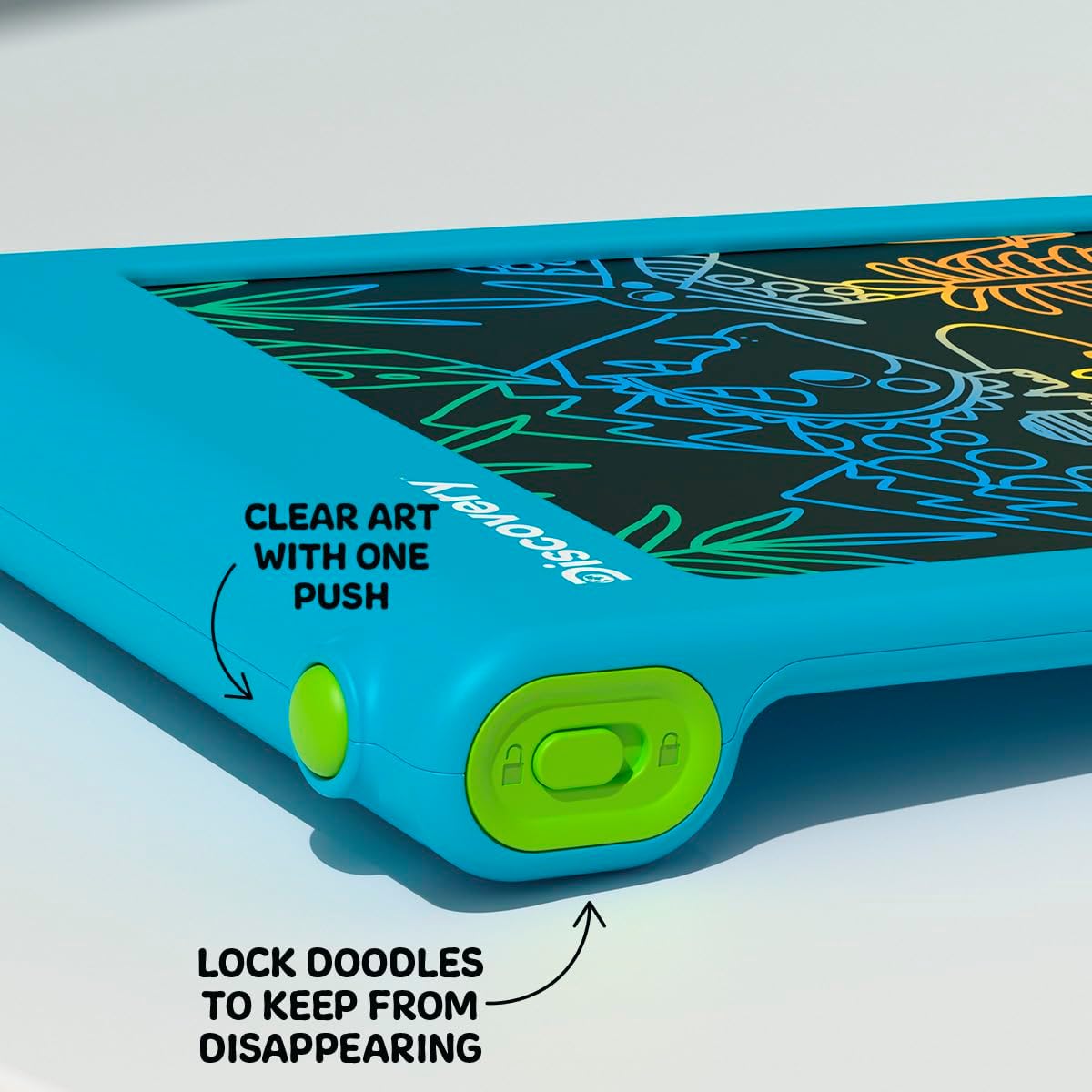
රූපය: සමීප ඡායාරූපයක් view of the bottom edge of the tablet, showing the round green erase button and the rectangular green screen lock switch with an open and closed padlock icon.
තිර අගුළු ක්රියාකාරිත්වය
The tablet features a screen lock switch to prevent accidental erasing. This is useful for preserving artwork or notes.
- වෙත අගුල the screen: Slide the screen lock switch (located next to the erase button) to the position showing a closed padlock icon. While locked, pressing the erase button will not clear the screen.
- වෙත unlock the screen: Slide the screen lock switch to the position showing an open padlock icon. The erase button will now function normally.
ඉඟිය: Always ensure the screen is unlocked before attempting to erase your drawing.
Stylus Storage
The included stylus is tethered to the tablet to prevent loss. When not in use, the stylus can be neatly stored in the designated slot on the side of the tablet.

රූපය: සමීප ඡායාරූපයක් view of the side of the tablet, showing the green tethered stylus inserted into its storage slot.
නඩත්තු කිරීම
පිරිසිදු කිරීම
To clean the tablet, gently wipe the screen and casing with a soft, dry, lint-free cloth. Do not use abrasive cleaners, solvents, or chemical sprays, as these can damage the screen or casing.
බැටරි ප්රතිස්ථාපනය
If the erase function stops working or the screen becomes dim, it may be time to replace the batteries. Refer to the "Battery Installation" section under Setup for instructions.
දෝෂගවේෂණය
- Screen does not clear when erase button is pressed:
- Check if the screen lock switch is in the "locked" position. Slide it to the "unlocked" position.
- බැටරි නිවැරදිව ස්ථාපනය කර ඇති බවත් ක්ෂය නොවන බවත් සහතික කර ගන්න. අවශ්ය නම් බැටරි ප්රතිස්ථාපනය කරන්න.
- Drawing lines are faint or inconsistent:
- මෙය අඩු බැටරි බලයක් පෙන්නුම් කළ හැකිය. බැටරි මාරු කරන්න.
- Ensure you are using the stylus or a suitable blunt object with appropriate pressure.
- Stylus is lost:
- The stylus is tethered to the tablet to prevent loss. If it becomes detached, a replacement stylus may be available from the manufacturer or a compatible alternative can be used.
පිරිවිතර
| ආදර්ශ අංකය | 1017870 |
| වෙළඳ නාමය | සොයාගැනීම |
| නිෂ්පාදන මානයන් | අඟල් 9.7 x 6.2 x 0.1 |
| අයිතමයේ බර | රාත්තල් 1.12 කි |
| නිර්දේශිත වයස | අවුරුදු 3 සහ ඊට වැඩි |
| බලශක්ති ප්රභවය | 2 x AAA බැටරි (ඇතුළත් කර නැත) |
| විශේෂ ලක්ෂණය | ආලෝකමත් LCD තිරය |
| නිෂ්පාදකයා | වෙළඳ මූලාශ්රය |
වගකීම් සහ සහාය
For warranty information or technical support, please refer to the contact details provided on the product packaging or visit the official Discovery brand webවෙබ් අඩවිය. ඕනෑම වගකීම් හිමිකම් පෑමක් සඳහා කරුණාකර ඔබේ මිලදී ගැනීමේ සාක්ෂි තබා ගන්න.


