1. හැඳින්වීම
The Getac K120 Rugged 12.5-inch 2-in-1 Laptop is engineered for high performance and durability in demanding environments. This manual provides essential information for setting up, operating, maintaining, and troubleshooting your device.
2 ප්රධාන ලක්ෂණ
- රළු නිර්මාණය: Built to withstand harsh conditions, ideal for fieldwork and industrial use.
- ඉහළ කාර්ය සාධනය: Equipped with an 8th Gen Intel Quad Core i5-8250U processor (up to 3.4 GHz) for efficient processing.
- මතකය සහ ගබඩාව: 16GB DDR4 RAM for multitasking and a 512GB Solid State Drive (SSD) for fast boot times and ample ගබඩා.
- සංදර්ශකය: 12.5" FHD Touchscreen (1920 x 1080 pixels) with LumiBond 2.0 technology for clear visibility.
- මෙහෙයුම් පද්ධතිය: Pre-installed with Windows 10 Professional (64-bit).
- සම්බන්ධතාවය: Features Bluetooth, Wi-Fi, and various ports including USB 3.0, USB 3.1 Gen 1 Type-C, LAN (RJ-45), HDMI, MicroSD slot, and Serial Port.
- පසුතල යතුරු පුවරුව: Enhances usability in low-light conditions.
3. පැකේජ අන්තර්ගතය
Upon unboxing, ensure all the following items are present:
- Getac K120 Rugged 2-in-1 Laptop
- 2 x ලිතියම් අයන බැටරි
- AC බල ඇඩැප්ටරය
Note: Additional accessories such as a stylus may be sold separately or included depending on your specific package.
4. උපාංගය අවසන්view
4.1 ඉදිරිපස View
The front of the Getac K120 features the 12.5-inch Full HD touchscreen display. Below the screen are various control buttons and indicators.

රූපය 4.1: ඉදිරිපස view of the Getac K120 in laptop mode, showing the rugged casing සහ සංදර්ශකය.
4.2 Tablet Mode
The K120 can be detached from its keyboard dock to function as a standalone tablet, offering flexibility for various work environments.

Figure 4.2: Getac K120 in tablet configuration, highlighting its portability and touchscreen capabilities.
4.3 පැත්ත Views සහ වරාය
The Getac K120 is equipped with various ports for connectivity and expansion. These ports are protected by rugged covers to maintain the device's durability.

රූපය 4.3: පැත්ත view of the Getac K120, illustrating its robust construction and 2-in-1 design.
Tablet Ports:

Figure 4.4: Left side ports of the tablet component, including HDMI, Audio, USB-C, USB-A 3.0, MicroSD, SIM (optional), and Kensington Lock.

Figure 4.5: Right side ports of the tablet component, including DC In Jack, LAN (RJ-45), and Serial Port.
Keyboard Ports:

Figure 4.6: Left side ports of the keyboard dock, including VGA, HDMI, LAN (RJ-45), and USB 3.0.
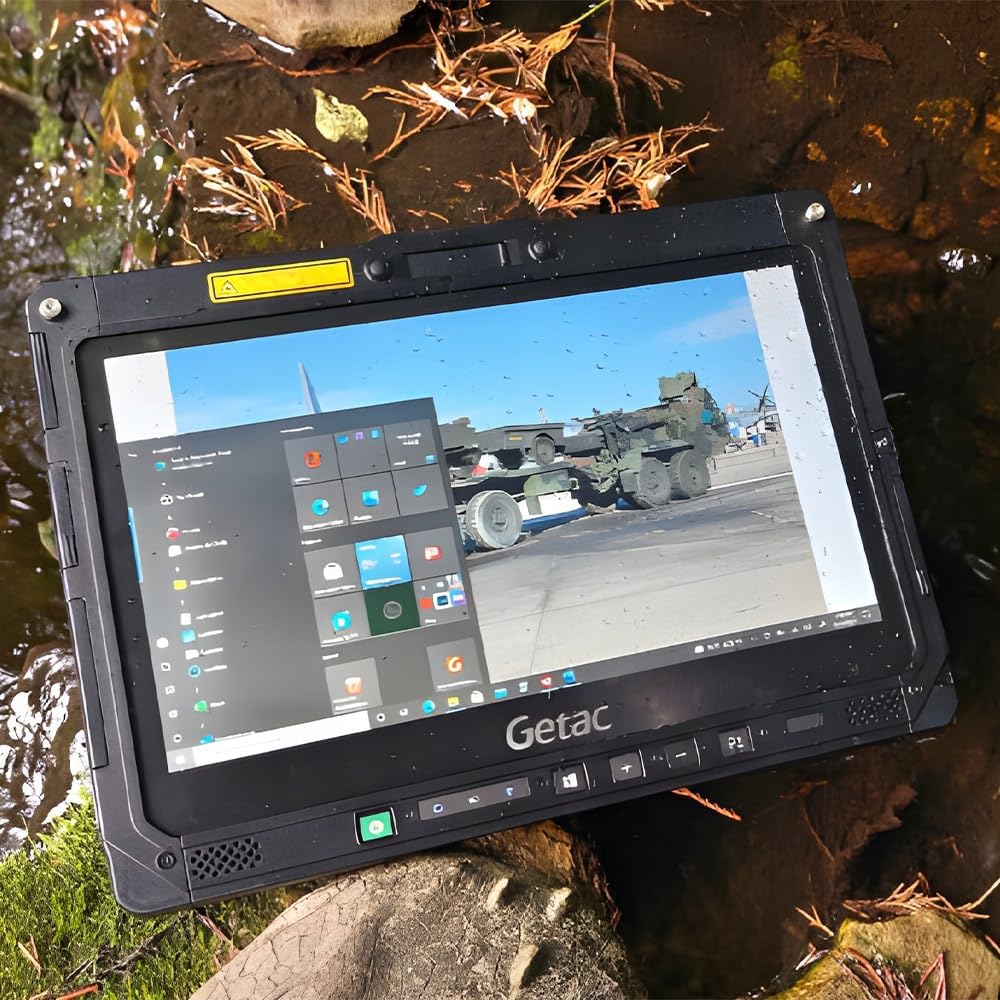
Figure 4.7: Right side ports of the keyboard dock, including two USB 3.0 ports, SDXC slot, Serial port, and DC In Jack.
5. සැකසුම සහ පළමු භාවිතය
5.1 බැටරිය ආරෝපණය කිරීම
Before initial use, fully charge the Getac K120. Connect the AC power adapter to the DC In Jack on either the tablet or the keyboard dock, then plug it into a power outlet. The charging indicator light will illuminate.
The device includes two Lithium Ion batteries. Ensure both are properly seated for optimal battery life.
5.2 බල ගැන්වීම සක්රිය / අක්රිය කිරීම
- බල ගැන්වීමට: Press and hold the power button located on the tablet's front panel until the Getac logo appears.
- බලය අක්රිය කිරීමට: Navigate to the Start Menu in Windows, select Power, and then choose "Shut down." Alternatively, press and hold the power button for several seconds to force a shutdown (not recommended for regular use).
5.3 ආරම්භක වින්ඩෝස් සැකසුම
Upon first boot, Windows 10 Professional will guide you through the initial setup process. This includes selecting your region, language, connecting to a Wi-Fi network, and creating a user account. Follow the on-screen prompts to complete the setup.
6. උපාංගය ක්රියාත්මක කිරීම
6.1 Using the Touchscreen and Stylus
The 12.5" FHD touchscreen supports multi-touch gestures. You can interact with the device using your fingers or a compatible capacitive stylus. The stylus provides precision for tasks like drawing, note-taking, or navigating small interface elements.
To use the stylus, simply touch the screen with its tip. For right-click functionality, press and hold the stylus tip on the screen until a context menu appears.
6.2 Detaching and Attaching the Keyboard Dock
The Getac K120 is a 2-in-1 device, allowing you to switch between laptop and tablet modes.
- වෙන් කිරීමට: Locate the release latch on the keyboard dock, typically near the hinge. Slide or press the latch to unlock the tablet, then carefully lift the tablet away from the keyboard.
- ඇමිනීමට: Align the tablet with the keyboard dock's connectors. Gently press the tablet down until it clicks securely into place. Ensure the latch engages to prevent accidental detachment.
6.3 සම්බන්ධක පර්යන්ත
Utilize the various ports to connect external devices:
- USB උපාංග: Connect USB drives, mice, keyboards, or other USB peripherals to the USB 3.0 or USB 3.1 Type-C ports.
- බාහිර සංදර්ශක: Use the HDMI or VGA ports to connect to external monitors or projectors.
- ජාලය: For wired network access, connect an Ethernet cable to the LAN (RJ-45) port.
- ශ්රව්ය: Plug headphones or external speakers into the Headphone out / mic-in combo jack.
- මතක කාඩ්පත්: Insert MicroSD or SDXC cards into the respective slots for expanded storage or data transfer.
7. නඩත්තුව සහ රැකවරණය
To ensure the longevity and optimal performance of your Getac K120, follow these maintenance guidelines:
- පිරිසිදු කිරීම: මෘදු, ලින්ට් රහිත රෙදි භාවිතා කරන්න dampened with water or a screen cleaner to wipe the display. For the casing, a mild soap solution can be used. Ensure all port covers are closed before cleaning. Avoid abrasive cleaners or solvents.
- වරාය ආවරණ: Always keep all port covers securely closed when not in use to protect against dust, water, and impact, maintaining the device's rugged integrity.
- බැටරි සත්කාර: Avoid fully discharging the batteries frequently. For long-term storage, charge the batteries to about 50% and store the device in a cool, dry place.
- මෘදුකාංග යාවත්කාලීන: Regularly update Windows and device drivers to ensure system stability, security, and performance. Check the Getac support webනිශ්චිත ධාවක යාවත්කාලීන කිරීම් සඳහා අඩවිය.
- පාරිසරික තත්ත්වයන්: While rugged, avoid exposing the device to extreme temperatures, direct sunlight for prolonged periods, or corrosive substances.
8. දෝශ නිරාකරණය
This section addresses common issues you might encounter with your Getac K120.
| ගැටලුව | විය හැකි හේතුව | විසඳුම |
|---|---|---|
| උපාංගය බලගන්වන්නේ නැත. | Low or no battery charge; power adapter issue. | Connect the AC adapter and allow the device to charge for at least 30 minutes before attempting to power on. Ensure the power adapter is securely connected to both the device and the outlet. |
| ස්පර්ශ තිරය ප්රතිචාර නොදක්වයි. | Software glitch; screen protector interference; dirty screen. | Restart the device. Clean the screen with a soft, lint-free cloth. If a screen protector is installed, ensure it is properly applied and not interfering. |
| Keyboard or touchpad not working. | Keyboard dock not properly connected; driver issue. | Ensure the tablet is securely docked to the keyboard. Detach and reattach the tablet. Check Device Manager in Windows for any driver issues and update if necessary. |
| Wi-Fi සම්බන්ධතාවයක් නොමැත. | Wi-Fi adapter off; incorrect network settings; out of range. | Check if Wi-Fi is enabled in Windows settings. Verify network password. Move closer to the Wi-Fi router. Restart the router and the device. |
9. පිරිවිතර
| සංරචකය | විස්තර |
|---|---|
| ප්රොසෙසරය | 8th Gen Intel Quad Core i5-8250U (1.6 GHz, up to 3.4 GHz) |
| මෙහෙයුම් පද්ධතිය | වින්ඩෝස් 10 ප්රොෆෙෂනල් (64-බිට්) |
| ප්රදර්ශනය කරන්න | 12.5" FHD Touchscreen (1920 x 1080 pixels) |
| RAM මතකය | 16GB DDR4 RAM |
| දෘඪ තැටිය | 512GB ඝන-තත්ව ධාවකය (SSD) |
| ග්රැෆික් කොප්රොසෙසරය | Intel UHD Graphics 620 |
| රැහැන් රහිත | බ්ලූටූත්, Wi-Fi (802.11bgn) |
| USB Ports | Tablet: 1x USB 3.0, 1x USB 3.1 Gen 1 Type-C; Keyboard: 3x USB 3.0 |
| වීඩියෝ වරායන් | Tablet: 1x HDMI; Keyboard: 1x HDMI, 1x VGA |
| ජාල වරාය | Tablet: 1x LAN (RJ-45); Keyboard: 1x LAN (RJ-45) |
| ශ්රව්ය වරාය | 1x Headphone out / mic-in combo |
| කාඩ් කට්ට | Tablet: 1x MicroSD slot; Keyboard: 1x SDXC slot |
| අනුක්රමික වරාය | Tablet: 1x Serial Port; Keyboard: 1x Serial Port |
| ඩොකින් සම්බන්ධකය | 2x (on tablet) |
| අයිතමයේ බර | රාත්තල් 8.23 කි |
| නිෂ්පාදන මානයන් | අඟල් 13.4 x 12.1 x 1.85 |
10. වගකීම් සහ සහාය
This product is offered as a renewed item. Please refer to the specific warranty and return policy provided by the seller at the time of purchase. Typically, renewed products on Amazon come with a 90-day return/replacement policy.
For technical support, driver downloads, or further assistance, please visit the official Getac support webඅඩවියට හෝ විකුණුම්කරු කෙලින්ම අමතන්න.


