1. හැඳින්වීම
This manual provides comprehensive instructions for the setup, operation, and maintenance of your typecase Keyboard Case. Please read this manual thoroughly before using the product to ensure optimal performance and longevity.

Image: The typecase Keyboard Case with an iPad Pro, showcasing its integrated design and backlit keyboard.
2. ගැළපුම
The typecase Keyboard Case is designed for specific iPad models. Verify your iPad model number to ensure compatibility.
- New iPad Pro 13-inch (M4, 2024)
- New iPad Air 13-inch (M2, 2024)
- iPad Pro 12.9 2022 (6th Generation)
- iPad Pro 12.9 2021 (5th Generation)
- iPad Pro 12.9 2020 (4th Generation)
- iPad Pro 12.9 2018 (3rd Generation)
Compatible model numbers include: A2925, A2926, A3007, A2898, A2899, A2900, A2436, A2437, A2764, A2766, A2378, A2379, A2461, A2462, A2229, A2069, A2232, A2233, A1876, A2014, A1895, A1983.
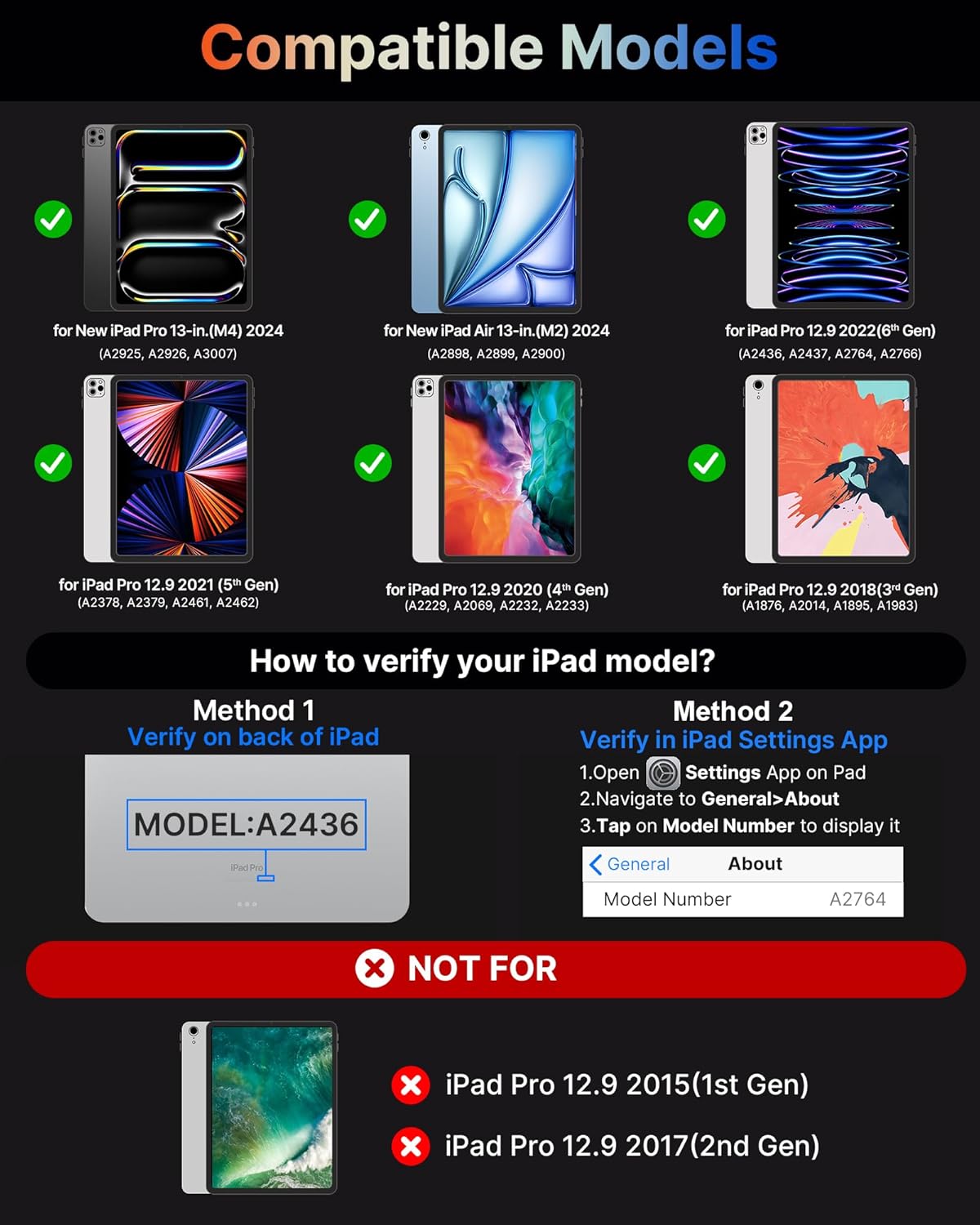
Image: Visual guide showing compatible iPad models and how to verify your iPad's model number.
3. පෙට්ටියේ ඇති දේ
පැකේජය විවෘත කරන විට, පහත සඳහන් සියලු අයිතම එහි ඇති බවට වග බලා ගන්න:
- Keyboard Case for iPad Pro 13*1
- USB කේබලය
- පරිශීලක අත්පොත
4 ප්රධාන ලක්ෂණ
The typecase Keyboard Case offers a range of features designed to enhance your iPad experience:

Image: An infographic detailing various features of the keyboard case, including its tough hinge, large trackpad, 11-color backlight, and shortcut keys.
4.1. Precise Large Trackpad
The integrated multi-touch trackpad provides precise touch responses, facilitating efficient editing, browsing, and video playback. Its generous size allows for seamless navigation without the need for an external mouse, transforming your iPad into a laptop-like device for enhanced productivity.
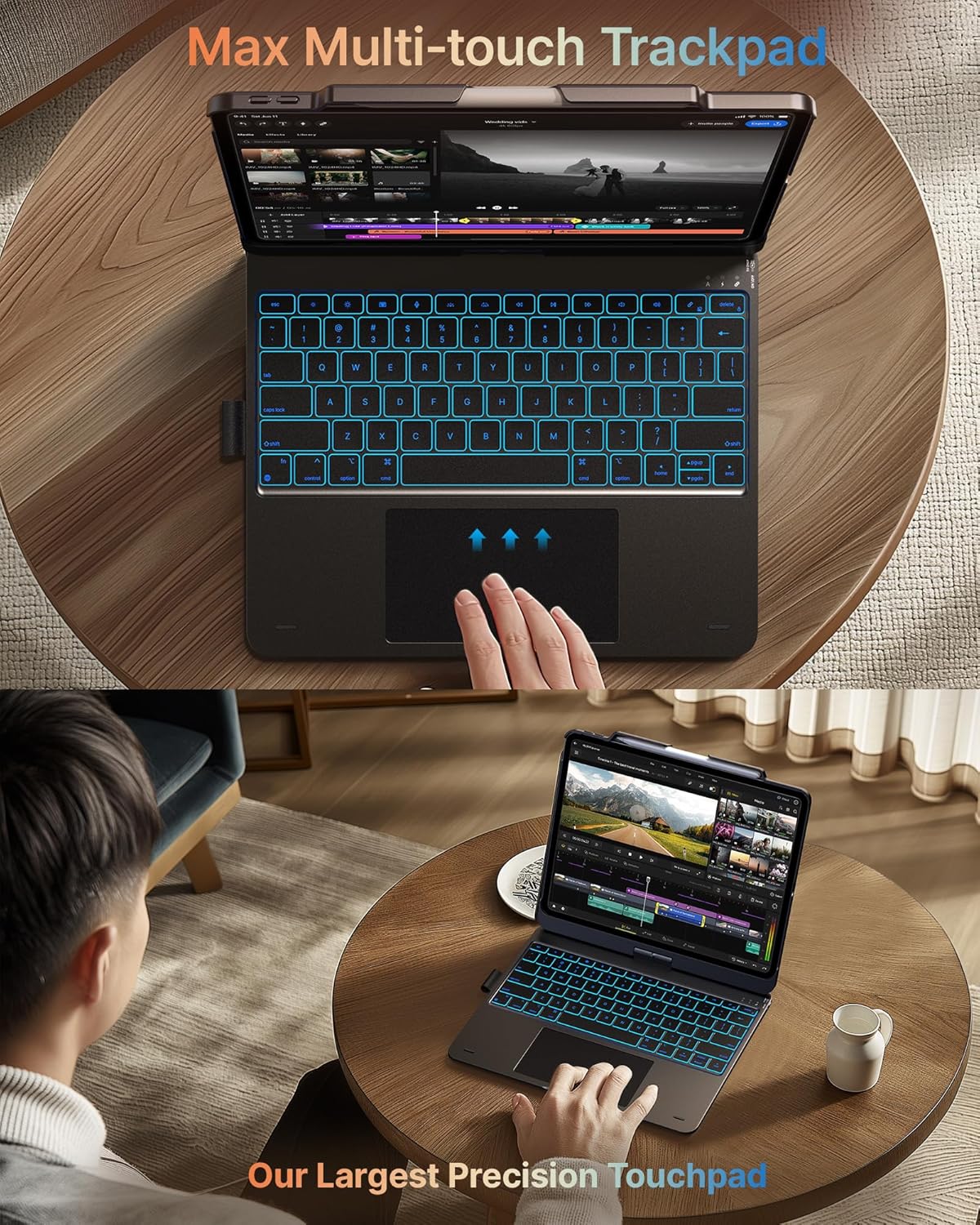
රූපය: සමීප ඡායාරූපයක් view of the keyboard case's large multi-touch trackpad, demonstrating its precision and ease of use.
4.2. 11-Color Backlit Keyboard & Shortcuts
The keyboard features 11-color backlighting with three levels of brightness adjustment, ensuring comfortable typing in various lighting conditions, including low-light environments. A full set of PadOS multimedia shortcuts allows for convenient control of volume, music playback, and other functions directly from the keyboard.
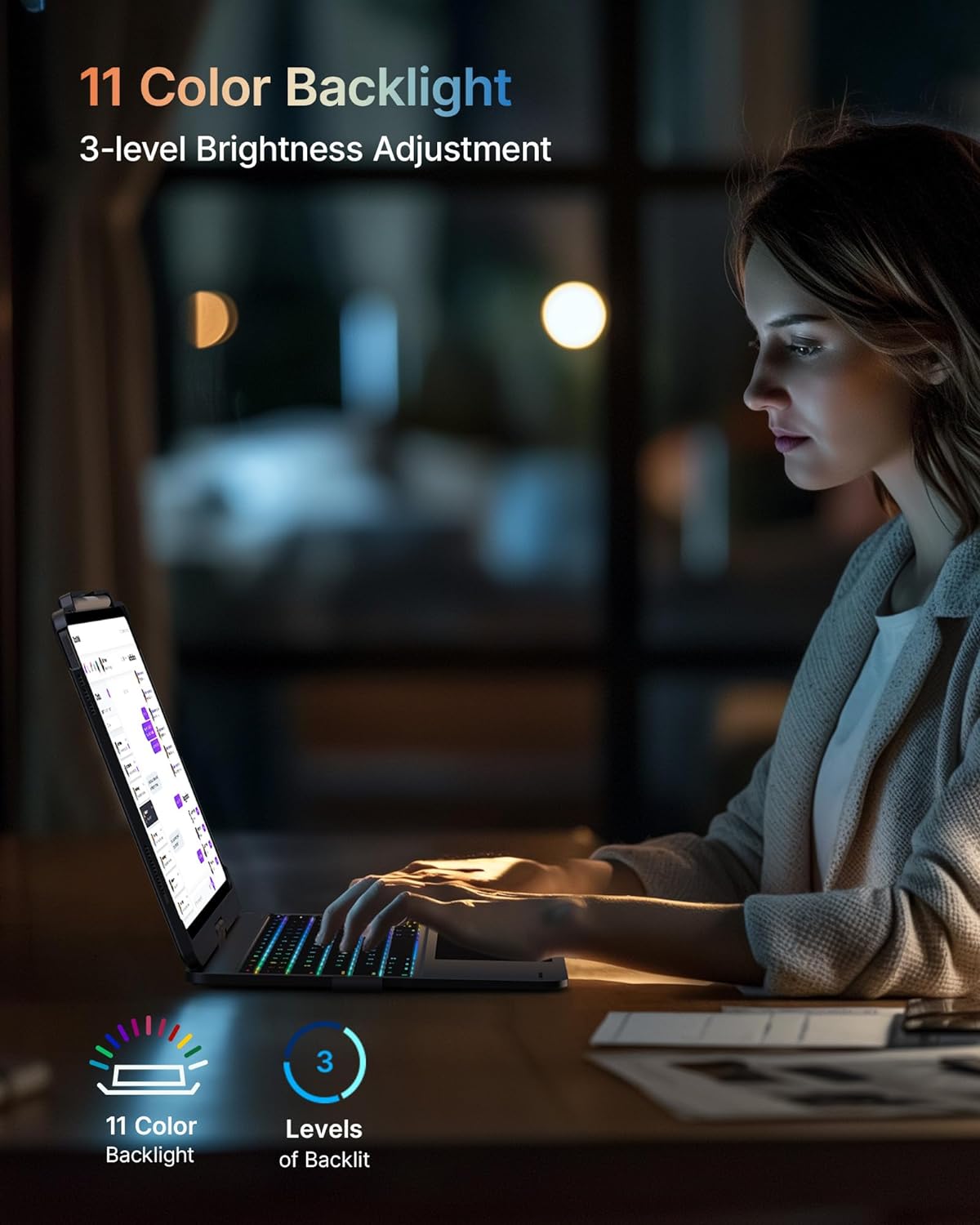
Image: The keyboard case displaying its 11-color backlight feature, highlighting the adjustable brightness levels.
4.3. 7-Usage Modes with 360° Hinge
Equipped with a 360° hinge, the case supports seven distinct usage modes, providing versatility for various activities such as typing, drawing, watching videos, or browsing. This adaptability makes it suitable for diverse scenarios, from academic use to professional tasks and creative endeavors.

Image: A collage illustrating the seven different usage modes of the keyboard case, including laptop, stand, tent, tablet, and protection modes.
4.4. Comprehensive Protection & Portable Design
The keyboard case features a premium hardshell construction that provides comprehensive protection for both the front and back of your iPad. Its thin and light design ensures portability, while a built-in pencil holder keeps your stylus secure and readily accessible.

Image: Visual representation of the keyboard case's thin profile, light weight, full protection, and portable design.
5. සැකසුම් මාර්ගෝපදේශය
5.1. යතුරු පුවරුව ආරෝපණය කිරීම
Before initial use, fully charge the keyboard. Connect the provided USB cable to the charging port on the keyboard and to a USB power adapter (not included) or a computer's USB port. The charging indicator light will typically show red during charging and turn off or change color when fully charged.
5.2. ඔබගේ iPad ඇතුළු කිරීම
Carefully align your iPad with the case and gently press it into place until it is securely seated. Ensure all ports and buttons are accessible and not obstructed by the case. The case is designed for a snug fit to provide optimal protection.
5.3. බ්ලූටූත් යුගලනය
- බල ස්විචය "ON" ස්ථානයට ලිස්සා යාමෙන් යතුරු පුවරුව ක්රියාත්මක කරන්න.
- Press the Bluetooth pairing button on the keyboard (refer to the keyboard layout for exact location, often indicated by a Bluetooth symbol). The Bluetooth indicator light will begin to flash, indicating it is in pairing mode.
- ඔබගේ iPad එකේ, යන්න සැකසීම් > බ්ලූටූත්.
- Ensure Bluetooth is enabled. Your iPad will search for nearby devices.
- Select "typecase Keyboard" (or similar name) from the list of available devices.
- If prompted, enter the pairing code displayed on your iPad screen using the keyboard, then press ඇතුල් කරන්න.
- Once paired, the Bluetooth indicator light on the keyboard will stop flashing and remain solid, or turn off. Your keyboard is now connected.
සටහන: The keyboard may automatically reconnect to your iPad when turned on, provided Bluetooth is enabled on your iPad and the keyboard was previously paired.
6. මෙහෙයුම් උපදෙස්
6.1. Using the Trackpad
The trackpad supports multi-touch gestures for intuitive navigation:
- තනි ඇඟිලි තට්ටු කිරීම: වම්-ක්ලික් කරන්න.
- ඇඟිලි දෙකකින් තට්ටු කිරීම: දකුණු-ක්ලික් කරන්න (සන්දර්භ මෙනුව).
- ඇඟිලි දෙකේ අනුචලනය: ඉහළට හෝ පහළට අනුචලනය කරන්න.
- විශාලනය කිරීමට පින්ච් කරන්න: Use two fingers to pinch in or out to zoom.
- Swipe with Three Fingers Up: යෙදුම් මාරු කරන්නා විවෘත කරන්න.
- Swipe with Three Fingers Down: මුල් තිරය වෙත ආපසු යන්න.
- Swipe with Three Fingers Left/Right: විවෘත යෙදුම් අතර මාරු වන්න.
6.2. පසුබිම් ආලෝකය සකස් කිරීම
To cycle through the 11 backlight colors, press the විදුලි බුබුල key (often located near the function keys). To adjust the brightness level (3 levels), press the දීප්තිය ඉහළට/පහළට keys (often combined with function keys).
6.3. PadOS Shortcut Keys
The keyboard includes dedicated PadOS shortcut keys for quick access to common functions:
| යතුර/සංයෝජනය | කාර්යය |
|---|---|
| නිවස | මුල් තිරය වෙත ආපසු යන්න |
| සෙවීම | Activate Spotlight Search |
| දීප්තිය පහළට | තිරයේ දීප්තිය අඩු කරන්න |
| දීප්තිය ඉහළට | තිරයේ දීප්තිය වැඩි කරන්න |
| Keyboard Hide/Show | Toggle on-screen keyboard visibility |
| පෙර ධාවන පථය | Go to previous media track |
| වාදනය / විරාමය | මාධ්ය වාදනය කරන්න හෝ විරාම කරන්න |
| ඊළඟ ධාවන පථය | Go to next media track |
| නිහඬ කරන්න | ශ්රව්ය ප්රතිදානය නිහte කරන්න |
| Volume Down | පරිමාව අඩු කරන්න |
| ශබ්දය වැඩි කරන්න | පරිමාව වැඩි කරන්න |
| අගුළු තිරය | Lock your iPad screen |
6.4. Utilizing 7 Usage Modes
The 360° rotatable hinge allows for flexible positioning:
- ලැප්ටොප් මාදිලිය: Standard laptop configuration for typing and trackpad use.
- ටැබ්ලට් මාදිලිය: Fold the keyboard behind the iPad for a pure tablet experience.
- ස්ථාවර මාදිලිය: Position the iPad at an angle for viewing content without the keyboard in front.
- කූඩාරම් මාදිලිය: Invert the case to create a stable stand for video calls or presentations.
- බෙදාගැනීමේ මාදිලිය: Rotate the screen 180 degrees to share content with others.
- ආරක්ෂණ මාදිලිය: Close the case to fully enclose and protect your iPad.
- කෝනර් ප්රකාරය: Adjust the angle for comfortable drawing or writing.
7. නඩත්තුව සහ රැකවරණය
- පිරිසිදු කිරීම: යතුරු පුවරුව සහ කේස් එක පිස දැමීමට මෘදු, ලින්ට් රහිත රෙද්දක් භාවිතා කරන්න. මුරණ්ඩු සලකුණු සඳහා, තරමක් dampරෙදි කැබැල්ල වතුරෙන් හෝ මෘදු, උල්ෙල්ඛ නොවන පිරිසිදුකාරකයකින් පිස දමන්න. අධික තෙතමනය වළක්වා ගන්න.
- ගබඩා: When not in use for extended periods, store the keyboard case in a cool, dry place. Ensure the keyboard is turned off to conserve battery life.
- හැසිරවීම: Avoid dropping the case or exposing it to extreme temperatures, direct sunlight, or liquids. Do not attempt to disassemble the keyboard or case, as this may void the warranty.
- බැටරි සත්කාර: To prolong battery life, avoid fully discharging the battery frequently. Charge the keyboard regularly, even if not used daily.
8. දෝශ නිරාකරණය
| ගැටලුව | විය හැකි හේතුව | විසඳුම |
|---|---|---|
| යතුරුපුවරුව බ්ලූටූත් හරහා සම්බන්ධ නොවේ | Keyboard is off, low battery, not in pairing mode, or iPad Bluetooth is off. | Ensure keyboard is charged and turned on. Put keyboard in pairing mode. Check iPad Bluetooth settings. Forget device on iPad and re-pair. |
| Keys or trackpad unresponsive | Low battery, connection issue, or software glitch. | Charge the keyboard. Turn the keyboard off and on again. Restart your iPad. Re-pair the Bluetooth connection. |
| Volume buttons on iPad are pressed automatically | iPad not seated correctly in the case, or case misalignment. | Carefully re-seat the iPad in the case, ensuring it is perfectly aligned and snapped into place. Check for any debris obstructing the fit. |
| Cursor jumps erratically while typing | Accidental palm contact with the trackpad. | Adjust typing posture to avoid resting palms on the trackpad. Ensure only fingers are making contact with the keys and trackpad. |
| Backlight not working or changing colors | Feature not activated, or low battery. | Press the backlight key to activate/cycle colors. Charge the keyboard. |
9. පිරිවිතර
| විශේෂාංගය | විස්තර |
|---|---|
| ආදර්ශ අංකය | typecase Keyboard Case 201T129 |
| නිෂ්පාදන මානයන් | 11.42 x 8.66 x 0.79 අඟල් (29.01 x 22.00 x 2.01 cm) |
| අයිතමයේ බර | රාත්තල් 1.98 (කිලෝ ග්රෑම් 0.90) |
| සම්බන්ධතා තාක්ෂණය | බ්ලූටූත් |
| යතුරුපුවරු විස්තරය | බහු ක්රියාකාරී |
| විශේෂ ලක්ෂණ | Backlit, Ergonomic, Hotkeys and Media Keys, Rechargeable, Trackpad |
| පසුතල වර්ණ | 11 Colors (RGB) with 3 brightness levels |
| බැටරි වර්ගය | ලිතියම් පොලිමර් (1 ඇතුළත්) |
| නිෂ්පාදකයා | ටයිප්කේස් |
| පළමු දිනය තිබේ | 1 ජූනි 2024 |
10. වගකීම් සහ සහාය
For warranty information, technical support, or customer service inquiries, please visit the official typecase store or contact their customer support channels. Details can typically be found on the manufacturer's webඅඩවිය හෝ නිෂ්පාදන ඇසුරුම්කරණය.
Official typecase Store: වෙළඳසැලට පිවිසෙන්න


