1. ඉවරයිview
The Baseus SpaceMate(MAC) Docking Station is an 11-in-1 USB-C hub designed to expand the connectivity of your MacBook or Windows laptop. It provides multiple ports for external displays, high-speed data transfer, power delivery, network connection, and audio output, enhancing your productivity and workspace organization.
ප්රධාන ලක්ෂණ:
- 11-in-1 සම්බන්ධතාවය: Features 3 HDMI ports, 2 USB-A (10Gbps), 1 USB-C (10Gbps), 2 USB-A (480Mbps), 100W PD input, Gigabit Ethernet, and a 3.5mm AUX jack.
- Triple 4K Display: Supports up to three 4K displays at 60Hz for macOS and Windows laptops, utilizing DisplayLink technology for extended desktop functionality.
- Innovative Upright Design: Sleek design with a magnetic base for stable placement and cable management. Includes an LED screen for port status and a screen-lock button for privacy.
- Super-Fast Data Transfer: Achieve 10Gbps transfer speeds via USB 3.1 ports, allowing quick transfer of large files.
- 100W බල සැපයුම: Provides up to 85W pass-through charging to your laptop (100W input required).
2. සැකසුම් මාර්ගෝපදේශය
2.1. ඇසුරුම් අන්තර්ගතය:
කරුණාකර සියලුම අයිතම පවතින බවට වග බලා ගන්න:
- Baseus SpaceMate(MAC) Docking Station
- USB-C to USB-C Cable (integrated or included)
- පරිශීලක අත්පොත (මෙම ලේඛනය)
Note: Power adapter and input cable are not included. A PD 100W adapter and a PD cable are recommended for optimal charging efficiency.
2.2. ඩොකින් ස්ටේෂන් සම්බන්ධ කිරීම:
- Place the docking station on a stable surface. The magnetic base ensures secure positioning.
- Connect the integrated USB-C cable from the docking station to a USB-C port on your laptop.
- For power delivery, connect a compatible USB-C power adapter (100W recommended) to the PD input port on the docking station.
- ඔබගේ බාහිර මොනිටර ඩොකින් ස්ටේෂන් එකේ HDMI තොටට සම්බන්ධ කරන්න.
- Connect any other peripherals (USB devices, Ethernet cable, audio devices) to their respective ports.

රූපය: ඉදිරිපස සහ පසුපස view of the Baseus SpaceMate Docking Station, highlighting its various input and output ports.
2.3. Driver Installation (Crucial for Display Functionality):
The docking station utilizes DisplayLink technology for multi-monitor support, especially for macOS. It is essential to install the DisplayLink driver for proper functionality of the HDMI ports.
- Visit the official DisplayLink webඅඩවිය (https://www.synaptics.com/products/displaylink-graphics/downloads) to download the latest DisplayLink driver compatible with your operating system (macOS or Windows).
- ධාවක ස්ථාපනය කිරීම සඳහා තිරයේ ඇති උපදෙස් අනුගමනය කරන්න.
- After installation, ensure the DisplayLink Manager application is set to launch automatically at system startup. This is critical for consistent multi-monitor functionality.
- විමසන්නේ නම් ඔබේ පරිගණකය නැවත ආරම්භ කරන්න.
3. මෙහෙයුම් උපදෙස්
3.1. Display Connectivity:
The docking station supports single, dual, and triple display setups at 4K resolution (3840x2160) at 60Hz via its HDMI ports.

Image: A MacBook Pro connected to the Baseus SpaceMate Docking Station, extending its display across three external 4K monitors, demonstrating a triple display setup for macOS.

Image: Visual representation of a triple display setup on macOS, with the laptop screen (A) and three external monitors (B, C, D) connected to the docking station.

Image: A table illustrating the supported resolutions and refresh rates for single, dual, and triple display configurations in Mac MST Mode (macOS DP1.4).

Image: Visual representation of a triple display setup for Windows laptops, with the laptop screen (A) and three external monitors (B, C, D) connected to the docking station.

Image: A table illustrating the supported resolutions and refresh rates for single, dual, and triple display configurations in Windows MST Mode (Windows DP1.4 output with DSC).
3.2. දත්ත හුවමාරුව:
The docking station features high-speed USB ports for efficient data transfer:
- 2 x USB-A (10Gbps) & 1 x USB-C (10Gbps): Ideal for connecting external SSDs, flash drives, or other high-speed storage devices. Transfer 20GB files in approximately 20 seconds.
- 2 x USB-A (480Mbps): Suitable for connecting peripherals like keyboards, mice, or printers.

Image: The docking station facilitating fast data transfer between a laptop and an external SSD, highlighting the 10Gbps speed capability.
3.3. බල සැපයුම:
The USB-C PD input port supports up to 100W power input, providing up to 85W pass-through charging to your connected laptop. This allows you to charge your laptop while using the docking station with a single cable connection.

Image: A diagram illustrating the power flow, showing 100W input to the docking station from a power adapter and 85W output to a MacBook Pro for charging.
3.4. ජාල සම්බන්ධතාවය:
The Gigabit Ethernet port provides a stable and fast wired network connection, supporting speeds up to 1Gbps. This is ideal for reliable internet access and large file transfers over a local network.

රූපය: සමීප ඡායාරූපයක් view of the Gigabit Ethernet port on the Baseus SpaceMate Docking Station, with an Ethernet cable plugged in, indicating stable network expansion.
3.5. ශ්රව්ය සම්බන්ධතාවය:
The integrated 3.5mm AUX jack allows you to connect headphones, speakers, or microphones for high-quality audio input and output without delay.

Image: A user enjoying audio through headphones connected to the 3.5mm AUX port of the docking station, demonstrating seamless audio and visual synchronization.
3.6. Screen-Lock Button:
The screen-lock button on top of the docking station provides a quick way to secure your sensitive information. Press it once for Windows or twice for macOS to lock your screen instantly.

Image: A hand pressing the screen-lock button on the top of the docking station, with icons indicating single press for Windows and double press for macOS to protect privacy.
3.7. LED සංදර්ශකය:
The built-in LED screen on the front of the docking station intelligently displays the connection status of each port, providing visual feedback on active connections for screen casting, data transfer, charging, Ethernet, and audio.
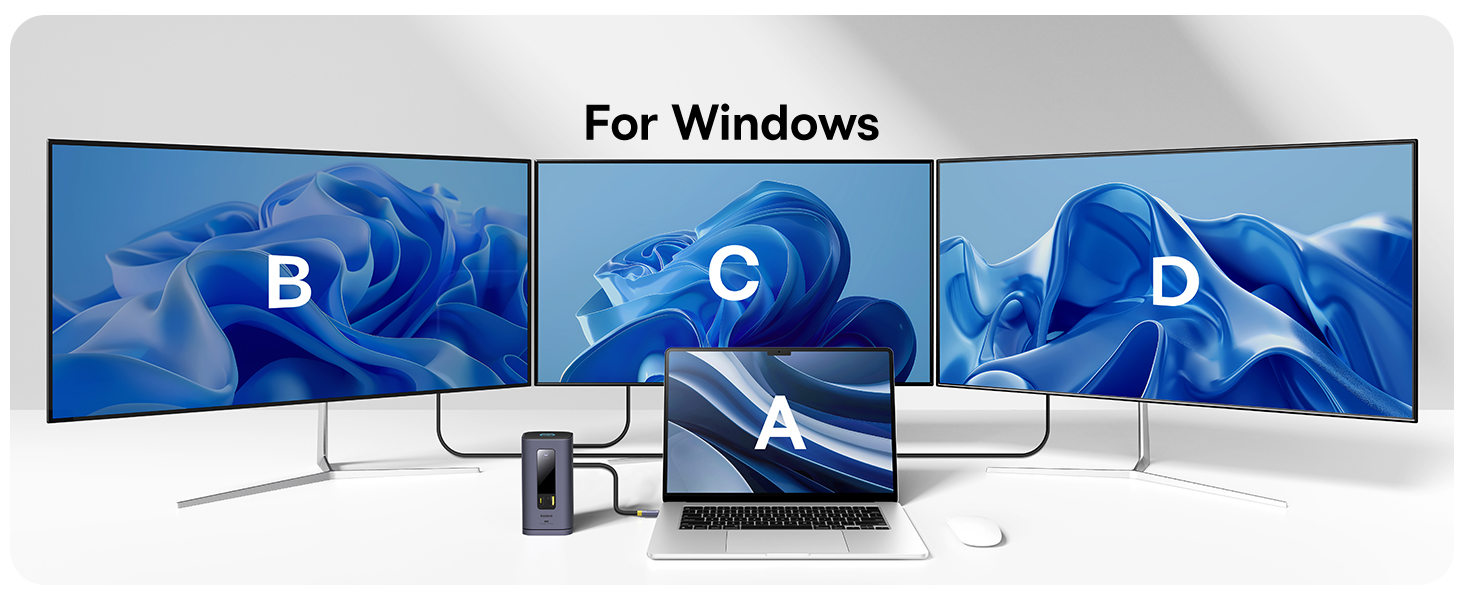
Image: The LED display on the docking station illuminating icons for Screen Casting, Data Transfer, Charging, Ethernet, and Audio, indicating active connections.
4. නඩත්තුව සහ රැකවරණය
- Keep the docking station in a dry environment and avoid exposure to liquids.
- මෘදු වියළි රෙද්දකින් මතුපිට පිරිසිදු කරන්න. උල්ෙල්ඛ පිරිසිදු කරන්නන් හෝ ද්රාවක භාවිතා නොකරන්න.
- Ensure proper ventilation around the device to prevent overheating, especially during prolonged use with multiple connected devices.
- උපාංගය ප්රබල බලපෑම්වලට වැටීමෙන් හෝ යටත් කිරීමෙන් වළකින්න.
- When disconnecting, always pull from the plug, not the cable, to prevent damage.
5. පොදු ගැටළු දෝශ නිරාකරණය
| ගැටලුව | විය හැකි හේතුව | විසඳුම |
|---|---|---|
| No external display or unstable HDMI connection. | DisplayLink driver not installed or not running; faulty cables; incorrect display settings. | Ensure DisplayLink driver is installed and DisplayLink Manager is running (set to auto-launch). Try different HDMI cables. Check display settings on your laptop to detect monitors. Restart the docking station and laptop. |
| Docking station feels warm/hot. | අධික බරක් යටතේ සාමාන්ය ක්රියාකාරිත්වය; ප්රමාණවත් වාතාශ්රයක් නොමැතිකම. | Some heat is normal, especially when charging or driving multiple displays. Ensure the docking station is placed in a well-ventilated area and not covered. If excessively hot, disconnect and allow to cool. |
| USB ports or Ethernet not working. | Loose connection; driver issue; power issue. | Ensure all cables are securely connected. Reinstall DisplayLink driver. Verify the docking station is receiving sufficient power, especially if using power-hungry devices. Try connecting devices to different ports. |
| ලැප්ටොප් පරිගණකය ආරෝපණය නොවීම හෝ සෙමින් ආරෝපණය වීම. | Insufficient power adapter; non-PD compatible cable. | Ensure you are using a 100W PD power adapter and a USB-C cable that supports Power Delivery. Check if the power adapter is properly connected to the docking station. |
6. නිෂ්පාදන පිරිවිතර
| විශේෂාංගය | විස්තර |
|---|---|
| ආදර්ශ අංකය | 11 න් 1 |
| වෙළඳ නාමය | බේසියස් |
| වර්ණය | අළු |
| දෘඩාංග අතුරුමුහුණත | USB 3.1 Type A, USB 3.1 Type C, Ethernet, HDMI, USB 2.0 Type A, 3.5mm Audio |
| HDMI වරායන් | 3 x HDMI (up to 4K@60Hz) |
| USB දත්ත තොට | 2 x USB-A (10Gbps), 1 x USB-C (10Gbps), 2 x USB-A (480Mbps) |
| බල සැපයුම (PD) | 100W Input, 85W Output (Pass-through charging) |
| ඊතර්නෙට් වරාය | Gigabit Ethernet (up to 1Gbps) |
| ඕඩියෝ ජැක් | 3.5mm AUX In/Out |
| ගැළපෙන උපාංග | For M1/M2/M3 Mac and Windows laptops |
| අයිතමයේ බර | රාත්තල් 1.5 කි |
| පැකේජ මානයන් | අඟල් 7.17 x 4.76 x 3.03 |
| පළමු දිනය තිබේ | 9 මැයි 2024 |
7. වගකීම් සහ පාරිභෝගික සහාය
Baseus products are designed and manufactured to the highest quality standards. For information regarding warranty coverage, please refer to the warranty card included with your product or visit the official Baseus webඅඩවිය.
If you encounter any issues or have questions about your Baseus SpaceMate(MAC) Docking Station, please contact Baseus customer support through their official website or the retailer where you purchased the product. Please have your product model number and purchase details ready when contacting support.


