1. හැඳින්වීම
Welcome to the Headwolf HPad5 Tablet User Manual. This guide provides detailed instructions on how to set up, operate, and maintain your new tablet. The Headwolf HPad5 is a high-performance Android 13 tablet designed for a seamless user experience, featuring a powerful processor, vibrant display, and long-lasting battery.

Figure 1.1: Headwolf HPad5 Tablet showcasing its sleek design and key features like 30W fast charging, Widevine L1, and Android 13.
2. නිෂ්පාදන ලක්ෂණ
2.1 ප්රධාන විශේෂාංග අවසන්view
The Headwolf HPad5 tablet is equipped with advanced features to enhance your digital experience:
- Powerful MTK G99 CPU: Features an 8-core flagship chip with a maximum frequency of 2.2GHz, built on a 6nm process for improved performance and reduced power consumption.
- Widevine L1 සහාය: Enjoy high-definition streaming from platforms like Netflix, Amazon Prime Video, Disney+, and Hulu in 1080P.
- Ample මතකය සහ ගබඩා කිරීම: 16GB RAM (8GB physical + 8GB virtual expansion) and 128GB internal storage, expandable up to 2TB via SD card.
- වේගවත් ආරෝපණ බැටරි: 8500mAh large capacity battery with 30W ultra-fast charging support, reaching 80% in 1 hour.
- අධි-විභේදන සංදර්ශකය: 10.5-inch FHD IPS Incell screen with 1920x1200 resolution for vivid and clear visuals.
- ද්විත්ව කැමරා: Equipped with an 8MP front camera and a 20MP rear camera for versatile photography and video calls.
- බහුකාර්ය සම්බන්ධතාවය: Supports 4G LTE (SIM-free), 2.4/5GHz Wi-Fi, and Bluetooth 5.2 for stable communication and internet access.
- Android 13 OS: Runs on the latest Android 13, GMS certified, providing access to Google services and the Google Play Store.
2.2 සකසනය සහ කාර්ය සාධනය
The HPad5 is powered by the MediaTek G99 processor, ensuring smooth multitasking and efficient performance for various applications and games.

Figure 2.1: Illustration of the MTK G99 processor and its capabilities, demonstrating smooth gaming performance on the tablet.
2.3 සංදර්ශකය සහ දෘශ්ය
Experience stunning visuals on the 10.51-inch FHD IPS Incell display, offering a resolution of 1920x1200 pixels and Widevine L1 support for high-quality streaming.

Figure 2.2: The tablet's 10.51-inch FHD display with Widevine L1 compatibility, ideal for streaming content from Netflix, Prime Video, Disney+, and Hulu.
2.4 මතකය සහ ගබඩා කිරීම
With 16GB of RAM and 128GB of internal storage, the HPad5 provides ampඔබගේ යෙදුම් සඳහා ඉඩක් සහ files. Storage can be further expanded with a microSD card up to 2TB.
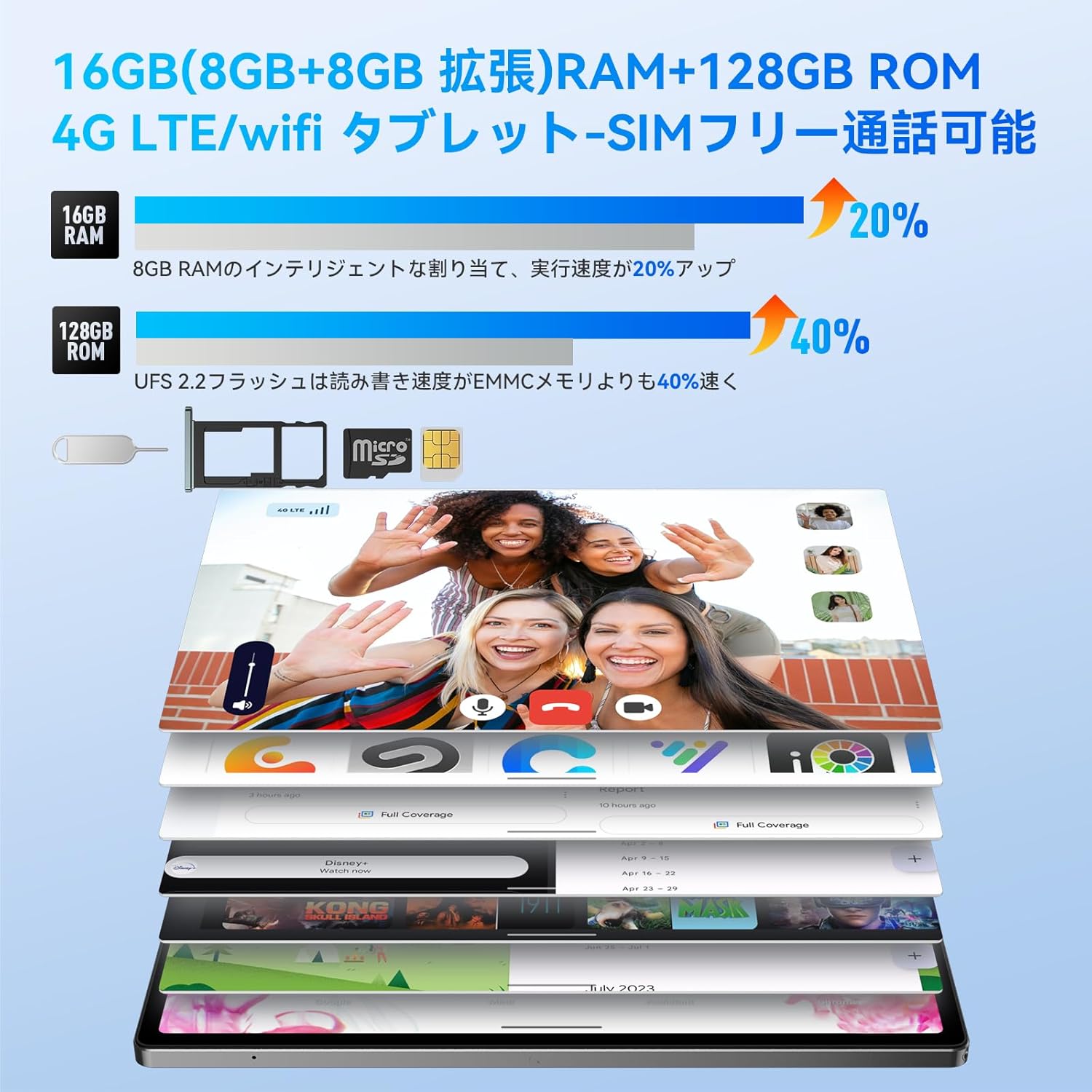
Figure 2.3: Visual representation of 16GB RAM (8GB physical + 8GB virtual) and 128GB ROM, highlighting the performance boost and microSD card slot.
2.5 බැටරි සහ ආරෝපණය
The 8500mAh battery offers extended usage, and with 30W fast charging, you can quickly power up your device.

Figure 2.4: The 8500mAh battery and 30W fast charging capability, with illustrations of the included 20W charger and 3.5mm headphone jack.
2.6 කැමරා
Capture moments with the 8MP front camera and 20MP rear AI camera, supporting various shooting modes.

Figure 2.5: Details of the 8MP front and 20MP rear AI cameras, showing their placement and sample images captured by the tablet.
2.7 සම්බන්ධතාවය
Stay connected with 4G LTE, dual-band Wi-Fi (2.4G/5GHz), and Bluetooth 5.2. The tablet supports dual SIM cards for flexible communication.

Figure 2.6: The tablet's connectivity features, including dual SIM card support for 4G LTE, 2.4G/5GHz Wi-Fi, and Bluetooth 5.2.
2.8 ශ්රව්ය උපකරණ
The HPad5 features four stereo speakers, providing an immersive audio experience for movies, games, and music.

Figure 2.7: Diagram illustrating the four stereo speakers and their audio enhancement capabilities for an immersive experience.
2.9 මෙහෙයුම් පද්ධතිය
The tablet runs on Android 13, offering enhanced privacy features, improved UI customization, and a smoother user experience.

රූපය 2.8: අවසන්view of the Android 13 operating system, highlighting its privacy features and user interface improvements.
3. සැකසුම් මාර්ගෝපදේශය
3.1 පෙට්ටි ඉවත් කිරීම සහ පැකේජ අන්තර්ගතය
Upon opening the package, ensure all components are present. The standard package includes the Headwolf HPad5 tablet, a 30W charging adapter (note: 20W adapter is included, 30W adapter may be sold separately), a Type-C cable, and a SIM card pin.

Figure 3.1: The Headwolf HPad5 tablet and its included accessories, such as the charging adapter, Type-C cable, and SIM card pin.
3.2 ආරම්භක බලය සක්රීය කිරීම
- Press and hold the Power button located on the side of the tablet until the Headwolf logo appears.
- ඔබගේ භාෂාව, කලාපය තෝරා ගැනීමට සහ නියමයන් සහ කොන්දේසි වලට එකඟ වීමට තිරයේ ඇති විමසීම් අනුගමනය කරන්න.
- Connect to a Wi-Fi network to complete the initial setup and download any available updates.
- Google සේවාවන් සහ Play Store වෙත ප්රවේශ වීමට ඔබගේ Google ගිණුමෙන් පුරනය වන්න හෝ අලුත් එකක් සාදන්න.
3.3 Network Connection (Wi-Fi/SIM)
අන්තර්ජාලයට සම්බන්ධ වීමට:
- Wifi: වෙත යන්න සැකසීම් > ජාලය සහ අන්තර්ජාලය > Wifi. Wi-Fi ක්රියාත්මක කර, ඔබට අවශ්ය ජාලය තෝරන්න, සහ විමසන්නේ නම් මුරපදය ඇතුළත් කරන්න.
- SIM කාඩ්පත: Insert a nano-SIM card into the SIM card slot using the provided SIM pin. Ensure the tablet is powered off before inserting or removing the SIM card. Go to සැකසීම් > ජාලය සහ අන්තර්ජාලය > ජංගම ජාලය to configure mobile data settings if necessary.
4. මෙහෙයුම් උපදෙස්
4.1 මූලික මෙහෙයුම්
- බලය සක්රිය / අක්රිය: Press and hold the Power button. Select "Power off" or "Restart".
- ශබ්ද පාලනය: Use the Volume Up/Down buttons on the side of the tablet.
- තිරපිටපත්: Press the Power button and Volume Down button simultaneously.
- සංචාලනය: Use gestures (swipe up for home, swipe from sides for back) or the on-screen navigation bar.
4.2 ස්ප්ලිට් ස්ක්රීන් ක්රියාකාරිත්වය
The split-screen feature allows you to use two applications simultaneously, enhancing productivity.

Figure 4.1: The tablet's split-screen functionality, allowing two apps to be displayed and operated concurrently.
To activate: Open an app, swipe up from the bottom of the screen and hold to reveal recent apps, then tap the app icon at the top of the window and select "Split screen". Choose a second app from the recent apps or app drawer.
4.3 රැහැන් රහිත ප්රක්ෂේපණය
Project your tablet's screen to a larger display, such as a TV or monitor, for a more immersive viewඅත්දැකීමෙන්.

Figure 4.2: Demonstrating the wireless projection feature, allowing the tablet's display to be mirrored on a larger screen.
To activate: Go to සැකසීම් > සම්බන්ධිත උපාංග > සම්බන්ධතා මනාප > කස්ටිය. Select your compatible display device.
4.4 GPS ක්රියාකාරීත්වය
The tablet includes GPS, Beidou, and Galileo 3-in-1 navigation systems, providing accurate location services for navigation and mapping applications.

Figure 4.3: The tablet's GPS functionality, showing its use for navigation in a vehicle.
4.5 Google Kids Space
Google Kids Space provides a safe and engaging environment for children to learn and play, with parental controls to manage screen time and content.

Figure 4.4: A child interacting with the tablet in Google Kids Space, illustrating the educational and entertainment features for kids.
5. නඩත්තු කිරීම
5.1 රැකවරණය සහ පිරිසිදු කිරීම
- ටැබ්ලටයේ තිරය සහ බඳ පිරිසිදු කිරීම සඳහා මෘදු, ලින්ට් රහිත රෙද්දක් භාවිතා කරන්න. උල්ෙල්ඛ ද්රව්ය හෝ රළු රසායනික ද්රව්යවලින් වළකින්න.
- ටැබ්ලටය අධික උෂ්ණත්වයන්ගෙන්, සෘජු හිරු එළියෙන් සහ අධික ආර්ද්රතාවයෙන් ඈත් කර තබන්න.
- ටැබ්ලටය බිම දැමීමෙන් හෝ දැඩි බලපෑම්වලට ලක් කිරීමෙන් වළකින්න.
5.2 බැටරි සත්කාර
- ප්රශස්ත බැටරි ආයු කාලයක් සඳහා, බැටරිය නිතර නිතර සම්පූර්ණයෙන්ම විසර්ජනය කිරීමෙන් වළකින්න.
- Use the original charger and cable provided with the tablet.
- බැටරිය ඉහළ උෂ්ණත්වයකට නිරාවරණය නොකරන්න.
5.3 මෘදුකාංග යාවත්කාලීන
Regularly check for system updates to ensure your tablet has the latest features and security patches. Go to සැකසීම් > පද්ධතිය > පද්ධති යාවත්කාලීන කිරීම.
6. දෝශ නිරාකරණය
6.1 පොදු ගැටළු සහ විසඳුම්
| ගැටලුව | විය හැකි හේතුව / විසඳුම |
|---|---|
| ටැබ්ලටය සක්රිය නොවේ. | Battery might be drained. Connect to charger for at least 30 minutes. If still unresponsive, press and hold the Power button for 10-15 seconds to force restart. |
| Wi-Fi සම්බන්ධතා ගැටළු. | Ensure Wi-Fi is enabled. Restart your router. Forget the network in tablet settings and reconnect. Check if the Wi-Fi password is correct. |
| යෙදුම් බිඳ වැටෙමින් හෝ කැටි වෙමින් පවතී. | Close background apps. Clear app cache (Settings > Apps > [App Name] > Storage > Clear cache). Restart the tablet. Ensure apps are updated. |
| මන්දගාමී කාර්ය සාධනය. | Close unused apps. Clear storage space. Perform a factory reset as a last resort (backup data first). |
| SIM කාඩ්පත අනාවරණය කර නොමැත. | Ensure SIM card is correctly inserted. Restart the tablet. Check with your carrier for SIM card activation or issues. |
7. පිරිවිතර
7.1 තාක්ෂණික පිරිවිතර
| විශේෂාංගය | විස්තර |
|---|---|
| වෙළඳ නාමය | හිස වෘකයා |
| මාදිලියේ නම | Headwolf HPad5 |
| මෙහෙයුම් පද්ධතිය | Android 13 |
| CPU | මීඩියා ටෙක් G99 (2.2 GHz) |
| RAM | 16 GB (8GB භෞතික + 8GB අතථ්ය) |
| අභ්යන්තර ගබඩාව | 128 GB |
| පුළුල් කළ හැකි ගබඩාව | microSD කාඩ්පත හරහා 2TB දක්වා |
| තිර ප්රමාණය | අඟල් 10.51 |
| සංදර්ශක විභේදනය | 1920x1200 pixels (FHD IPS Incell) |
| Widevine Support | වයිඩ්වයින් L1 |
| පසුපස කැමරාව | 20 MP |
| ඉදිරිපස කැමරාව | 8 MP |
| බැටරි ධාරිතාව | 8500 mAh |
| අයකිරීම | 30W Fast Charging (PD/PE protocol, USB Type-C) |
| සම්බන්ධතාවය | 4G LTE (SIM-free), Wi-Fi (2.4/5GHz), Bluetooth 5.2 |
| ශ්රව්ය උපකරණ | Four Stereo Speakers, 3.5mm Headphone Jack |
| සංචලනය | GPS, Beidou, Galileo |
| මානයන් | 26 x 17.6 x 4.9 සෙ.මී |
| බර | 505 ග්රෑම් |
8. වගකීම් සහ සහාය
8.1 Quality Assurance and Warranty
Your Headwolf HPad5 tablet comes with a වසර 1ක ගුණාත්මක වගකීමක් from the date of purchase. In the event of any product defects or malfunctions under normal use, Headwolf will provide free repair or replacement services. Our comprehensive support system is designed to ensure your long-term satisfaction with the product.
8.2 Dedicated Repair Center
Headwolf operates a dedicated repair center in Tokyo, Japan, to provide prompt and efficient after-sales service. This center is equipped to handle repairs and replacements as needed, addressing customer issues and inquiries directly.
8.3 Customer Support Channels
For any questions, technical assistance, or warranty claims, please contact our customer support through one of the following channels:
- Official LINE Account: Add us on LINE using the ID @283daaku.
- ඇමසන් නිෂ්පාදන පිටුව: Navigate to the product page on Amazon, click on the "Headwolf Direct Store" link, and then select "Ask a Question" to send us a message.
- Amazon Account - Order History: Go to your Amazon account, find the relevant order in your "Order History", and select "Contact Seller".
Please provide your purchase details and a clear description of the issue to help us assist you more efficiently.


