1. හැඳින්වීම
Thank you for choosing the ZEBRONICS Groot Wireless Mouse. This manual provides detailed instructions for setting up, operating, and maintaining your new wireless mouse. The Zeb-Groot offers versatile connectivity with both 2.4GHz and Bluetooth modes, silent operation, and an ergonomic design for comfortable use.

Image: The ZEBRONICS Groot Wireless Mouse in blue, shown alongside its compact USB nano receiver.
2. පෙට්ටියේ ඇති දේ
කරුණාකර පැකේජ අන්තර්ගතය පරීක්ෂා කරන්න:
- මූසිකය - ඒකක 1
- නැනෝ ග්රාහකය - ඒකකය 1
- Quick User Guide - 1 unit
3. නිෂ්පාදන අවසන්view
Familiarize yourself with the components of your ZEBRONICS Groot Wireless Mouse.

රූපය: ඉහළට view of the mouse highlighting the Left Button, Right Button, and Scroll Wheel.

Image: Underside of the mouse, indicating the AA battery slot, On/Off switch, Bluetooth receiver indicator, Nano receiver indicator, and the storage slot for the USB nano receiver.
- වම් බොත්තම: සම්මත වම්-ක්ලික් ශ්රිතය.
- දකුණු බොත්තම: සම්මත දකුණු-ක්ලික් ශ්රිතය.
- අනුචලන රෝදය: අනුචලනය සහ මැද-ක්ලික් කිරීමේ කාර්යය සඳහා.
- සක්රිය / අක්රිය ස්විචය: බැටරිය ඉතිරි කර ගැනීම සඳහා මූසිකයේ පතුලේ පිහිටා ඇත.
- මාදිලියේ ස්විච් බොත්තම: This button, often integrated with the power switch or a separate button on the underside, allows switching between 2.4GHz and Bluetooth modes.
- AA Battery Compartment: For inserting the required AA battery.
- USB Nano Receiver Storage: Slot for storing the 2.4GHz USB receiver when not in use.
4. සැකසුම් උපදෙස්
4.1. බැටරිය ස්ථාපනය කිරීම
- මූසිකයේ යටි පැත්තේ බැටරි මැදිරි කවරය විවෘත කරන්න.
- නිවැරදි ධ්රැවීයතාව (+/-) සහතික කරමින්, එක් AA බැටරියක් ඇතුළු කරන්න.
- බැටරි මැදිරි කවරය වසා දමන්න.
4.2. 2.4GHz රැහැන් රහිත (USB නැනෝ ග්රාහකය) හරහා සම්බන්ධ කිරීම
- Remove the USB nano receiver from its storage slot on the bottom of the mouse.
- Plug the USB nano receiver into an available USB port on your computer.
- පහළ ඇති සක්රිය/අක්රිය ස්විචය භාවිතයෙන් මූසිකය ක්රියාත්මක කරන්න.
- The mouse should automatically connect. If not, ensure the mouse is in 2.4GHz mode (check indicator light if available).

Image: A user inserting the USB nano receiver into a laptop's USB port for 2.4GHz wireless connection.
4.3. බ්ලූටූත් හරහා සම්බන්ධ වීම
- On/Off ස්විචය භාවිතයෙන් මූසිකය සක්රිය කරන්න.
- Switch the mouse to Bluetooth mode. This is typically done by pressing and holding a button on the mouse (often the mode switch button on the bottom or a dedicated button) until the Bluetooth indicator light starts blinking.
- ඔබේ පරිගණකයේ හෝ උපාංගයේ, බ්ලූටූත් සැකසුම් වෙත යන්න.
- ඒ සඳහා සොයන්න new devices and select "ZEB-Groot" (or similar) from the list.
- යුගල කිරීමේ ක්රියාවලිය සම්පූර්ණ කිරීමට තිරයේ ඇති ඕනෑම විමසීමක් අනුගමනය කරන්න. සම්බන්ධ වූ පසු දර්ශක ආලෝකය ඝන වනු ඇත.
Tip: If you experience issues, ensure your device's Bluetooth is enabled and the mouse is in pairing mode (blinking indicator).
5. මෙහෙයුම් උපදෙස්
5.1. ද්විත්ව මාදිලියේ ක්රියාකාරිත්වය
The ZEBRONICS Groot mouse supports both 2.4GHz wireless and Bluetooth connectivity, allowing you to switch between two devices seamlessly.
- 2.4GHz මාදිලිය: Use with the USB nano receiver for a stable, plug-and-play connection.
- බ්ලූටූත් ප්රකාරය: Connect wirelessly to Bluetooth-enabled devices without needing a USB port.
To switch between modes, locate the mode switch button (often on the bottom of the mouse) and press it. An indicator light will typically show the active mode.

Image: The ZEBRONICS Groot mouse positioned next to a laptop, emphasizing its dual mode capability for uninterrupted work via 2.4GHz and Bluetooth connections.
5.2. DPI Adjustment (1600 DPI)
The mouse operates at 1600 DPI (Dots Per Inch), providing smooth and precise cursor movements. This fixed DPI setting is optimized for general use, offering a balance between speed and accuracy.
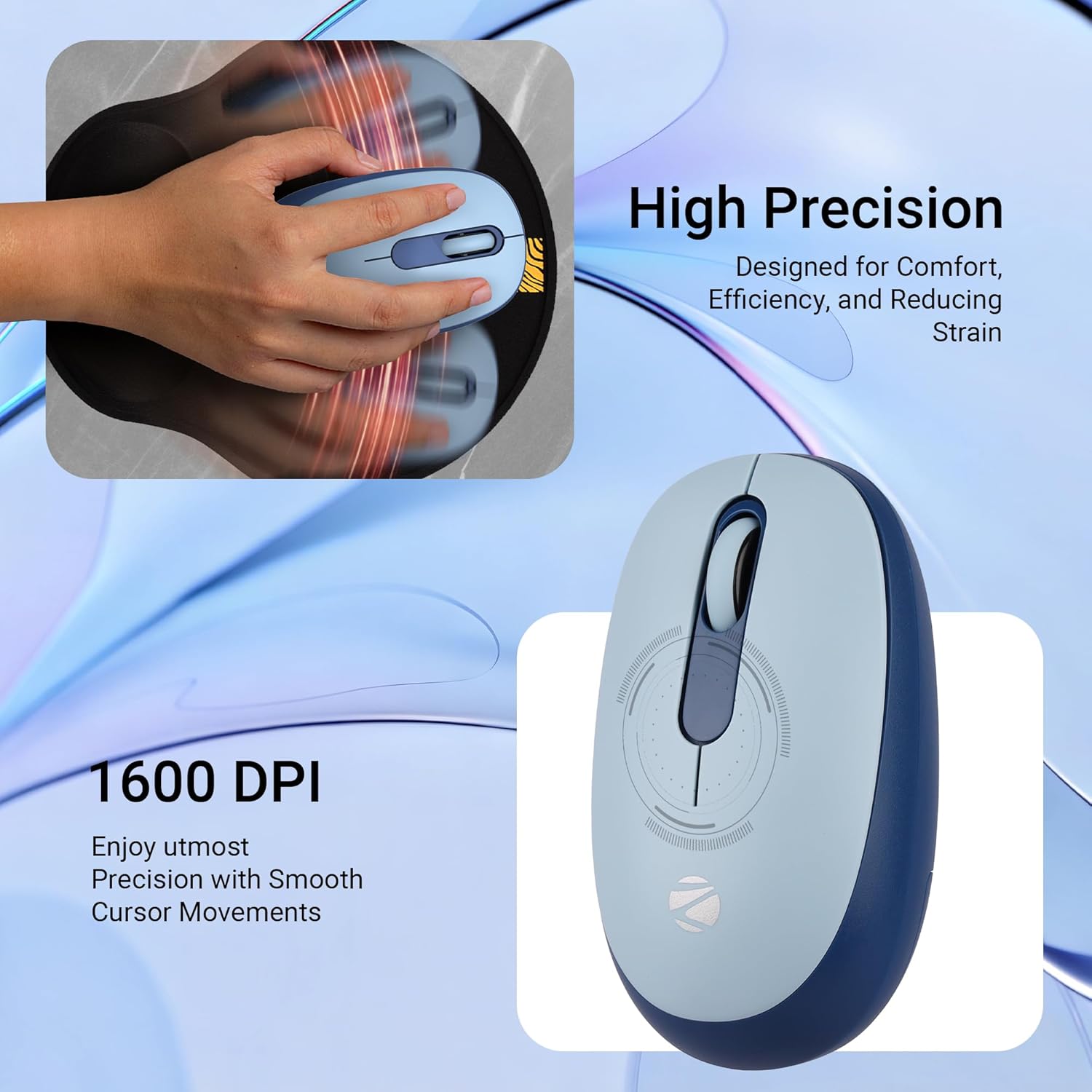
රූපය: සවිස්තරාත්මක view of the mouse highlighting its 1600 DPI capability for high precision and smooth cursor movements.
5.3. නිහඬ මෙහෙයුම
The ZEBRONICS Groot mouse features silent click buttons, reducing noise during use. This is ideal for quiet environments such as libraries, offices, or late-night work sessions.
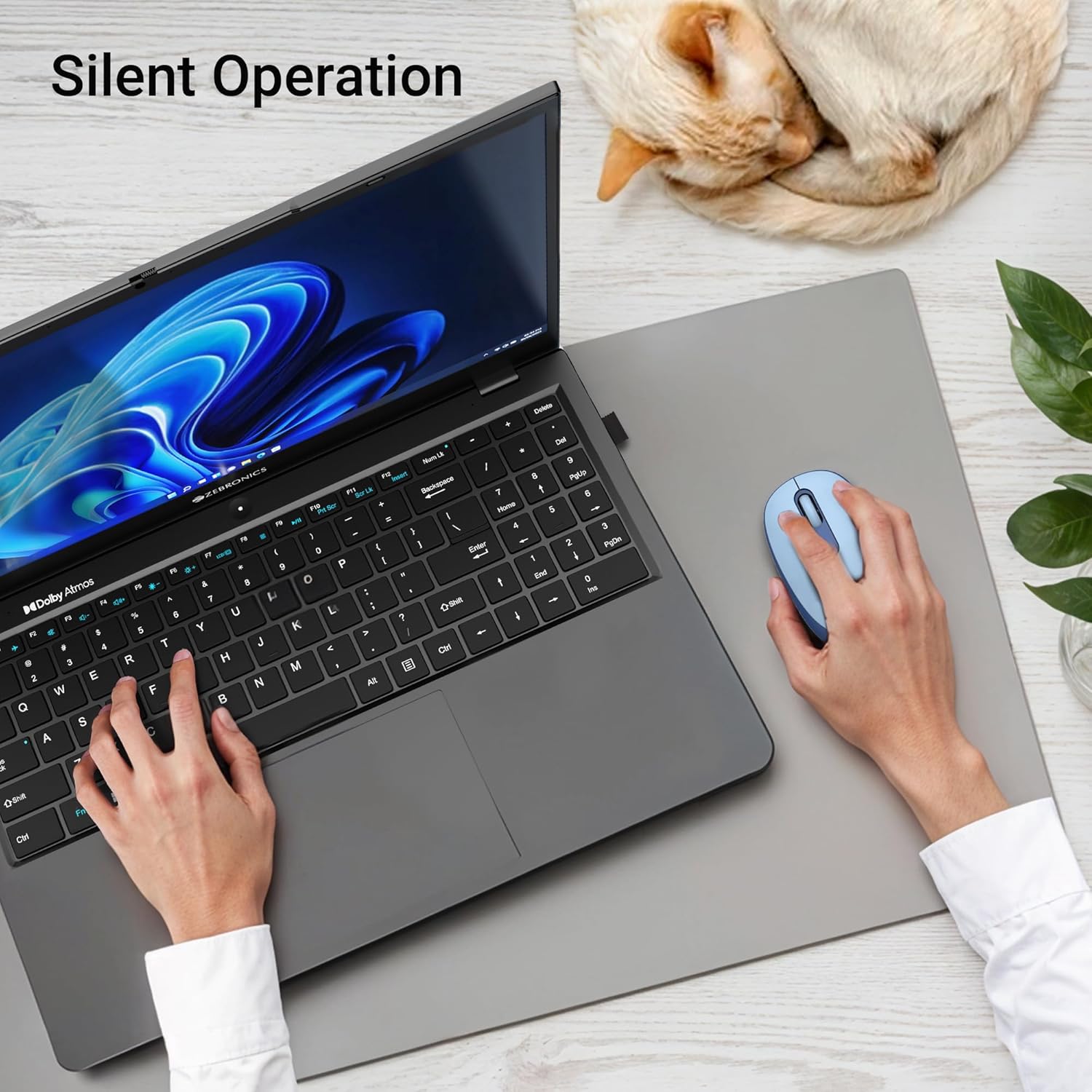
Image: A user operating the mouse silently next to a laptop, with a cat sleeping peacefully in the background, demonstrating the silent click feature.
5.4. බල කළමනාකරණය
Use the On/Off switch on the bottom of the mouse to conserve battery life when not in use. The mouse also features an automatic sleep mode to save power during periods of inactivity.
6. නඩත්තු කිරීම
- පිරිසිදු කිරීම: මූසිකය පිරිසිදු කිරීම සඳහා මෘදු වියළි රෙද්දක් භාවිතා කරන්න. රළු රසායනික ද්රව්ය හෝ උල්ෙල්ඛ ද්රව්ය භාවිතා කිරීමෙන් වළකින්න.
- බැටරි ආදේශනය: Replace the AA battery when the mouse performance degrades or the indicator light (if present) signals low battery.
- ගබඩා: When transporting or storing the mouse, ensure the USB nano receiver is securely placed in its storage slot to prevent loss. Turn off the mouse to save battery.
7. දෝශ නිරාකරණය
| ගැටලුව | විසඳුම |
|---|---|
| මූසිකය ප්රතිචාර නොදක්වයි (2.4GHz) |
|
| Mouse not connecting (Bluetooth) |
|
| කර්සර චලනය අක්රමවත් හෝ මන්දගාමී වේ. |
|
| Mouse goes to sleep too quickly |
|
8. පිරිවිතර
| විශේෂාංගය | විස්තර |
|---|---|
| වෙළඳ නාමය | සෙබ්රොනික්ස් |
| ආකෘතිය | Zeb-Groot |
| සම්බන්ධතා තාක්ෂණය | බ්ලූටූත්, 2.4GHz USB |
| චලනය හඳුනාගැනීම | ඔප්ටිකල් |
| DPI | 1600 DPI |
| බොත්තම් | 3 (වම, දකුණ, අනුචලන රෝදය) |
| විශේෂ ලක්ෂණ | Silent Operation, Ergonomic Design |
| බලශක්ති ප්රභවය | බැටරි බලයෙන් ක්රියාත්මක (1x AA) |
| මෙහෙයුම් පද්ධති අනුකූලතාව | Mac OS (and generally Windows, Linux) |
| නිෂ්පාදන මානයන් | 6.1 x 10.1 x 0.1 සෙ.මී. (ආසන්න වශයෙන්) |
| අයිතමයේ බර | ග්රෑම් 56.6 (ආසන්න වශයෙන්) |
| මුල් රට | චීනය |
9. වගකීම් සහ සහාය
9.1. වගකීම් තොරතුරු
The ZEBRONICS Groot Wireless Mouse comes with a වසර 2ක වගකීමක් from the date of purchase. This warranty covers manufacturing defects and ensures efficient working of the product. Please retain your purchase receipt for warranty claims.
9.2. පාරිභෝගික සහාය
For any technical assistance, troubleshooting, or warranty-related queries, please contact ZEBRONICS customer support:
- නිෂ්පාදකයා: සෙබ්රොනික්ස් ඉන්දියා පුද්ගලික සමාගම
- ලිපිනය: අංක 13/7, ස්මිත් පාර, රෝයපෙට්ටා, චෙන්නායි - 600 002
- Webඅඩවිය: www.zebronics.com (කරුණාකර නිල වෙබ් අඩවියට පිවිසෙන්න) website for the latest contact information and support resources.)
When contacting support, please have your product model (Zeb-Groot) and proof of purchase ready.


