1. හැඳින්වීම
This manual provides detailed instructions for the ZORNHER ZH980 Wireless Mechanical Keyboard. The ZH980 is a 95% layout mechanical keyboard designed for various uses, featuring multiple connectivity options, customizable RGB lighting, and hot-swappable switches.
ප්රධාන ලක්ෂණ ඇතුළත් වේ:
- Dipped PBT keycaps with clear, side-printed legends.
- 95% layout with number pad, F-row, and navigation keys.
- Linear creamy switches for tactile feedback.
- 22 preset RGB lighting modes with south-facing LEDs and edge glow.
- Hot-swappable PCB supporting 3-pin and 5-pin mechanical switches.
- Triple-mode connection: Bluetooth 5.0, 2.4GHz wireless, and USB-C.
- 6000mAh battery for extended wireless use.
- Ergonomic design with dual-angle kickstand.

Image 1.1: ZORNHER ZH980 Wireless Mechanical Keyboard overview.
2. පැකේජ අන්තර්ගතය
සියලුම අයිතම පැකේජයේ ඇති බව තහවුරු කරගන්න:
- 1 x Fully Assembled Mechanical Keyboard Body
- 1 x උපදෙස් අත්පොත
- 1 x Keycap Puller
- 3 x ආදේශන ස්විච
- 1 x 2.4GHz ග්රාහකය
- 1 x Type-C USB Cable (1.8m nylon)

Image 2.1: Package contents for the ZORNHER ZH980.
3. ආරම්භ කිරීම (සැකසුම)
3.1 යතුරු පුවරුව ආරෝපණය කිරීම
Before first use, it is recommended to fully charge the keyboard. Connect the included USB-C cable to the keyboard's Type-C port and the other end to a USB power source (e.g., computer, wall adapter). The keyboard features a 6000mAh battery.
3.2 සම්බන්ධතා මාතයන්
The ZORNHER ZH980 supports three connection modes: 2.4GHz wireless, Bluetooth 5.0, and wired USB-C. You can seamlessly switch between up to 5 devices.

Image 3.1: Triple-mode connection options.
3.2.1 2.4GHz රැහැන් රහිත සම්බන්ධතාවය
- Locate the 2.4GHz USB receiver, typically stored in a compartment on the keyboard.
- Plug the receiver into an available USB port on your computer or device.
- Ensure the keyboard's mode switch (usually on the back or side) is set to 2.4GHz wireless mode.
- යතුරු පුවරුව ස්වයංක්රීයව සම්බන්ධ විය යුතුය.
3.2.2 බ්ලූටූත් 5.0 සම්බන්ධතාවය
- Set the keyboard's mode switch to Bluetooth mode.
- ඔබගේ උපාංගයේ (පරිගණකය, ටැබ්ලටය, ස්මාර්ට් ජංගම දුරකථනය), බ්ලූටූත් සක්රීය කර නව උපාංග සොයන්න.
- The keyboard should appear as "ZORNHER ZH980" or similar. Select it to pair.
- If prompted, enter the pairing code displayed on your screen.
- යතුරුපුවරුවට බ්ලූටූත් ප්රෝ 5ක් දක්වා ගබඩා කළ හැකfiles. Refer to the keyboard's specific key combinations (e.g., Fn + 1/2/3/4/5) to switch between paired devices.
3.2.3 USB-C රැහැන් සම්බන්ධතාවය
- Connect the USB-C cable to the keyboard's Type-C port.
- කේබලයේ අනෙක් කෙළවර ඔබේ පරිගණකයේ තිබෙන USB පෝට් එකකට සම්බන්ධ කරන්න.
- යතුරු පුවරුව රැහැන්ගත උපාංගයක් ලෙස ක්රියා කරන අතර එකවර ආරෝපණය වේ.
3.3 කාර්යක්ෂමතා ගැලපීම
The keyboard is designed with a dual-angle kickstand on the underside, allowing you to adjust the typing angle for improved comfort and reduced strain during extended use.

Image 3.2: Dual-angle kickstand and robust construction.
4. මූලික මෙහෙයුම
4.1 යතුරුපුවරු පිරිසැලසුම
The ZH980 features a 95% layout, which includes a full number pad, F-row keys, arrow keys, and essential navigation keys, providing comprehensive functionality in a compact form factor.
4.2 ශ්රිත යතුරු සංයෝජන (Fn)
The Fn key (Function key) is used in combination with other keys to access secondary functions, such as media controls, volume adjustment, and lighting effects. Specific combinations are detailed in the RGB Lighting Control section.
5. RGB ආලෝකකරණ පාලනය
The ZORNHER ZH980 features vibrant RGB lighting with 22 preset modes, south-facing LEDs, and edge glow. The lighting can be customized for brightness, speed, and direction.

Image 5.1: RGB lighting controls using Fn key combinations.
5.1 Basic Lighting Adjustments
- Fn + බැක්ස්පේස්: Cycle through 22 preset RGB lighting modes.
- Fn + ඉහළ ඊතලය: Increase Main Backlight Brightness.
- Fn + පහළ ඊතලය: Decrease Main Backlight Brightness.
- Fn + වම් ඊතලය: Decrease Main Backlight Speed.
- Fn + දකුණු ඊතලය: Increase Main Backlight Speed.
- Fn + Page Up: Switch Dynamic Light Direction.
- Fn + Page Down: එල් මාරු කරන්නamp Effect.
- Fn + Esc: Restore to Factory Settings (also used for troubleshooting).
- Fn + ජයග්රහණය: Window Lock (disables Windows key).

Image 5.2: RGB lighting on vs. off.
6. අභිරුචිකරණය
6.1 උණුසුම්-ස්වාප් කළ හැකි ස්විච
The ZH980 features a hot-swappable PCB, allowing you to change mechanical switches without soldering. It supports both 3-pin and 5-pin switches, offering compatibility with a wide range of switch types (approximately 98% of switches on the market).

Image 6.1: Hot-swappable PCB for switch replacement.
ස්විච ප්රතිස්ථාපනය කිරීම:
- Use the included keycap puller to carefully remove the desired keycap.
- Use the included switch puller to gently remove the switch from the PCB.
- නව ස්විචයේ අල්ෙපෙනති PCB හි සිදුරු සමඟ පෙළගස්වන්න. නැමීම වළක්වා ගැනීම සඳහා අල්ෙපෙනති කෙළින් ඇති බවට වග බලා ගන්න.
- නව ස්විචය ක්ලික් කරන තුරු තදින් ඔබන්න.
- යතුරු කැප් එක ප්රතිස්ථාපනය කරන්න.
6.2 මෘදුකාංග අභිරුචිකරණය
Utilize the dedicated driver software to unlock full customization options. This software allows you to:
- විවිධ කාර්යයන් සඳහා යතුරු නැවත සිතියම්ගත කරන්න.
- සංකීර්ණ විධාන සඳහා මැක්රෝ නිර්මාණය කර පවරන්න.
- Tailor RGB lighting effects beyond the preset modes, including custom colors and dynamic patterns.
- Set up custom profileවිවිධ යෙදුම් හෝ ක්රීඩා සඳහා.
The software is compatible with Windows and Mac operating systems. Please visit the official ZORNHER website for software download and installation instructions.

Image 6.2: ZORNHER customization software interface.
7. නඩත්තු කිරීම
7.1 යතුරු පුවරුව පිරිසිදු කිරීම
ප්රශස්ත කාර්ය සාධනය සහ පෙනුම පවත්වා ගැනීම සඳහා:
- පිරිසිදු කිරීමට පෙර යතුරු පුවරුව සියලුම බල ප්රභවයන්ගෙන් විසන්ධි කරන්න.
- මෘදු, ලින්ට් රහිත රෙදි තරමක් භාවිතා කරන්න dampයතුරු කැප් සහ යතුරුපුවරු මතුපිට පිස දැමීම සඳහා ජලය හෝ මෘදු පිරිසිදු කිරීමේ ද්රාවණයකින් ආලේප කරන්න.
- ගැඹුරු පිරිසිදු කිරීම සඳහා, යතුරු කැප් අදින්න භාවිතා කර යතුරු කැප් ඉවත් කර සම්පීඩිත වාතය හෝ කුඩා බුරුසුවකින් යටින් පිරිසිදු කරන්න.
- Avoid using harsh chemicals or abrasive materials that could damage the keycaps or finish.
7.2 යතුරු කැප් සහ ස්විච් සත්කාරය
The PBT Dipped keycaps are designed for durability and resistance to shine and wear. When replacing keycaps or switches, handle them carefully to avoid damage to the switch stems or keycap mounts.
8. දෝශ නිරාකරණය
If you encounter issues with your ZORNHER ZH980 keyboard, refer to the following common problems and solutions:
| ගැටලුව | හැකි විසඳුම |
|---|---|
| යතුරුපුවරුව ප්රතිචාර නොදක්වයි (රැහැන්ගත) | USB-C කේබලය යතුරු පුවරුවට සහ පරිගණකයට ආරක්ෂිතව සම්බන්ධ කර ඇති බවට වග බලා ගන්න. වෙනත් USB පෝට් එකක් හෝ කේබලයක් උත්සාහ කරන්න. |
| 2.4GHz wireless connection issues | Ensure the 2.4GHz receiver is properly plugged in and the keyboard is in 2.4GHz mode. Move the keyboard closer to the receiver to reduce interference. |
| බ්ලූටූත් සම්බන්ධතා ගැටළු | Ensure the keyboard is in Bluetooth mode and discoverable. On your device, remove any previous pairings and attempt to re-pair. Check if your device's Bluetooth is enabled. |
| RGB ආලෝකකරණය ක්රියා නොකරයි හෝ ඇණ හිට ඇත | ඔබන්න Fn + Backspace to cycle through lighting modes. Adjust brightness with Fn + ඉහළ/පහළ ඊතලය. If issues persist, perform a factory reset (Fn + Esc). |
| යතුරු ලියාපදිංචි නොවීම හෝ දෙවරක් ටයිප් නොකිරීම | Ensure switches are fully seated. If a specific switch is faulty, replace it using the hot-swap feature. Perform a factory reset (Fn + Esc). |
| Keyboard randomly types garbled characters | This may indicate a software issue or interference. Try performing a factory reset (Fn + Esc). Ensure the keyboard firmware is up to date via the ZORNHER software. |
| Battery not charging or low battery life | Ensure the USB-C cable is working and connected to a reliable power source. Reduce RGB brightness or turn off lighting to conserve battery. |
If these solutions do not resolve the issue, please contact ZORNHER customer support for further assistance.
9. පිරිවිතර
| විශේෂාංගය | විස්තර |
|---|---|
| ආකෘතිය | ZH980 |
| පිරිසැලසුම | 95% (with number pad) |
| යතුරු කැප් | Dipped PBT, Side-Printed Legends |
| ස්විචයන් | Sakura Linear Switches (Creamy Sounding) |
| උණුසුම්-මාරු කළ හැකි | Yes, supports 3-pin and 5-pin mechanical switches |
| සම්බන්ධතාවය | බ්ලූටූත් 5.0, 2.4GHz රැහැන් රහිත, USB-C රැහැන් සහිත |
| බැටරි ධාරිතාව | 6000mAh ලිතියම් අයන |
| RGB පසුබිම් ආලෝකය | 22 Preset Modes, 16 Million Colors (via software), South-facing LEDs, Edge Glow |
| ගැළපෙන උපාංග | ලැප්ටොප්, මැක්, පීසී, ස්මාර්ට්ෆෝන්, ටැබ්ලටය |
| නිෂ්පාදන මානයන් | 14.96 x 7.99 x 2.75 අඟල් (38 x 20.3 x 7 cm) |
| අයිතමයේ බර | රාත්තල් 4.27 (කිලෝ ග්රෑම් 1.94) |
| නිෂ්පාදකයා | ZORNHER |
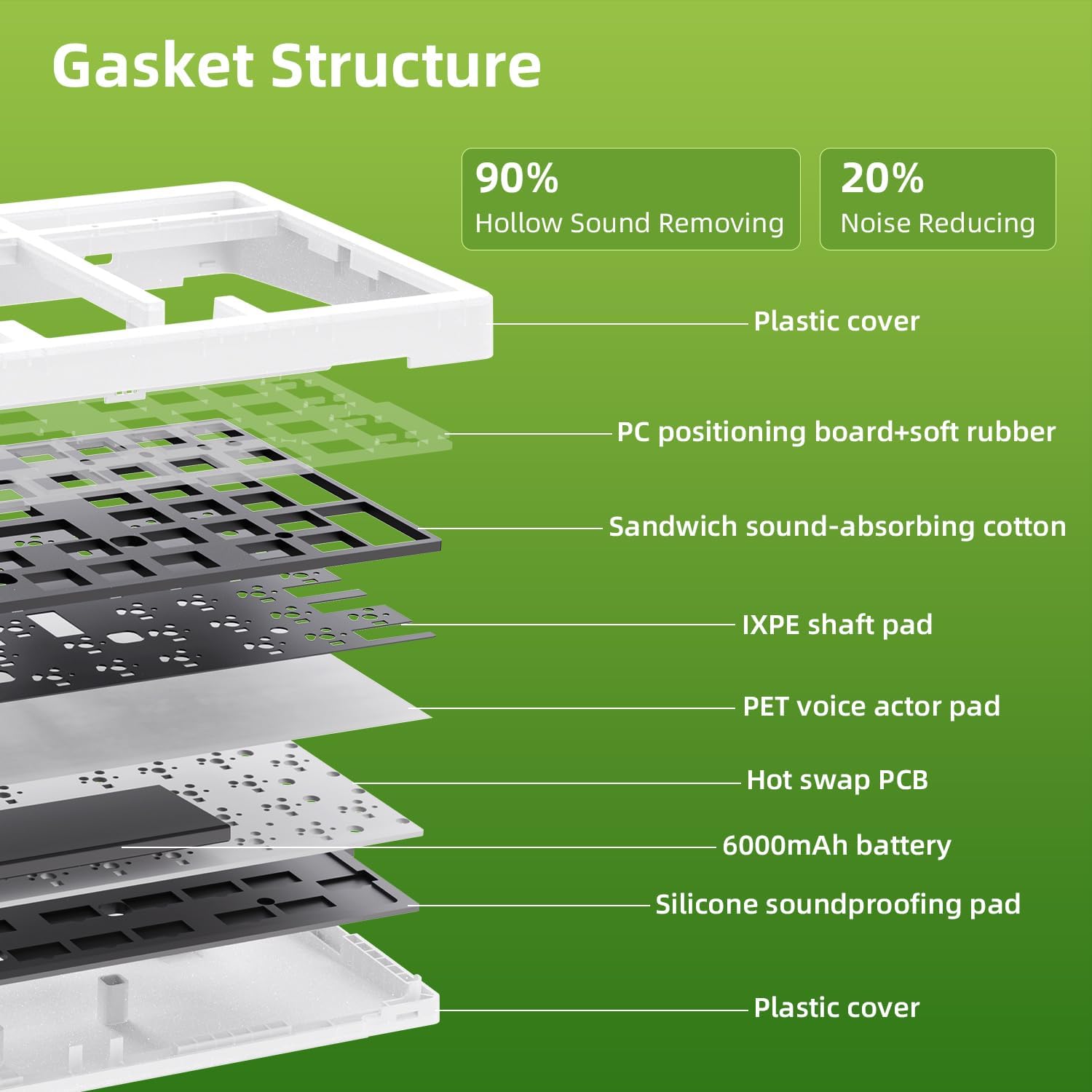
Image 9.1: Internal Gasket Structure diagram.
10. වගකීම් සහ සහාය
10.1 වගකීම් තොරතුරු
The ZORNHER ZH980 Wireless Mechanical Keyboard is covered by a වසර 2ක වගකීමක් මිලදී ගත් දින සිට. මෙම වගකීම් සහතිකය නිෂ්පාදන දෝෂ සහ සාමාන්ය භාවිතයෙන් පැන නගින ගැටළු ආවරණය කරයි. අනිසි භාවිතය, අනතුරු, අනවසර වෙනස් කිරීම් හෝ නුසුදුසු නඩත්තු කිරීම් හේතුවෙන් සිදුවන හානිය එය ආවරණය නොකරයි.
වගකීම් හිමිකම් සඳහා කරුණාකර ඔබගේ මිලදී ගැනීමේ සාක්ෂි තබා ගන්න.
10.2 පාරිභෝගික සහාය
For technical assistance, warranty claims, or any other inquiries regarding your ZORNHER ZH980 keyboard, please contact ZORNHER customer support through the following channels:
- නිල Webඅඩවිය: Visit the ZORNHER official webසහාය සම්පත්, නිතර අසන ප්රශ්න සහ සම්බන්ධතා පෝරම සඳහා අඩවිය.
- ඊමේල් සහාය: Refer to your product packaging or the ZORNHER webපාරිභෝගික සහාය ඊමේල් ලිපිනය සඳහා අඩවිය.
- Online Store Support: If purchased from an online retailer, you may also contact their customer service for initial support or to facilitate warranty claims.
When contacting support, please provide your product model (ZH980), purchase date, and a detailed description of the issue.


