1. හැඳින්වීම
This manual provides essential instructions for setting up, operating, maintaining, and troubleshooting your CRUA 32-inch 4K UHD 160Hz Curved Gaming Monitor (Model CR320A). Please read this manual thoroughly before using the product to ensure proper functionality and to prevent damage.
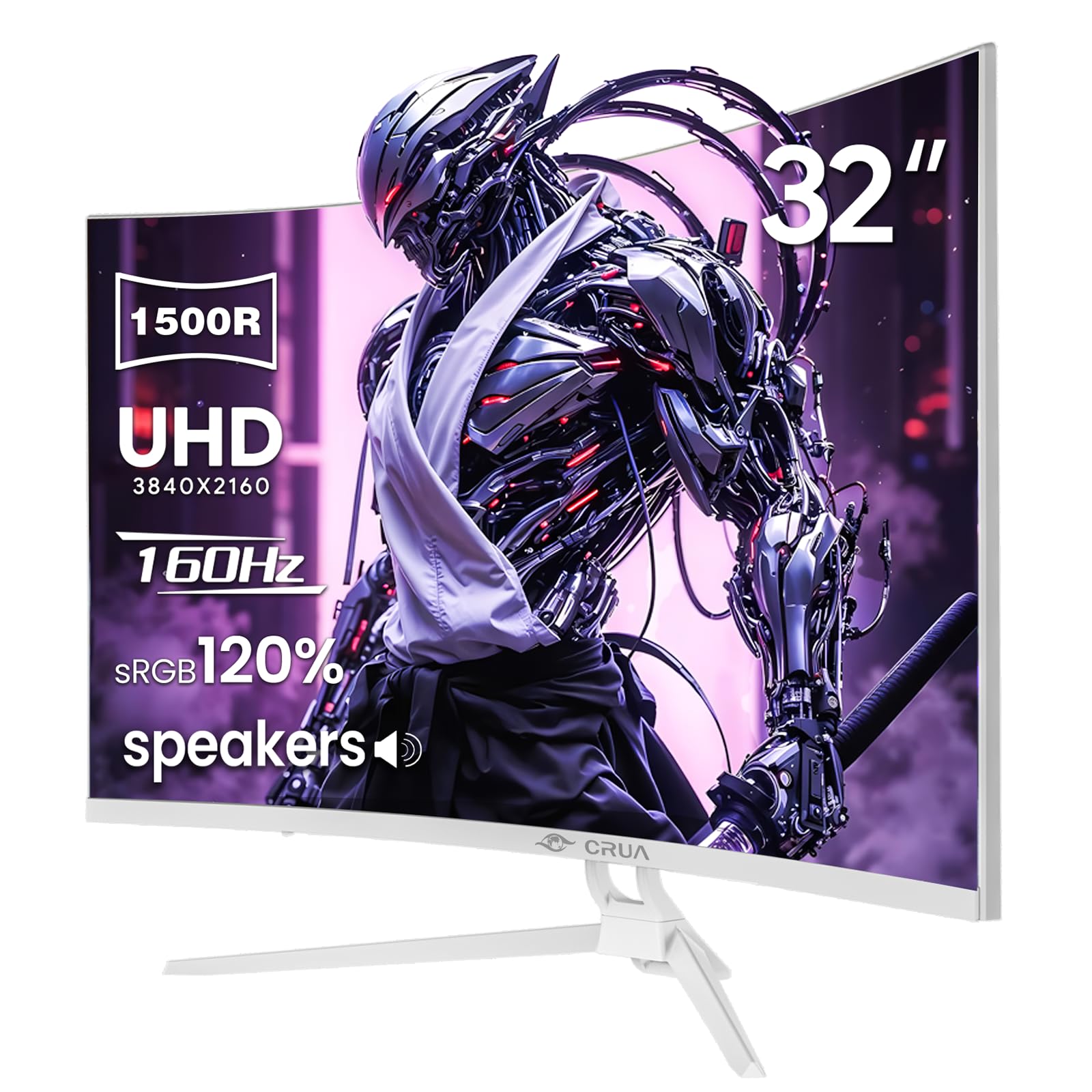
රූපය 1: ඉදිරිපස view of the CRUA 32-inch 4K UHD 160Hz Curved Gaming Monitor.
2. පෙට්ටියේ ඇති දේ
ඇසුරුම්කරණයේ සියලුම සංරචක ඇති බව තහවුරු කර ගන්න:
- CRUA 32-inch Monitor
- Monitor Base and Support
- ඩිස්ප්ලේපෝට් (DP) කේබලය
- බල සැපයුම් ඒකකය
- පරිශීලක අත්පොත (මෙම ලේඛනය)
3. පිහිටුවීම
3.1 ස්ථාවරය එකලස් කිරීම
- Carefully remove the monitor from its packaging, placing it face down on a soft, clean surface to prevent screen damage.
- Attach the monitor support arm to the back of the monitor. Ensure it clicks securely into place or is fastened with screws if provided.
- Connect the base to the support arm and secure it with the provided screw(s).
Note: The included stand is fixed and does not offer height, tilt, or swivel adjustments. For adjustable positioning, the monitor supports VESA wall mounting (75mm x 75mm) using a compatible VESA mount (sold separately).

රූපය 2: පසුපස view of the monitor with stand attachment area and RGB lighting.
3.2 සම්බන්ධක කේබල්
- Connect the DisplayPort (DP) cable from your computer's graphics card to the DP 1.4 port on the monitor. Alternatively, use an HDMI 2.1 cable for compatible devices.
- Connect the power supply unit to the monitor's power input, then plug the power cord into an electrical outlet.
- සියලුම සම්බන්ධතා ආරක්ෂිත බව සහතික කර ගන්න.

Figure 3: Monitor connectivity ports including HDMI 2.1, DP 1.4, and audio out.
4. මොනිටරය ක්රියාත්මක කිරීම
4.1 බලය සක්රිය / අක්රිය
මොනිටරය සක්රිය හෝ අක්රිය කිරීමට, සාමාන්යයෙන් මොනිටරයේ පිටුපස හෝ පහළ දකුණු පසින් පිහිටා ඇති බල බොත්තම ඔබන්න. මොනිටරය සක්රිය හෝ අක්රිය කරන්න. මොනිටරය සක්රිය වූ විට බල දර්ශක ආලෝකය දැල්වෙනු ඇත.
4.2 තිරය මත සංදර්ශක (OSD) මෙනුව
The OSD menu allows you to adjust various monitor settings. Use the navigation buttons (joystick or individual buttons) typically found on the back or bottom of the monitor to access and navigate the OSD.
- ආදාන මූලාශ්රය: DisplayPort සහ HDMI ආදාන අතර තෝරන්න.
- පින්තූර සැකසීම්: දීප්තිය, වෙනස, තියුණු බව සහ වර්ණ උෂ්ණත්වය සකසන්න.
- වර්ණ සැකසුම්: Fine-tune color gamut (120% sRGB), gamma, and color depth (8-bit).
- ක්රීඩා සැකසුම්: Enable/disable AMD FreeSync, adjust refresh rate (144Hz/160Hz), and other gaming-specific features.
- ශ්රව්ය සැකසුම්: Control volume for the built-in speakers or connected external audio devices.
- RGB ආලෝකකරණය: Customize the RGB lighting effects on the back of the monitor.

Figure 4: Visual representation of color and brightness capabilities.
4.3 AMD FreeSync
This monitor supports AMD FreeSync technology, which synchronizes the monitor's refresh rate with your graphics card's frame rate to eliminate screen tearing and stuttering. Ensure FreeSync is enabled in both the monitor's OSD and your graphics card's control panel for optimal performance.

Figure 5: Visualizing the benefit of 160Hz refresh rate and FreeSync.
4.4 Curved Display (1500R)
The 1500R curvature of the screen provides an immersive viewing experience, reducing eye strain and enhancing depth perception, especially beneficial for gaming and multimedia content.
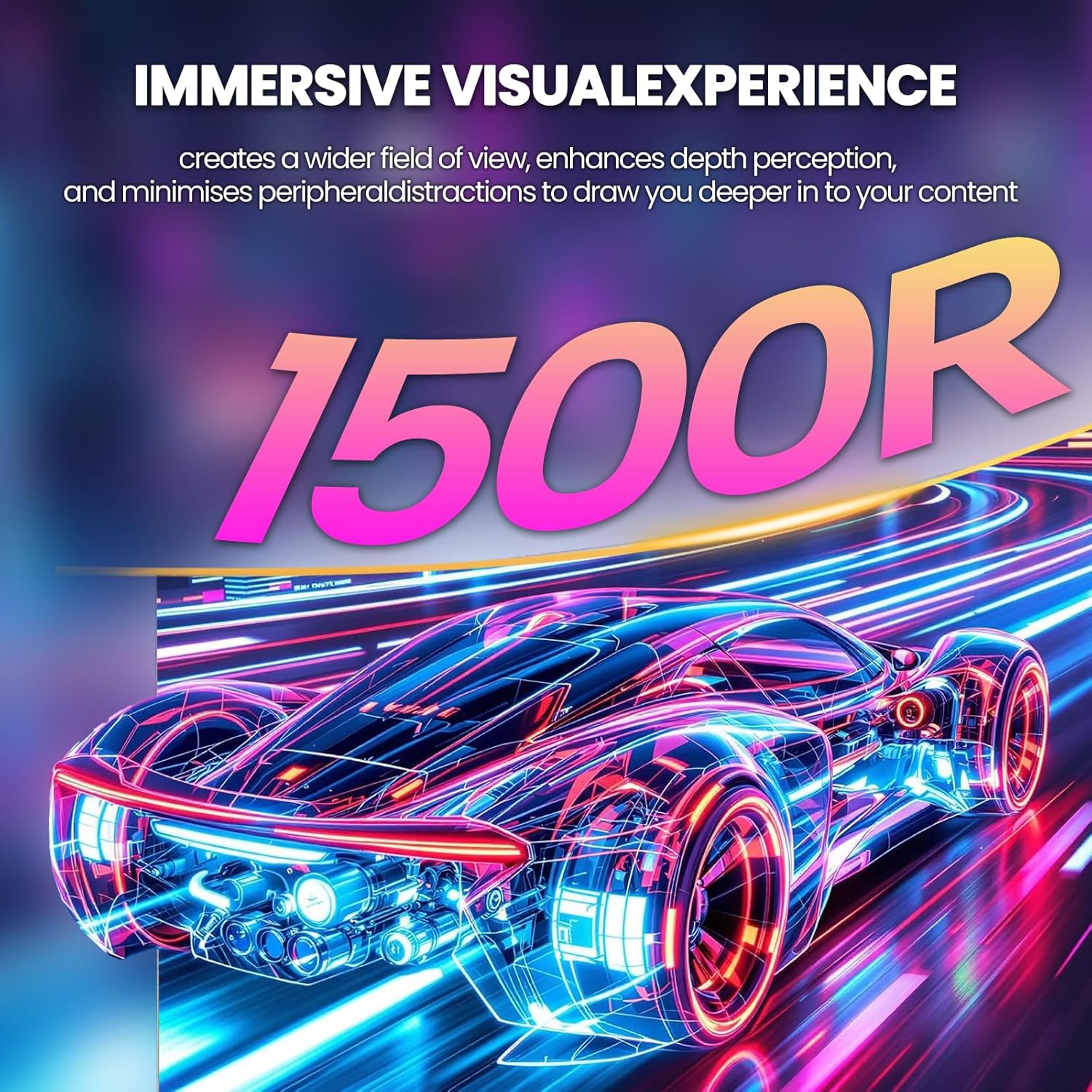
Figure 6: The 1500R curved screen design.
5. නඩත්තු කිරීම
5.1 මොනිටරය පිරිසිදු කිරීම
- පිරිසිදු කිරීමට පෙර සෑම විටම මොනිටරය ක්රියා විරහිත කර විදුලි රැහැන විසන්ධි කරන්න.
- මෘදු, ලින්ට් රහිත රෙදි තරමක් භාවිතා කරන්න dampජලය හෝ සීරීම් ඇති නොවන තිර පිරිසිදු කරන්නෙකු සමඟ ආලේප කර ඇත.
- පිරිසිදුකාරකය කෙලින්ම තිරය මත ඉසින්න එපා. මුලින්ම එය රෙදි කැබැල්ලට ආලේප කරන්න.
- Avoid using alcohol, ammonia, or abrasive cleaners, as these can damage the screen surface.
5.2 සාමාන්ය රැකවරණය
- Keep the monitor away from direct sunlight, excessive heat, and humidity.
- අධික උනුසුම් වීම වැළැක්වීම සඳහා මොනිටරය වටා ප්රමාණවත් වාතාශ්රයක් සහතික කරන්න.
- මොනිටරය හෝ එහි කේබල් මත බර වස්තූන් තැබීමෙන් වළකින්න.
6. දෝශ නිරාකරණය
6.1 බලය නැත
- විදුලි රැහැන මොනිටරයට සහ විදුලි අලෙවිසැලට ආරක්ෂිතව සම්බන්ධ වී ඇත්දැයි පරීක්ෂා කරන්න.
- වෙනත් උපාංගයක් සම්බන්ධ කිරීමෙන් බල සැපයුම නිවැරදිව ක්රියාත්මක වන බව තහවුරු කර ගන්න.
- මොනිටරයේ බල බොත්තම ඔබා ඇති බවට වග බලා ගන්න.
6.2 සංඥා නැත
- Confirm that the video cable (DP or HDMI) is securely connected to both the monitor and your computer/device.
- මොනිටරයේ OSD මෙනුවේ නිවැරදි ආදාන ප්රභවය තෝරාගෙන ඇති බවට වග බලා ගන්න.
- ඔබේ පරිගණකය/උපාංගය ක්රියාත්මක වී සංඥාවක් නිකුත් කරන්නේ දැයි පරීක්ෂා කරන්න.
- තිබේ නම් වෙනත් වීඩියෝ කේබලයක් හෝ තොටක් උත්සාහ කරන්න.
6.3 Screen Flickering or Tearing
- Ensure AMD FreeSync is enabled in both the monitor's OSD and your graphics card settings.
- Verify that your graphics card drivers are up to date.
- Check the refresh rate setting in your operating system's display settings; it should be set to 144Hz or 160Hz.
6.4 Washed Out Colors or Poor Picture Quality
- Access the OSD menu and adjust picture settings such as brightness, contrast, and color temperature.
- OSD මෙනුව හරහා මොනිටරය කර්මාන්තශාලා පෙරනිමි සැකසුම් වෙත නැවත සකසන්න.
- Ensure your graphics card output settings are correctly configured for the monitor's resolution (3840x2160) and color depth.
6.5 No Sound from Built-in Speakers
- Check the volume level in the monitor's OSD menu.
- ඔබගේ පරිගණකයේ/උපාංගයේ ශ්රව්ය ප්රතිදානය මොනිටරයට සකසා ඇති බව තහවුරු කරන්න.
- Ensure the video cable (DP or HDMI) supports audio transmission.
7. පිරිවිතර
| විශේෂාංගය | පිරිවිතර |
|---|---|
| ආදර්ශ අංකය | CR320A |
| තිර ප්රමාණය | අඟල් 32 |
| පැනල් වර්ගය | VA |
| වක්රය | 1500R |
| විභේදනය | 4K UHD (3840 x 2160 පික්සල) |
| දර්ශන අනුපාතය | 16:9 |
| Refresh Rate | 144Hz / 160Hz |
| දීප්තිය | කැන්ඩෙලා 320 (cd/m²) |
| පරස්පර අනුපාතය | 3000:1 |
| වර්ණ ගැමට් | 120% sRGB |
| වර්ණ ගැඹුර | 8-bit |
| තිර මතුපිට | මැට් |
| සම්බන්ධතාවය | HDMI 2.1, DisplayPort 1.4 |
| ශ්රව්ය උපකරණ | බිල්ට් ස්පීකර් |
| VESA මවුන්ට් අනුකූලතාව | 75mm x 75mm |
| නිෂ්පාදන මානයන් (L x W x H) | අඟල් 1 x 28 x 16.6 |
| අයිතමයේ බර | රාත්තල් 16.57 කි |
8. වගකීම් සහ සහාය
8.1 Product Assurance
CRUA is committed to providing high-quality computer monitors and premium services. We offer assurances for our products to ensure customer satisfaction.
8.2 පාරිභෝගික සහාය
If you encounter any issues or have questions regarding your CRUA monitor, please contact our customer support team. We are available to assist you and resolve any problems you may experience.
For support, please refer to the contact information provided on the official CRUA webවෙබ් අඩවිය හෝ ඔබේ මිලදී ගැනීමේ ලියකියවිලි.


