හැඳින්වීම
The Logitech MK250 Bluetooth mouse and keyboard combo offers effortless wireless connectivity, designed for a clutter-free workspace. This durable combo provides a comfortable typing and navigation experience across Windows and macOS platforms. Its compact design includes a full numpad and essential function keys, making it suitable for various environments.
පෙට්ටියේ ඇති දේ
- MK250 යතුරුපුවරුව
- MK250 Mouse
- පරිශීලක ලේඛන
- Quick Start Guide (Printed on Packaging)
- AAA බැටරි 2ක් (යතුරු පුවරුව සඳහා)
- 1 AA බැටරිය (මූසිකය සඳහා)
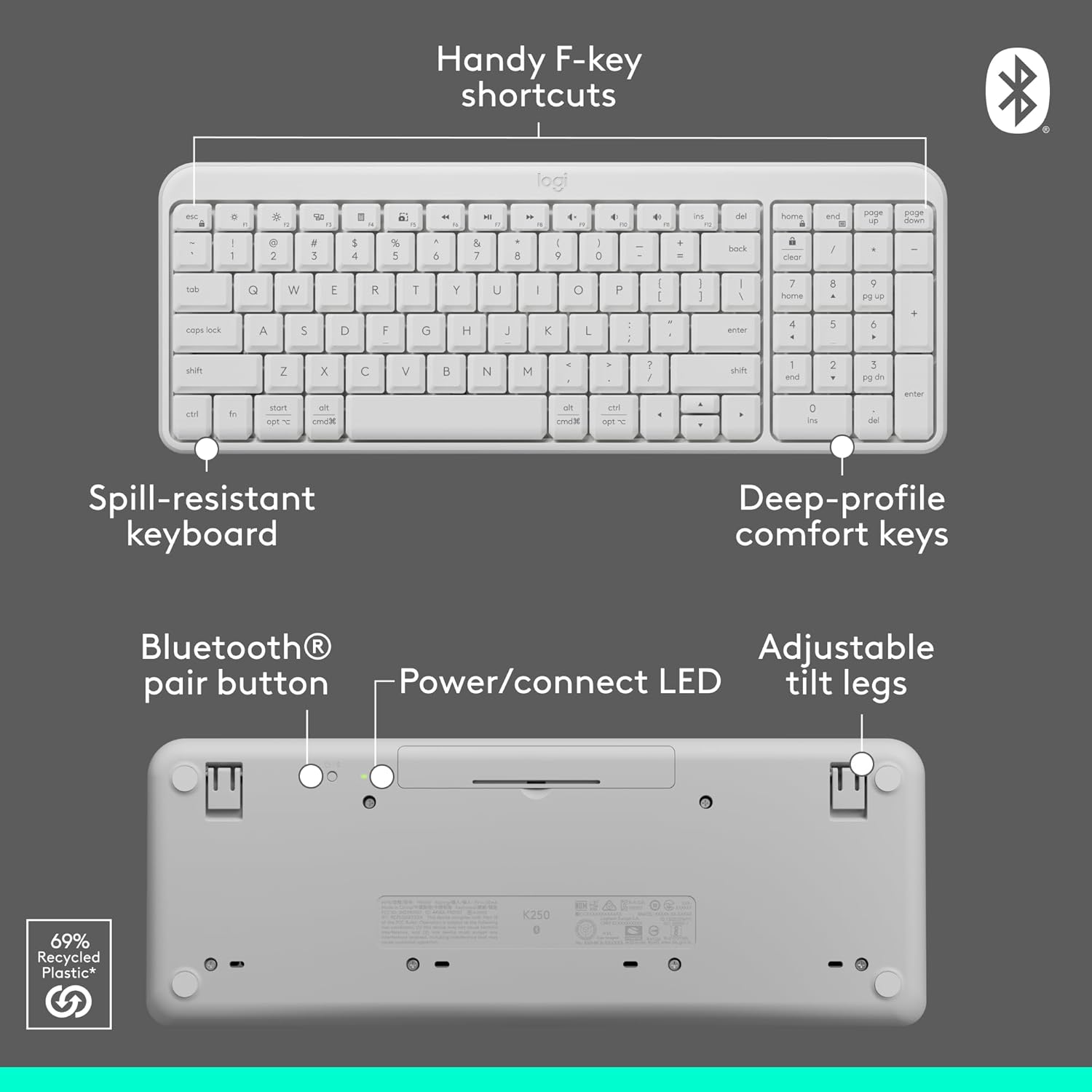
Image: Contents of the Logitech MK250 combo box, showing the white keyboard, white mouse, and two AAA batteries.
පිහිටුවීම සහ බ්ලූටූත් යුගල කිරීම
The Logitech MK250 combo connects quickly and easily via Bluetooth, eliminating the need for a USB dongle.
මූලික සැකසුම් පියවර:
- බැටරි ඇතුළු කරන්න: Ensure the included batteries are correctly inserted into both the keyboard and the mouse. For the keyboard, remove the battery guard if present.
- බල ගැන්වීම: Locate the ON/OFF switch on the back of the keyboard and the mouse, and slide them to the 'ON' position.
- බ්ලූටූත් යුගලනය සක්රිය කරන්න:
- යතුරු පුවරුව: Press and hold the Bluetooth pair button on the underside of the keyboard until the LED indicator starts blinking.
- මූසිකය: Press and hold the long-press pairing mode button on the underside of the mouse until its LED indicator starts blinking.
- උපාංගය හරහා සම්බන්ධ වන්න: On your computer (Windows or macOS) or tablet, navigate to your Bluetooth settings. Select "Logitech MK250 Keyboard" and "Logitech MK250 Mouse" from the list of available devices to pair. Follow any on-screen prompts to complete the connection.

Image: A white Logitech MK250 keyboard and mouse on a desk next to a monitor displaying Bluetooth connection prompts, illustrating easy pairing.
Video: Official Logitech MK250 product video demonstrating features and connectivity.
මෙහෙයුම් උපදෙස්
යතුරුපුවරු විශේෂාංග:
- Deep-Profile යතුරු: සුවපහසු සහ ප්රතිචාරාත්මක ටයිප් කිරීම සඳහා නිර්මාණය කර ඇත.
- Compact Layout with Numpad: Offers full functionality in a space-saving design.
- Handy F-Key Shortcuts: Provides quick access to media controls and other functions.
- කාන්දු-ප්රතිරෝධී නිර්මාණය: Built to withstand minor spills for enhanced durability.
- සකස් කළ හැකි ඇලවීමේ කකුල්: Customize the keyboard angle for ergonomic comfort.
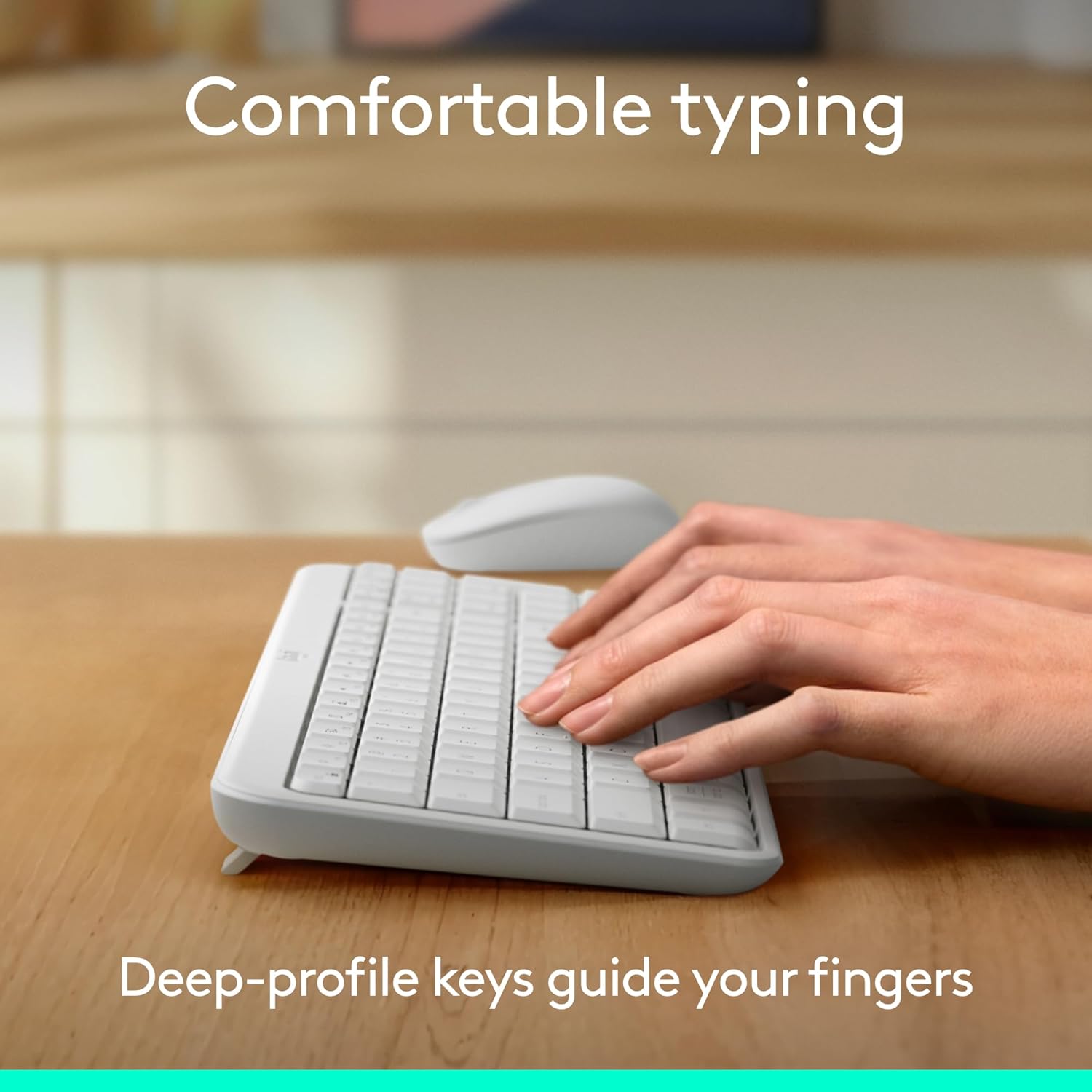
Image: Hands typing on the Logitech MK250 keyboard, demonstrating comfortable deep-profile යතුරු

Image: Underside of the Logitech MK250 keyboard, detailing the Bluetooth pair button, power/connect LED, and adjustable tilt legs.
මවුස් විශේෂාංග:
- Ambidextrous Shape: Comfortable design for both left and right-handed users.
- සුමට ලුහුබැඳීම: Provides precise cursor control.
- Long-Press Pairing Mode: Dedicated button for easy Bluetooth connection.
- මාරු/ක්රියාත්මක: භාවිතයේ නොමැති විට බැටරි ආයු කාලය සුරකින්න.

Image: Underside of the Logitech MK250 mouse, highlighting the battery compartment, long-press pairing mode button, and ON/OFF switch.
නඩත්තු කිරීම
- බැටරි ආයු කාලය: The keyboard and mouse are designed for extended battery life, with up to 12 months of use before needing battery replacement.
- බැටරි ආදේශනය: Replace batteries when performance degrades. The keyboard uses 2 AAA batteries, and the mouse uses 1 AA battery.
- පිරිසිදු කිරීම: මෘදු, d සමග පෘෂ්ඨයන් පිස දමන්නamp cloth. Avoid harsh chemicals. The keyboard features a spill-resistant design, but it is not waterproof.

Image: Logitech MK250 mouse, emphasizing its 12-month battery life.
දෝෂගවේෂණය
- සම්බන්ධතා ගැටළු: If the keyboard or mouse loses connection, ensure they are powered on and within range of your device. Try re-pairing them through your device's Bluetooth settings.
- Unresponsive Keys/Clicks: Check battery levels and replace if necessary. Ensure no debris is obstructing the keys or mouse buttons.
- ප්රමාදය හෝ ප්රමාදය: Ensure your device's Bluetooth is not overloaded with too many connections. Move closer to your device to minimize interference.
පිරිවිතර
| වෙළඳ නාමය | ලොජිටෙක් |
| ආදර්ශ මාලාව | MK250 යතුරු පුවරුව සහ මූසිකය |
| අයිතම ආදර්ශ අංකය | 920-013511 |
| සම්බන්ධතා තාක්ෂණය | බ්ලූටූත් |
| ගැළපෙන උපාංග | ලැප්ටොප්, පුද්ගලික පරිගණකය, ටැබ්ලට් |
| දෘඪාංග වේදිකාව | මැක්, පීසී |
| මෙහෙයුම් පද්ධතිය | Chrome OS, Windows 10.11 or later, macOS 12 or later |
| වර්ණය | සුදු |
| අයිතමයේ බර | අවුන්ස 13.4 කි |
| නිෂ්පාදන මානයන් (LxWxH) | අඟල් 18.03 x 5.98 x 1.73 |
| බලශක්ති ප්රභවය | බැටරි බලයෙන් |
| බැටරි | 2 AAA batteries (keyboard), 1 AA battery (mouse) - included |
වගකීම් සහ සහාය
The Logitech MK250 combo is built for durability, featuring a spill-resistant keyboard and components made with recycled materials. For specific warranty details and technical support, please refer to the official Logitech webවෙබ් අඩවිය හෝ ඔබේ නිෂ්පාදනය සමඟ ඇතුළත් ලියකියවිලි.
The product is designed for a long lifespan, with the keyboard offering a 12-month battery life and the mouse also providing extended usage on a single battery.


