1. නිෂ්පාදන අවසන්view
The INFIYA Z1 Solar Camera is a wireless outdoor security camera designed for home surveillance. It features a built-in 5200 mAh battery, solar charging capabilities, PIR motion detection, siren alarm, and 2K color night vision. It supports SD and optional cloud storage and is compatible with Alexa.
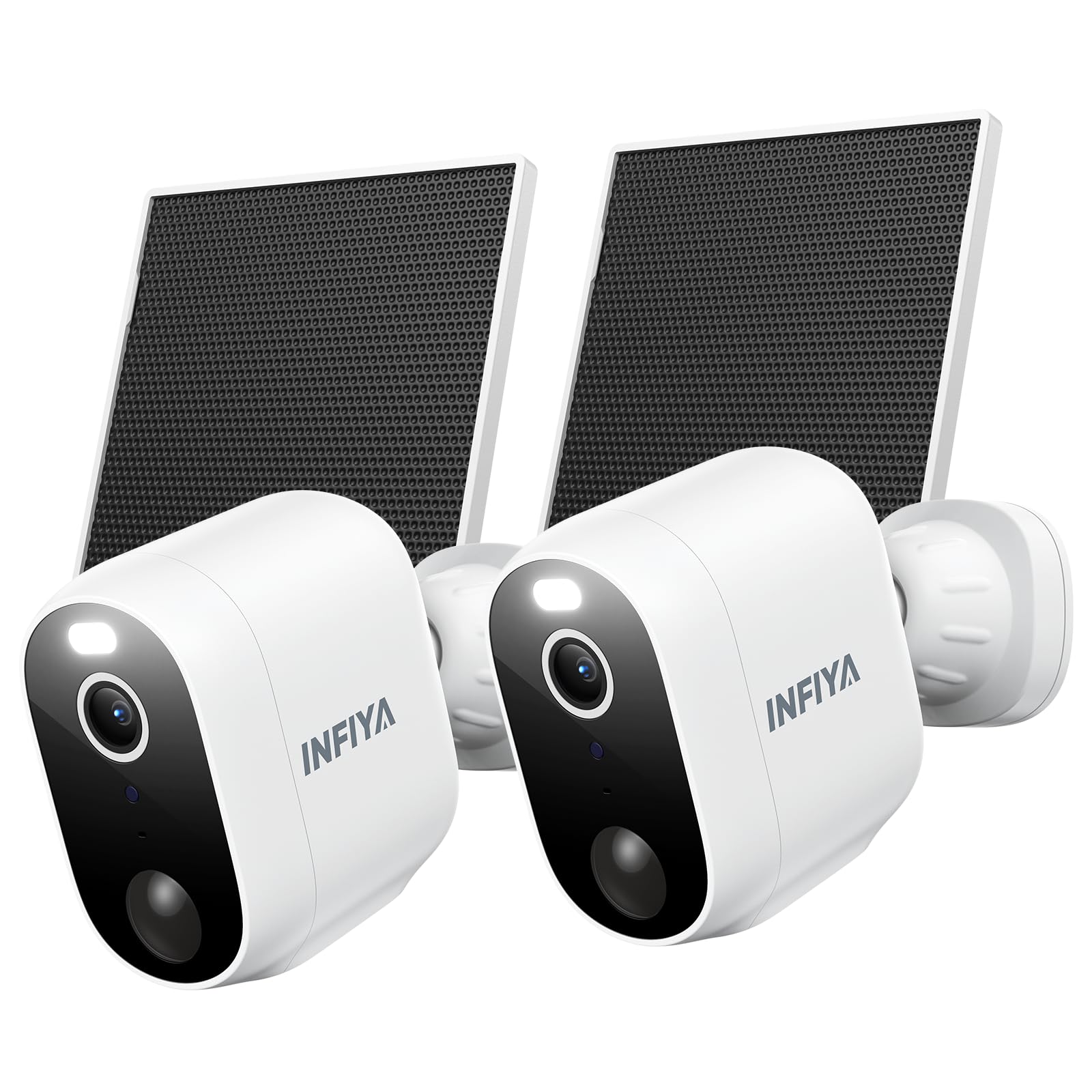
Image 1.1: INFIYA Z1 Solar Camera highlighting key features.
- දිගු පොරොත්තු කාලය: Built-in 5200 mAh battery with included solar panel for continuous power.
- AI-Enhanced PIR Human Detection: Reduces false alerts by detecting important events up to 32ft.
- Dual Defense: Light and siren alarm to deter intruders, with 2-way audio for communication.
- 2K FHD Live Feed: Crystal-clear video resolution for detailed surveillance.
- වර්ණ රාත්රී දර්ශනය: White light enables color vision at night; infrared for black & white mode.
- සැබවින්ම රැහැන් රහිත: IP65 weather resistance and 2.4GHz WiFi connectivity (5GHz not supported).
- නම්යශීලී ගබඩාව: Supports App Motion Alerts, Local TF Card Storage (up to 128GB, not included), and Optional Cloud Storage.
2. පෙට්ටියේ ඇති දේ

Image 2.1: Package contents for the INFIYA Z1 Solar Camera.
- Solar Camera (x2)
- වරහන (x2)
- ස්ථාපන මාර්ගෝපදේශය
- සවිකරන ඉස්කුරුප්පු
- Mounting Template Stickers
- Type-C Power Cord (x2)
- සූර්ය පැනලය (x2)
3. සැකසුම සහ ස්ථාපනය
Follow these steps to set up and install your INFIYA Z1 Solar Camera.
3.1 යෙදුම් බාගත කිරීම සහ ගිණුම් නිර්මාණය
- Scan the QR code on the product packaging or in the Installation Guide to download the Wansview Cloud app from Google Play or the App Store.
- යෙදුම විවෘත කර නව ගිණුමක් සාදන්න හෝ ඔබට දැනටමත් එකක් තිබේ නම් ලොග් වන්න.
3.2 කැමරා සම්බන්ධතාවය
Ensure your phone is connected to a 2.4GHz Wi-Fi network. 5GHz Wi-Fi is not supported.
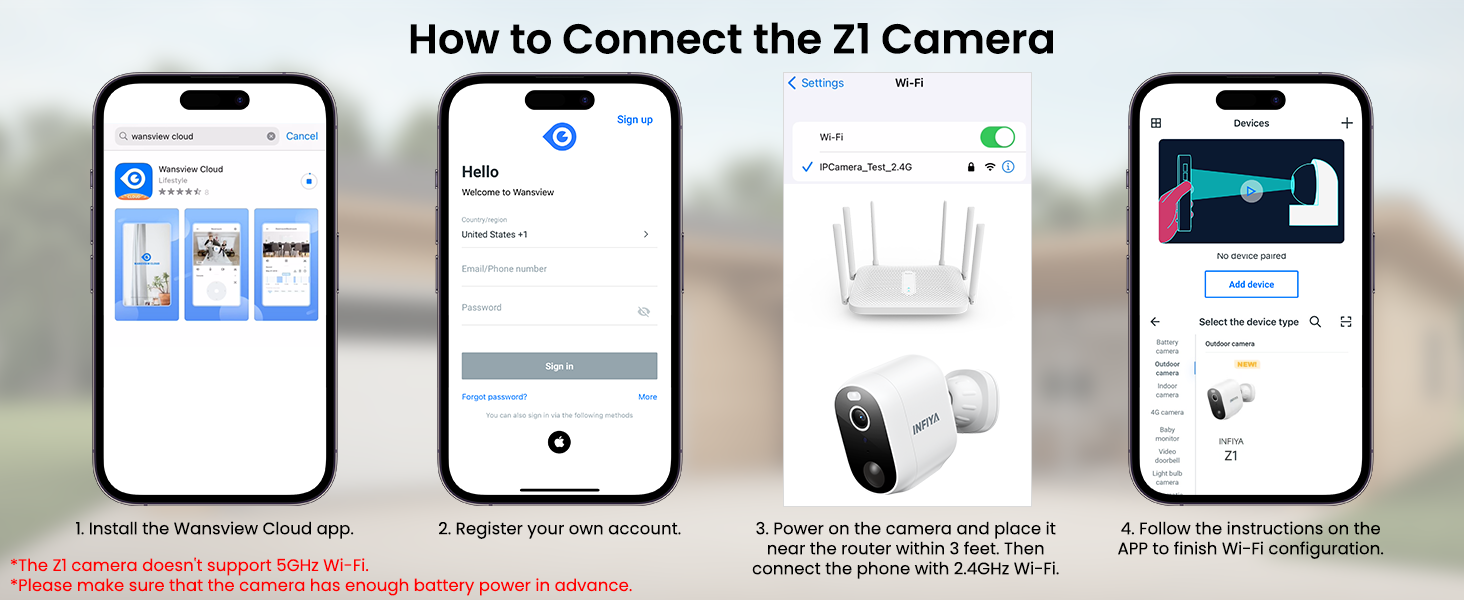
Image 3.1: Visual guide for connecting the Z1 camera to the Wansview වලාකුළු යෙදුම.
- In the Wansview Cloud app, tap the '+' icon to add a new device.
- Select the 'INFIYA Z1' camera model.
- Choose 'Wi-Fi connection by QR code' or 'Wi-Fi connection by Soft-AP' as per the app's instructions.
- Power on the camera. Ensure it has sufficient battery or charge it for about 30 minutes in advance.
- If using QR code connection, scan the QR code displayed on your phone with the camera lens.
- Follow any remaining in-app prompts to complete the connection.
3.3 භෞතික ස්ථාපනය
The camera and solar panel can be wall-mounted or ceiling-mounted. It is recommended to install the solar panel in an area with direct sunlight.
- Use the provided mounting template stickers to mark drill holes on your desired installation surface.
- Drill holes and insert expansion bolts.
- Affix the camera bracket base and solar panel bracket using the provided screws.
- Attach the camera to its bracket and connect the solar panel cable to the camera's Type-C port.
4. ඔබේ කැමරාව ක්රියාත්මක කිරීම
වාන්ස්view Cloud app provides full control over your INFIYA Z1 camera's features.
4.1 සජීවී View ද්වි-මාර්ග ශ්රව්ය
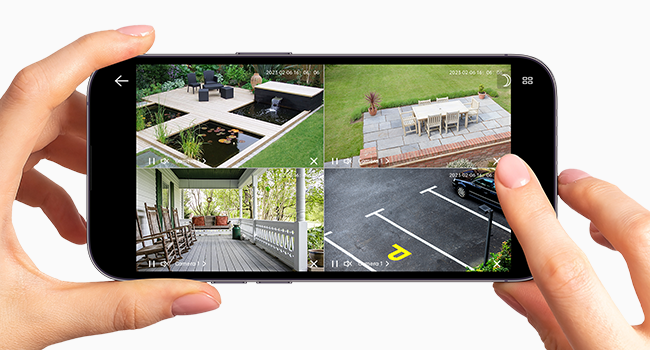
Image 4.1: Multiple camera views within the Wansview වලාකුළු යෙදුම.
- Access live 2K FHD video streams from your camera(s) via the app.
- Use the microphone icon to enable two-way audio, allowing you to speak through the camera.
- Switch between 2K and standard definition video quality as needed.
- Record video directly to your smartphone or capture still images.
4.2 චලන අනාවරණය සහ ඇඟවීම්
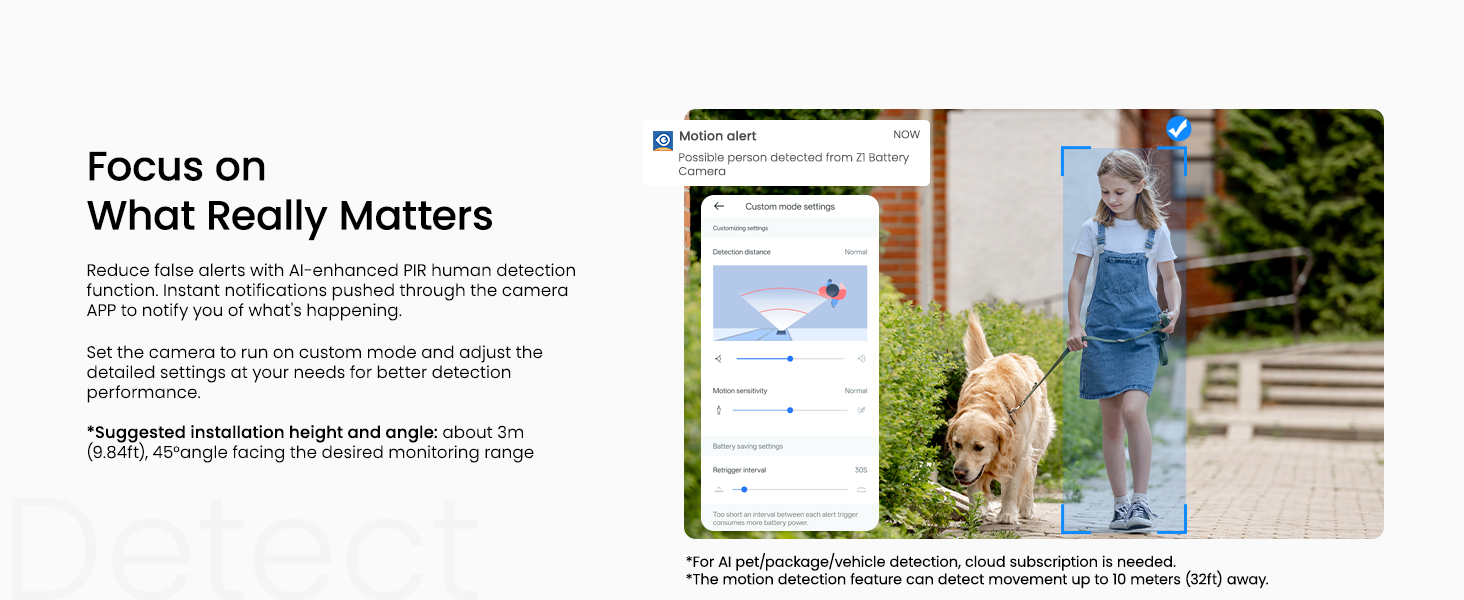
Image 4.2: Customizing motion detection settings and receiving alerts.
- Configure motion detection settings (Power-save, Standard, Performance, Custom modes) to balance battery life and detection sensitivity.
- Enable motion alerts to receive real-time notifications on your smartphone when activity is detected.
- Customize detection types (e.g., human, pet, vehicle) and notification preferences.
4.3 Night Vision & Lighting
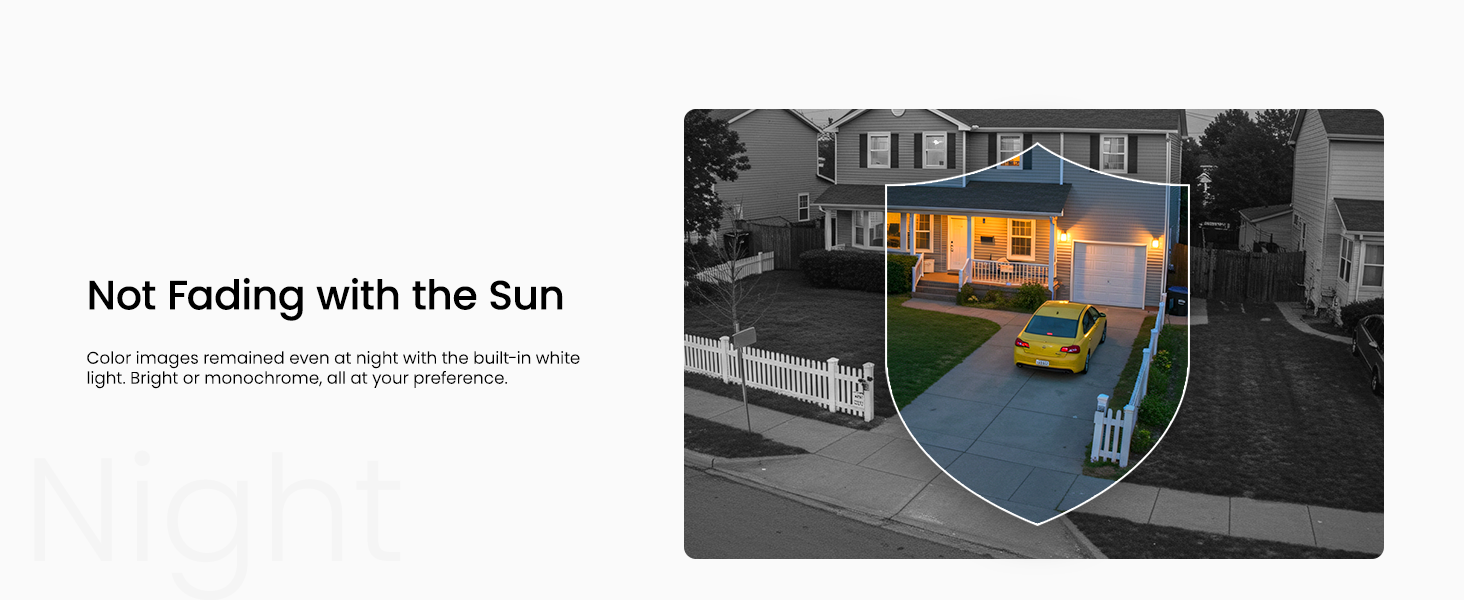
Image 4.3: The camera offers both infrared and full-color night vision options.
- Choose between Auto Infrared mode (black & white), Intelligent Light mode (color night vision with white lights on motion), or Full Color Night mode (always color with ambient light).
- Manually turn on/off the camera's integrated light for enhanced visibility or deterrence.
4.4 සයිරන් එලාම්

Image 4.4: The camera's siren can be manually activated or triggered by motion.
- Manually activate the siren from the app to deter unwanted visitors.
- Set the siren to be triggered automatically by motion detection for an immediate response.
5. ගබඩා විකල්ප

රූපය 5.1: ඉවරයිview of the three available storage modes.
- App Motion Alerts: Receive real-time snapshots/clips (no permanent save) at no cost.
- Local TF Card Storage: Supports up to 128GB (FAT32 format only) for loop recording. TF card not included.
- විකල්ප වලාකුළු ගබඩාව: Subscription required for secure off-site backup, multi-device access, and advanced AI recognition features (human, pet, vehicle, package).
6. උපාංග බෙදාගැනීම
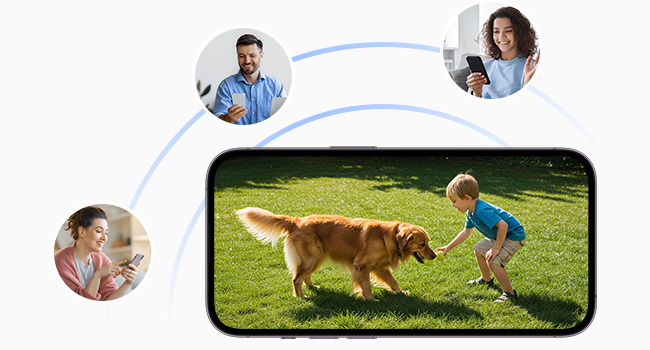
Image 6.1: Share camera access with family members or other users.
You can share access to your camera with other users (family, friends) through the Wansview Cloud app. Navigate to 'Settings' > 'Device Sharing' and invite new members. You can select specific permissions for shared users, such as live view, motion alerts, cloud storage replay, two-way audio, light control, and siren control.
7. පිරිවිතර
| ගෘහස්ථ / එළිමහන් භාවිතය | ගෘහස්ථ, එළිමහන් |
| ගැළපෙන උපාංග | Alexa Assistant |
| බලශක්ති ප්රභවය | බැටරි බලයෙන් ක්රියාත්මක වන, සූර්ය බලයෙන් ක්රියාත්මක වන |
| සම්බන්ධතා ප්රොටෝකෝලය | Wi-Fi (2.4GHz පමණි) |
| පාලක වර්ගය | Android, iOS |
| සවිකිරීමේ වර්ගය | වෝල් මවුන්ට්, සීලිං මවුන්ට් |
| වීඩියෝ ග්රහණ විභේදනය | 1296p (2K) |
| වර්ණය | සුදු |
| ජාත්යන්තර ආරක්ෂණ ශ්රේණිගත කිරීම | IP65 |
| බැටරි බලය | 5200 මිලිamp පැය |
| රාත්රී දැක්ම පරාසය | අඩි 26 |
| Viewing කෝණය | අංශක 98.9 |
8. නඩත්තු කිරීම
To ensure optimal performance and longevity of your INFIYA Z1 Solar Camera, follow these maintenance guidelines:
- නිතිපතා පිරිසිදු කිරීම: කැමරා කාචය සහ සූර්ය පැනල මතුපිට මෘදු, d පිරිසිදු කරන්නෙකු භාවිතයෙන් වරින් වර පිරිසිදු කරන්න.amp දර්ශනයට බාධා කළ හැකි හෝ ආරෝපණ කාර්යක්ෂමතාව අඩු කළ හැකි දූවිලි, අපිරිසිදුකම් හෝ සුන්බුන් ඉවත් කිරීමට රෙදි.
- බැටරි අධීක්ෂණය: While solar-powered, monitor the battery level in the app, especially during prolonged periods of low sunlight or heavy usage.
- ස්ථිරාංග යාවත්කාලීන කිරීම්: Check the Wansview Cloud app regularly for firmware updates to ensure your camera has the latest features and security enhancements.
- කාලගුණ ආරක්ෂණය: Although IP65 rated, ensure the camera is installed securely to withstand strong winds or heavy precipitation. Avoid direct high-pressure water jets.
9. දෝශ නිරාකරණය
If you encounter issues with your INFIYA Z1 Solar Camera, refer to these common troubleshooting tips:
- සම්බන්ධතා ගැටළු: Ensure your Wi-Fi network is 2.4GHz. Verify the Wi-Fi signal strength at the camera's location using the app. Try resetting the camera by holding the reset button for 5 seconds until the red and blue LEDs flash alternately.
- බැටරිය ආරෝපණය නොවේ: Confirm the solar panel is receiving direct sunlight. Check the connection cable between the solar panel and the camera. Ensure the solar panel surface is clean.
- ව්යාජ චලන ඇඟවීම්: Adjust the motion detection sensitivity settings in the app. Utilize custom detection zones to exclude areas with frequent irrelevant movement (e.g., swaying trees).
- දුර්වල රාත්රී දැක්ම: Ensure the camera lens is clean. Check night vision settings in the app (Auto Infrared, Intelligent Light, Full Color Night) to match your preference and ambient light conditions.
- ද්වි-මාර්ග ශ්රව්ය ගැටළු: Verify microphone and speaker settings in the app. Ensure there are no obstructions blocking the camera's microphone or speaker.
10. වගකීම් සහ සහාය
For warranty information, technical support, or further assistance, please refer to the official INFIYA website or contact their customer service directly. The Wansview Cloud app also provides a 'Support Center' and 'Diagnose' section for in-app assistance.


