1. හැඳින්වීම සහ අවසන්view
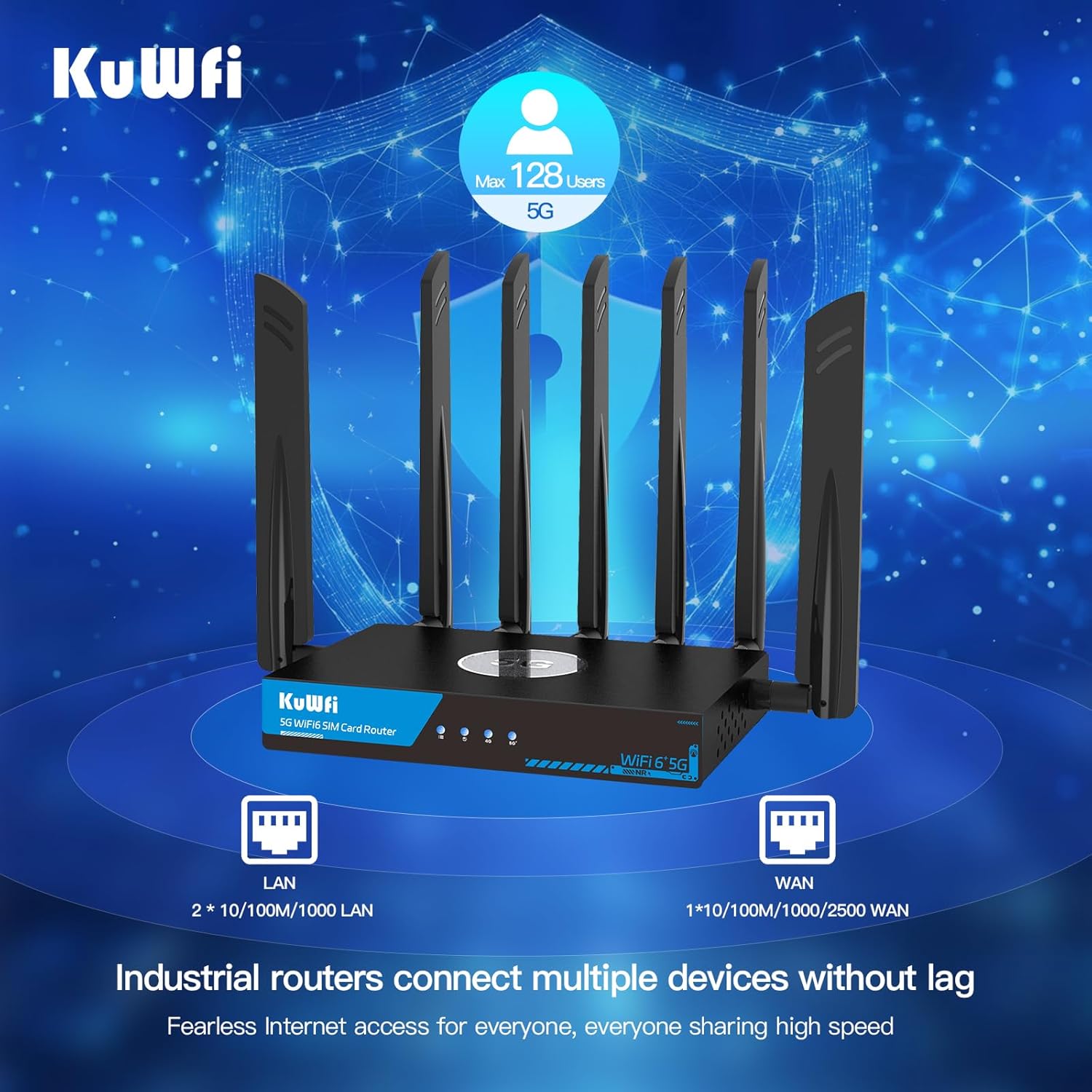
The KuWFi RM503Qpro is an advanced AX3000 WiFi 6 5G router designed for versatile connectivity. Featuring dual SIM card slots, it supports global 5G and 4G LTE networks, providing ultra-fast broadband connections wherever you need them. This router is ideal for use as a primary or backup internet solution in homes, apartments, RVs, mobile living, remote work environments, and small businesses. Its robust design includes a 2.5G WAN port and an integrated fan cooling system to ensure stable performance.

Image: KuWFi RM503Qpro 5G WiFi 6 Router, highlighting its advanced features.
2. පැකේජ අන්තර්ගතය
සියලුම අයිතම පැකේජයේ ඇති බවට වග බලා ගන්න:
- 1 x KuWFi RM503Qpro 5G WiFi 6 Router
- 7 x Detachable Cellular Antennas
- 1 x බල ඇඩැප්ටරය
- 1 x RJ45 ඊතර්නෙට් කේබලය
- 1 x Quick Installation Guide (Manual)
- 1 x SIM Card Ejector Tool (for Nano-SIM)
3. නිෂ්පාදන අවසන්view
3.1 ඉදිරිපස පුවරු දර්ශක
- බල දර්ශකය: බල තත්ත්වය පෙන්වයි.
- අන්තර්ජාල දර්ශකය: අන්තර්ජාල සම්බන්ධතා තත්ත්වය පෙන්වයි.
- 2.4G WiFi Indicator: Shows 2.4GHz Wi-Fi activity.
- 5G WiFi Indicator: Shows 5GHz Wi-Fi activity.
- Cellular Signal Strength: Indicates the strength of the 5G/4G cellular signal.
3.2 පසුපස පැනල් තොටුපළ සහ බොත්තම්
රූපය: පසුපස view of the KuWFi RM503Qpro router, detailing port layout.
- RST (නැවත පිහිටුවීම) බොත්තම: කර්මාන්තශාලා පෙරනිමි සැකසුම් ප්රතිසාධනය කිරීමට තත්පර 5-10ක් ඔබාගෙන සිටින්න.
- MESH Button: For mesh networking configuration.
- SIM1 & SIM2 Slots: Insert Nano-SIM cards for cellular connectivity.
- LAN තොට (x3): රැහැන්ගත උපාංග සඳහා ගිගාබිට් ඊතර්නෙට් වරායන්.
- WAN/LAN 2.5G Port (x1): A 2.5 Gigabit Ethernet port that can function as either a WAN or LAN port.
- DC 12V බල ආදානය: සපයන ලද බල ඇඩැප්ටරය සම්බන්ධ කරන්න.
- ඇන්ටෙනා සම්බන්ධක: Multiple SMA connectors for attaching external 5G NR and Wi-Fi antennas.
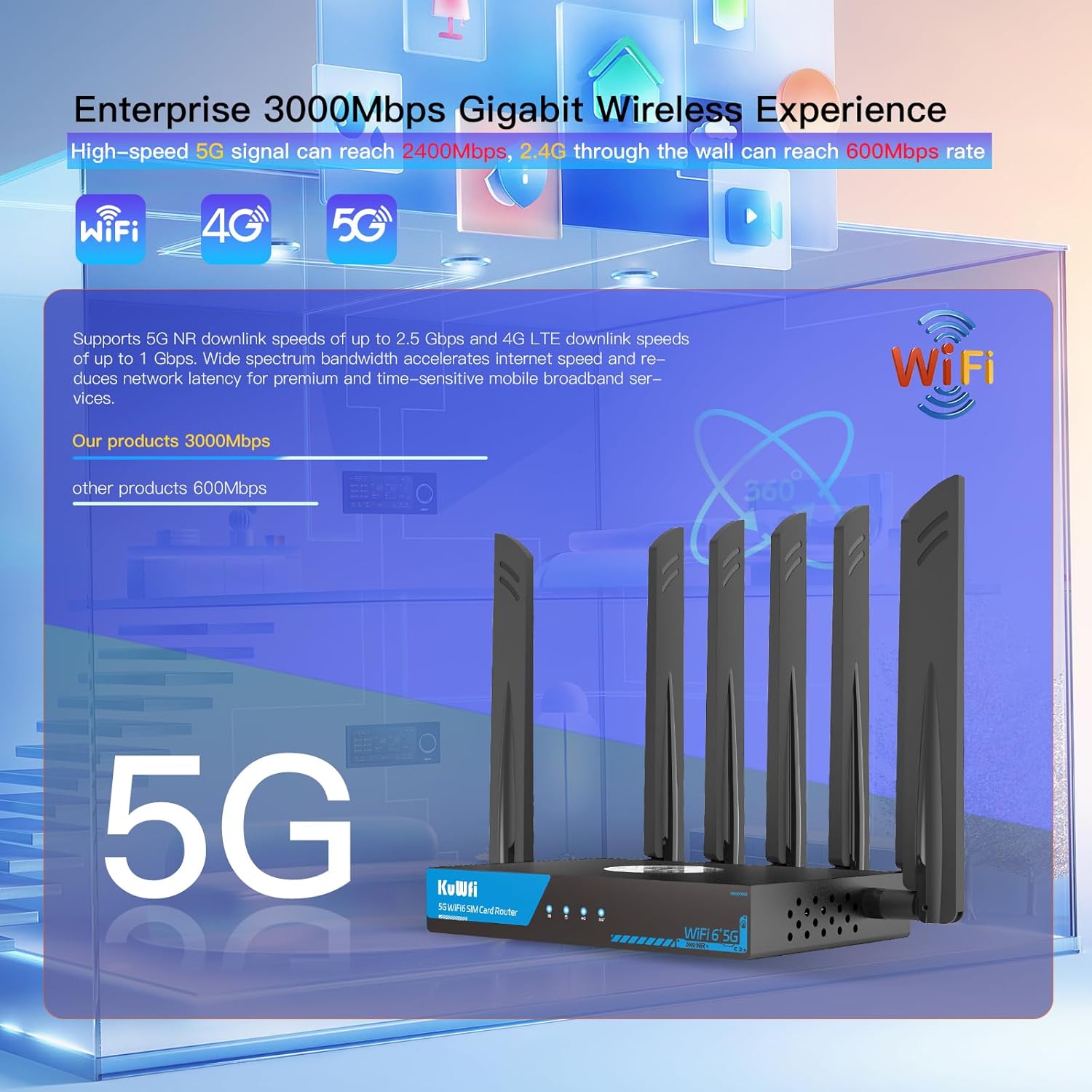
Image: Close-up of the router's LAN and WAN ports.

රූපය: විස්තරාත්මක view of the dual Nano-SIM card slots.
4. පිහිටුවීම
4.1 සිම් කාඩ්පත් සවි කිරීම
- Locate the SIM1 and SIM2 slots on the rear panel of the router.
- Using the provided SIM ejector tool or a paperclip, gently press into the small hole next to the SIM slot to release the tray.
- Place your Nano-SIM card(s) into the tray(s) with the gold contacts facing down and the notched corner aligned correctly.
- Gently push the tray(s) back into the router until it clicks into place.
4.2 ඇන්ටෙනා ස්ථාපනය
- Identify the antenna connectors on the rear panel. There are connectors for NR 5G and 2.4/5.8G Wi-Fi.
- Screw the provided external antennas onto their respective connectors. Ensure they are finger-tight.
- Adjust the antennas for optimal signal reception.
4.3 බල සම්බන්ධතාවය
- Connect the power adapter to the DC 12V power input port on the router.
- බල ඇඩැප්ටරය සම්මත විදුලි අලෙවිසැලකට සම්බන්ධ කරන්න.
- The Power LED indicator on the front panel should light up.
4.4 මූලික වින්යාසය (Web UI Access)
- Wait for the router to boot up. The Internet and Cellular Signal LEDs should eventually turn blue, indicating a successful connection. If the Cellular Signal LED is red, check SIM card installation and network coverage.
- Connect your computer or smartphone to the router's default Wi-Fi network. The default SSID and password can typically be found on a label on the bottom of the router.
- a විවෘත කරන්න web browser and enter the default access IP address (e.g., 192.168.1.1) or URL (e.g., http://kuwfi.com) into the address bar.
- Log in using the default username and password (usually 'admin' for both, or as specified on the label).
- Follow the on-screen setup wizard to configure basic settings such as timezone, APN profile (if not automatically detected), and customize your Wi-Fi network name (SSID) and password.
Video: KuWFi Industrial Cellular 5G Router with Dual SIM Slot - This video demonstrates the physical setup and features of the router, including SIM card insertion and port overview.
5. මෙහෙයුම් උපදෙස්
5.1 High-Speed Wi-Fi 6 Connectivity
The router supports dual-band AX3000 Wi-Fi 6, providing high-speed wireless connectivity for up to 256 devices simultaneously. This ensures smooth streaming, gaming, and general internet usage.

Image: Illustration of the router providing extensive Wi-Fi 6 coverage.
5.2 Dual SIM Failover
With dual SIM slots, the router offers automatic failover. If the primary SIM's network connection is lost or unstable, the router will automatically switch to the secondary SIM, ensuring uninterrupted internet access.

Image: Visual representation of the dual SIM functionality for reliable connectivity.
5.3 VPN and Security Features
The router comes with pre-installed VPN protocols including WireGuard, OpenVPN, and IPsec. These features enable secure and private internet browsing, as well as secure remote access to your network. Parental controls are also included to manage internet access for specific devices or users.

Image: Router highlighting VPN and security features.
5.4 Multi-WAN Backup
The 2.5G WAN port allows the router to be used with existing broadband or satellite routers, providing a multi-WAN backup solution for maximum internet uptime and reliability.
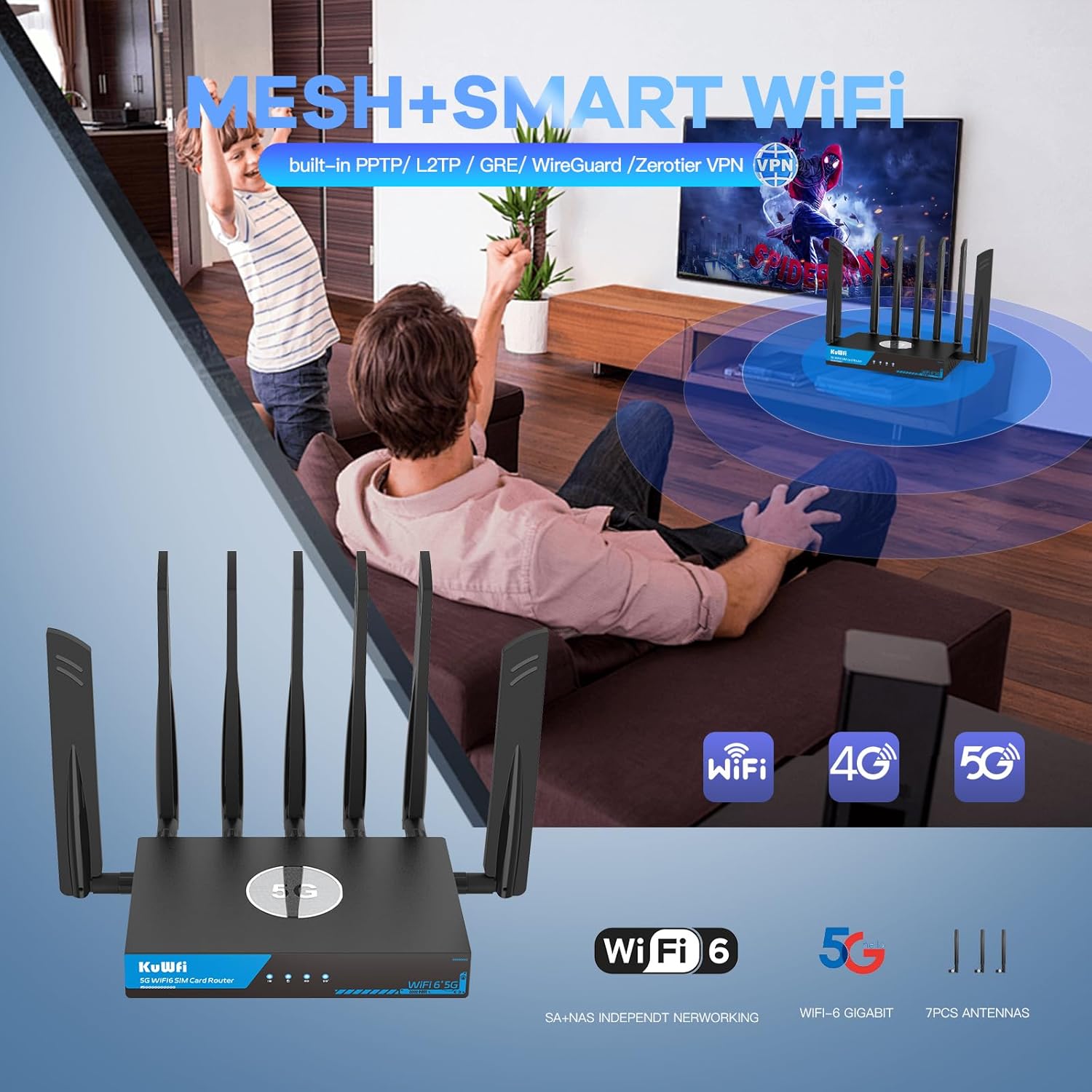
Image: Router seamlessly integrated into a home environment.

Image: Router providing connectivity in an RV setting.
6. නඩත්තු කිරීම
6.1 Fan Cooling System
The KuWFi RM503Qpro is equipped with a built-in fan cooling system. This system actively dissipates heat, preventing overheating and throttling, which is crucial for maintaining stable performance during continuous operation, especially in demanding environments.

Image: Diagram illustrating the router's internal fan cooling system.
6.2 ස්ථිරාංග යාවත්කාලීන කිරීම්
To ensure optimal performance, security, and access to the latest features, it is recommended to regularly check for and install firmware updates for your router. Refer to the web management interface for available updates and installation instructions.
7. දෝශ නිරාකරණය
7.1 No Cellular Signal or Red LED
- SIM කාඩ්පත පරීක්ෂා කරන්න: Ensure the Nano-SIM card(s) are correctly inserted into the SIM slots.
- ජාල ආවරණය: Verify that you are in an area with adequate 5G/4G cellular network coverage.
- APN සැකසුම්: වෙත පිවිසෙන්න web management interface and confirm that the APN (Access Point Name) settings are correctly configured for your cellular provider.
- ඇන්ටනා: Ensure all cellular antennas are securely attached and properly oriented.
7.2 මන්දගාමී අන්තර්ජාල වේගය
- සංඥා ශක්තිය: Check the cellular signal strength indicator. Low signal can result in slower speeds.
- උපාංග පැටවීම: Too many devices connected or high-bandwidth activities (streaming, large downloads) can impact speed.
- ජාල තදබදය: Cellular network performance can vary based on local congestion.
- Wi-Fi බාධාව: Ensure your Wi-Fi channels are not congested. Adjust channels in the web UI if necessary.
7.3 ප්රවේශ විය නොහැක Web කළමනාකරණ අතුරුමුහුණත
- Wi-Fi සම්බන්ධතාවය: Confirm your device is connected to the router's Wi-Fi network.
- IP ලිපිනය: Ensure you are using the correct default IP address (e.g., 192.168.1.1) or URL (http://kuwfi.com).
- පිවිසුම් අක්තපත්ර: Verify the username and password. If forgotten, a factory reset may be necessary.
7.4 කර්මාන්තශාලා යළි පිහිටුවීම
If you encounter persistent issues or forget your login credentials, you can perform a factory reset. With the router powered on, use a pin or paperclip to press and hold the RST button on the rear panel for 5-10 seconds until the indicators flash. The router will restart with default settings.
8. පිරිවිතර
| මාදිලියේ නම | RM503Qpro |
| නිෂ්පාදන මානයන් | අඟල් 3.5 x 2.5 x 0.5 |
| අයිතමයේ බර | රාත්තල් 2.2 කි |
| සංඛ්යාත කලාප පන්තිය | ද්විත්ව කලාප (2.4GHz සහ 5GHz) |
| රැහැන් රහිත සන්නිවේදන ප්රමිතිය | 802.11ax (WiFi 6) |
| සම්බන්ධතා තාක්ෂණය | Wi-Fi, Cellular (5G/4G/3G), Ethernet |
| විශේෂ ලක්ෂණය | Parental Control, Dual SIM Failover, Fan Cooling, VPN (WireGuard, OpenVPN, IPsec) |
| 5G NR SA/NSA Bands | n1/ 2/ 3/ 5/ 7/ 8/ 12/ 13/ 14/ 18/ 20/ 25/ 26/ 28/ 29/ 30/ 38/ 40/ 41/ 48/ 66/ 70/ 71/ 75/ 76/ 77/78/ 79 |
| 4G&3G Frequency Bands | LTE-FDD B1/ 2/ 3/ 4/ 5/ 7/ 8/ 12/ 13/ 14/ 17/ 18/ 19/ 20/ 25/ 26/ 28/ 29/ 30/ 32/ 66/ 71 LTE-TDD B34/ 38/ 39/ 40/ 41/ 42/ 43/ 48 |
9. වගකීම් සහ සහාය
The KuWFi RM503Qpro router is covered by a මාස 12ක වගකීමක් from the date of purchase against product quality issues. For any technical assistance, questions, or warranty claims, please contact our dedicated support team:
විද්යුත් තැපෑල: support@kuwfi.com
We are committed to providing prompt technical solutions or, if necessary, a complete device replacement.


