හැඳින්වීම
This manual provides essential information for the proper setup, operation, and maintenance of your DigiLand MID1057-MX 10.1-inch Android 14 Tablet. Please read this manual thoroughly before using the device to ensure optimal performance and longevity.

Image: DigiLand MID1057-MX Android 14 Tablet.
සැලසුම
1. පැකේජ අන්තර්ගතය
සියලුම අයිතම පැකේජයේ ඇති බව තහවුරු කරගන්න:
- DigiLand MID1057-MX Tablet
- USB Type-C කේබලය
- බල ඇඩැප්ටරය
- ආරක්ෂිත නඩුව
- ඉක්මන් ආරම්භක මාර්ගෝපදේශය
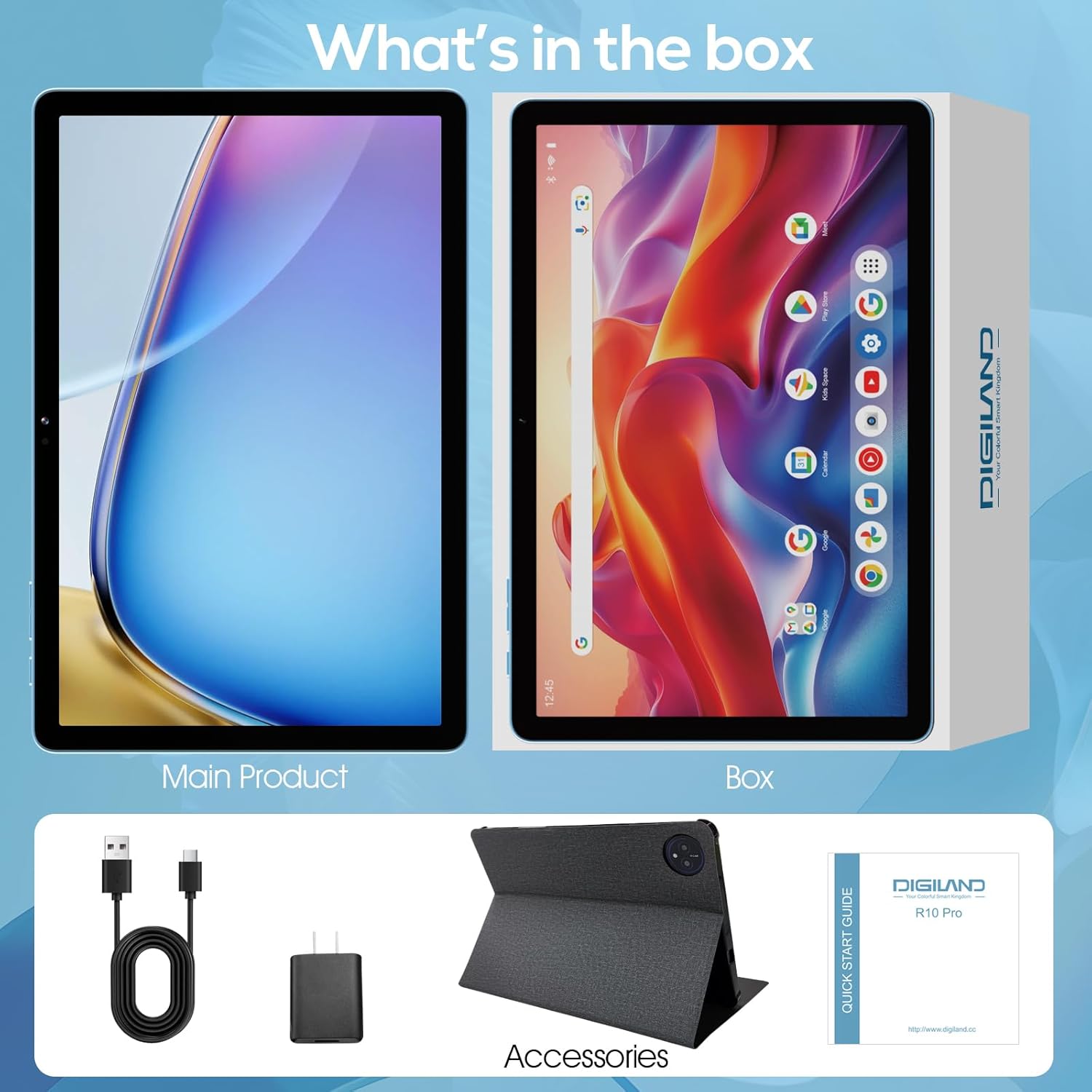
Image: Package contents of the DigiLand MID1057-MX Tablet.
2 උපාංග පිරිසැලසුම
ටැබ්ලටයේ භෞතික ලක්ෂණ පිළිබඳව ඔබව හුරු කරවන්න:
- බල බොත්තම: පැත්තේ පිහිටා ඇති අතර, උපාංගය සක්රිය/අක්රිය කිරීමට හෝ තිරය අවදි කිරීමට/නිද්රා තැබීමට භාවිතා කරයි.
- වෙළුම් බොත්තම්: ශ්රව්ය මට්ටම් සකසන්න.
- USB Type-C Port: අයකිරීම් සහ දත්ත හුවමාරුව සඳහා.
- හෙඩ්සෙට් ජැක්: හෙඩ්ෆෝන් සම්බන්ධ කිරීම සඳහා.
- MicroSD කාඩ් පත: For expandable storage (up to 1TB).
- ඉදිරිපස කැමරාව: වීඩියෝ ඇමතුම් සහ සෙල්ෆි සඳහා.
- පසුපස කැමරාව: ඡායාරූප සහ වීඩියෝ රූගත කිරීම සඳහා.

රූපය: අවසන්view of tablet ports and buttons.
3. මූලික ගාස්තුව
Before first use, fully charge the tablet. Connect the USB Type-C cable to the tablet's port and the power adapter to a wall outlet. The battery indicator on the screen will show charging status.
4. බලය සක්රිය / අක්රිය කරන්න
- බල ගැන්වීමට: Press and hold the Power button until the DigiLand logo appears.
- බලය අක්රිය කිරීමට: Press and hold the Power button until the power options menu appears, then select "Power off."
- නිදා ගැනීමට/අවදි කිරීමට: කෙටියෙන් බල බොත්තම ඔබන්න.
5. මූලික සැකසුම
පළමු වරට බලය ක්රියාත්මක කළ පසු, තිරයේ ඇති විමසීම් අනුගමනය කරන්න:
- ඔබේ භාෂාව තෝරන්න.
- Wi-Fi ජාලයකට සම්බන්ධ කරන්න.
- ඔබගේ Google ගිණුම සමඟින් පුරනය වන්න හෝ අලුත් එකක් සාදන්න.
- තිර අගුල සහ අනෙකුත් ආරක්ෂක විශේෂාංග සකසන්න.
ක්රියාත්මක වෙනවා
1. Touchscreen Gestures
Navigate the tablet using standard Android gestures:
- තට්ටු කරන්න: අයිතමයක් තෝරන්න හෝ යෙදුමක් විවෘත කරන්න.
- තට්ටු කර තබා ගන්න: සන්දර්භීය මෙනු වෙත ප්රවේශ වන්න හෝ අයිකන ගෙන යන්න.
- ස්වයිප්: Scroll through pages or navigate between screens.
- පින්ච්: රූප විශාලනය කරන්න හෝ අඩු කරන්න සහ web පිටු.
2. Wi-Fi වෙත සම්බන්ධ වීම
- වෙත යන්න සැකසීම් > ජාලය සහ අන්තර්ජාලය > Wifi.
- Wi-Fi ටොගල් කරන්න On.
- ලැයිස්තුවෙන් ඔබට අවශ්ය ජාලය තෝරන්න.
- විමසුවහොත් මුරපදය ඇතුළත් කරන්න, ඉන්පසු තට්ටු කරන්න සම්බන්ධ කරන්න.
3. බ්ලූටූත් යුගලනය
- වෙත යන්න සැකසීම් > සම්බන්ධිත උපාංග > බ්ලූටූත්.
- බ්ලූටූත් ටොගල් කරන්න On.
- ඔබගේ බ්ලූටූත් උපාංගය යුගල කිරීමේ මාදිලියේ ඇති බව සහතික කර ගන්න.
- Select the device from the list and follow any on-screen prompts to complete pairing.
4. Installing and Uninstalling Applications
- ස්ථාපනය කරන්න: Open the Google Play Store app, search for the desired application, and tap ස්ථාපනය කරන්න.
- අස්ථාපනය කරන්න: වෙත යන්න සැකසීම් > යෙදුම් > සියලුම යෙදුම් බලන්න, යෙදුම තෝරන්න, පසුව තට්ටු කරන්න අස්ථාපනය කරන්න.
5. ගබඩාව කළමනාකරණය කිරීම
Your tablet comes with 128GB of internal storage. You can expand this by up to 1TB using a MicroSD card (not included).
- To Insert MicroSD Card: Locate the MicroSD card slot, gently insert the card until it clicks into place.
- To Remove MicroSD Card: වෙත යන්න සැකසීම් > ගබඩා කිරීම, tap on the SD card, and select ඉවත් කරන්න before physically removing it.

Image: Storage capacity and expansion.
6. කැමරා භාවිතය
The tablet features a 13MP rear camera and an 8MP front camera.
- විවෘත කරන්න කැමරාව යෙදුම.
- ඡායාරූපයක් ගැනීමට ෂටර් බොත්තම තට්ටු කරන්න.
- වීඩියෝවක් පටිගත කිරීමට වීඩියෝ නිරූපකය තට්ටු කරන්න.
- Use the camera switch icon to toggle between front and rear cameras.
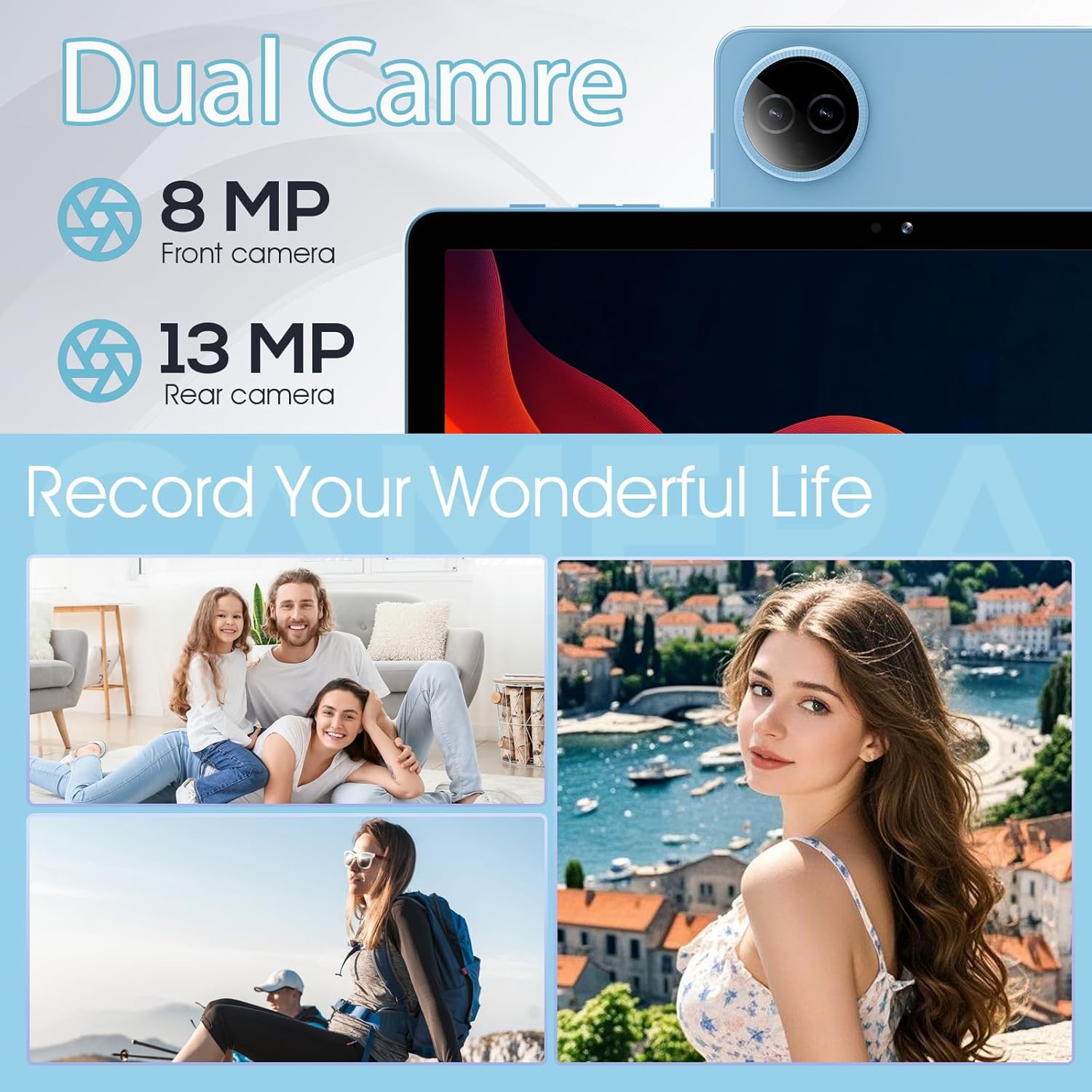
Image: Dual camera features and examples.
7. බැටරි කළමනාකරණය
6000mAh බැටරිය දිගු භාවිත කාලයක් සපයයි. බැටරි ආයු කාලය ප්රශස්ත කිරීම සඳහා:
- තිරයේ දීප්තිය සුවපහසු මට්ටමකට සකසන්න.
- භාවිතයේ නොමැති විට Wi-Fi සහ Bluetooth අක්රිය කරන්න.
- පසුබිමේ ධාවනය වන භාවිතයට නොගත් යෙදුම් වසා දමන්න.
- බැටරි සුරැකුම් ප්රකාරය සක්රීය කරන්න සැකසීම් > බැටරි.

රූපය: බැටරි ධාරිතාව සහ භාවිත ඇස්තමේන්තු.
නඩත්තු කිරීම
1. උපාංගය පිරිසිදු කිරීම
ටැබ්ලටයේ තිරය සහ බඳ පිරිසිදු කිරීම සඳහා මෘදු, ලින්ට් රහිත රෙද්දක් භාවිතා කරන්න. රළු රසායනික ද්රව්ය හෝ උල්ෙල්ඛ ද්රව්ය භාවිතා කිරීමෙන් වළකින්න.
2. මෘදුකාංග යාවත්කාලීන
ඔබගේ ටැබ්ලටයේ නවතම විශේෂාංග සහ ආරක්ෂක පැච් ඇති බව සහතික කර ගැනීම සඳහා පද්ධති යාවත්කාලීන කිරීම් නිතිපතා පරීක්ෂා කර ස්ථාපනය කරන්න. වෙත යන්න සැකසීම් > පද්ධතිය > පද්ධති යාවත්කාලීන කිරීම.
3. ගබඩා ප්රශස්තිකරණය
වරින් වර නැවතview සහ අනවශ්ය දේ මකන්න files, photos, and applications to free up storage space and maintain performance. Consider moving large media fileබාහිර MicroSD කාඩ්පතකට s.
දෝෂගවේෂණය
පොදු ගැටළු සහ ඒවාට විසඳුම් සඳහා පහත වගුව බලන්න:
| කලාපය | හැකි විසඳුම |
|---|---|
| ටැබ්ලටය ක්රියාත්මක නොවේ | බැටරිය ආරෝපණය කර ඇති බවට වග බලා ගන්න. අවම වශයෙන් මිනිත්තු 30 ක් චාජරයට සම්බන්ධ කර, පසුව නැවත බල ගැන්වීමට උත්සාහ කරන්න. |
| Wi-Fi සම්බන්ධතා ගැටළු | ටැබ්ලටය සහ ඔබේ Wi-Fi රවුටරය නැවත ආරම්භ කරන්න. සැකසුම් තුළ ජාලය අමතක කර නැවත සම්බන්ධ කරන්න. |
| මන්දගාමී කාර්ය සාධනය | Close unused apps. Clear cache for frequently used apps. Check for system updates. Free up storage space. |
| බැටරිය ඉක්මනින් බැස යයි | Reduce screen brightness. Disable Wi-Fi/Bluetooth when not in use. Limit background app activity. |
| යෙදුම් බිඳ වැටීම හෝ කැටි වීම | Restart the app. Clear the app's cache and data in settings. Reinstall the app. |
පිරිවිතර
Key technical specifications for the DigiLand MID1057-MX Tablet:
| විශේෂාංගය | පිරිවිතර |
|---|---|
| ආකෘතිය | MID1057-MX |
| මෙහෙයුම් පද්ධතිය | Android 14 |
| තිර ප්රමාණය | අඟල් 10.1 |
| තිර විභේදනය | 1280 x 800 pixels (IPS HD) |
| ප්රොසෙසරය | MTK Helio G80 Octa-Core (A523, Cortex A55@1.8 GHz, 22nm) |
| RAM | 12GB (4GB භෞතික + 8GB පුළුල් කිරීම) |
| අභ්යන්තර ගබඩාව | 128GB ROM |
| පුළුල් කළ හැකි ගබඩාව | Up to 1TB via MicroSD card (TF card slot) |
| බැටරි ධාරිතාව | 6000mAh |
| ඉදිරිපස කැමරාව | 8MP |
| පසුපස කැමරාව | 13MP |
| සම්බන්ධතාවය | Dual-band Wi-Fi (2.4G+5G), Bluetooth 5.0, USB Type-C (OTG) |
| මානයන් (LxWxH) | අඟල් 9.5 x 6.3 x 0.3 |
| අයිතමයේ බර | 2.79 pounds (485g for tablet only) |

රූපය: සවිස්තරාත්මක නිෂ්පාදන පිරිවිතර.
වගකීම් සහ සහාය
1. වගකීම් තොරතුරු
Please refer to the warranty card included with your product for specific warranty terms and conditions. DigiLand provides after-sales support to address any product-related concerns.
2. පාරිභෝගික සහාය
For technical assistance, troubleshooting, or any questions regarding your DigiLand MID1057-MX Tablet, please contact DigiLand customer support through the contact information provided in your Quick Start Guide or on the official DigiLand webඅඩවිය.


