හැඳින්වීම
The ASUS TUF Gaming VG249QM5A is a 23.8-inch Full HD monitor designed for an enhanced gaming experience. It incorporates a 240Hz refresh rate and 0.3ms response time, alongside AMD FreeSync™ Premium and NVIDIA® G-SYNC® compatibility for smooth visuals. This monitor offers improved color performance, Gaming AI features, and convenient control via the DisplayWidget Center.
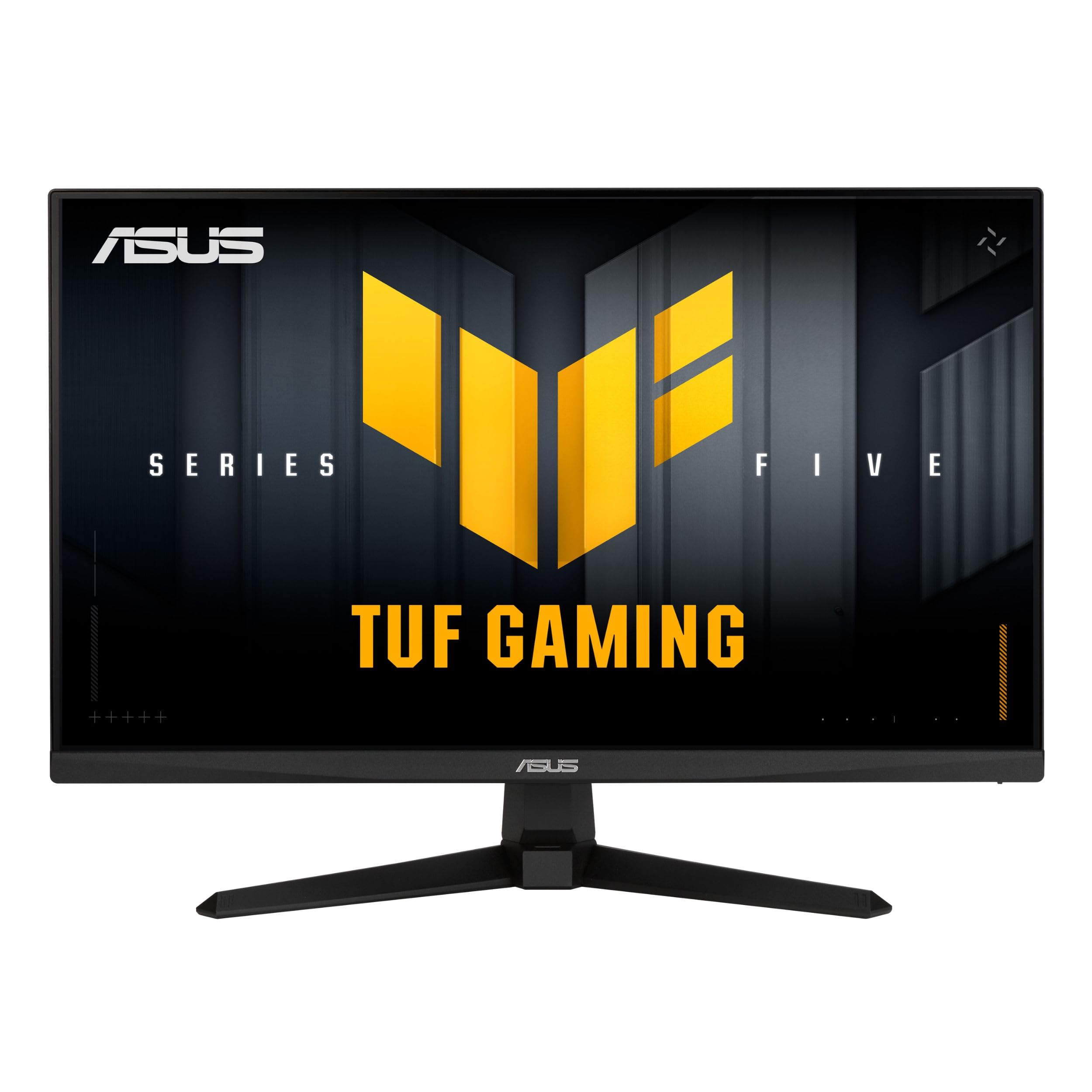
රූපය: ඉදිරිපස view of the ASUS TUF Gaming VG249QM5A monitor.
පෙට්ටියේ ඇති දේ
Verify that all the following items are present in your product packaging:
- ASUS TUF Gaming VG249QM5A Monitor
- DisplayPort කේබලය
- L-හැඩැති ඉස්කුරුප්පු නියනක්
- විදුලි රැහැන
- ඉක්මන් ආරම්භක මාර්ගෝපදේශය
- වගකීම් කාඩ්පත
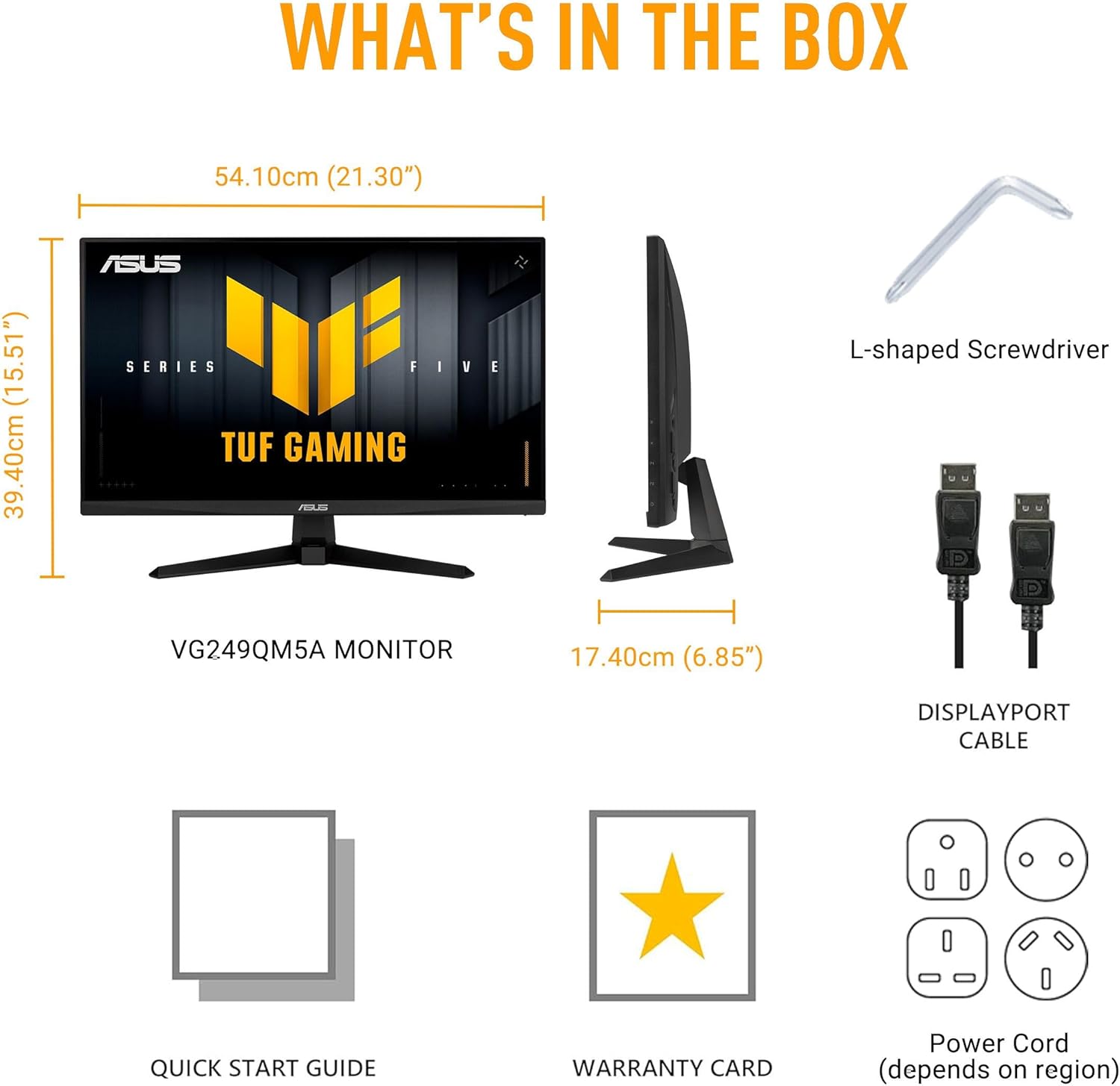
Image: Diagram showing the monitor, DisplayPort cable, L-shaped screwdriver, power cord, quick start guide, and warranty card included in the box.
සැලසුම
1. එකලස් කිරීම නිරීක්ෂණය කරන්න
Carefully remove the monitor and its components from the packaging. Attach the stand base to the stand neck, then secure the assembled stand to the back of the monitor panel. Ensure all connections are firm.
2. කේබල් සම්බන්ධ කිරීම
අවශ්ය කේබල් මොනිටරයට සහ ඔබේ පරිගණකයට සම්බන්ධ කරන්න:
- විදුලි රැහැන්: Connect one end of the power cord to the monitor's power input and the other end to a power outlet.
- DisplayPort කේබල්: For optimal performance, connect the included DisplayPort cable from your computer's graphics card to the DisplayPort input on the monitor.
- HDMI කේබල්: Alternatively, you can use HDMI cables to connect to the monitor's HDMI 2.0 ports.
- කරාබු ජැක්: Connect your headphones or external speakers to the earphone jack for audio output.

Image: The monitor connected to a desktop computer with various cables.

රූපය: සමීප රූපය view of the monitor's rear ports, including two HDMI 2.0 ports, one DisplayPort, and an earphone jack.
මොනිටරය ක්රියාත්මක කිරීම
ප්රධාන කාර්ය සාධන විශේෂාංග
- වේගවත් IPS පැනලය: දීප්තිමත් වර්ණ සහ පුළුල් බව අත්විඳින්න viewing කෝණ.
- 240Hz නැවුම් කිරීමේ අනුපාතය: Provides extremely fluid visuals for fast-paced gaming.
- 0.3ms Response Time (min): Minimizes motion blur and ghosting for sharp images.
- G-SYNC අනුකූල සහ FreeSync වාරිකය: ඔබගේ GPU හි රාමු අනුපාතය සමඟ මොනිටරයේ නැවුම් කිරීමේ අනුපාතය සමමුහුර්ත කිරීමෙන් කඳුළු-නිදහස් සහ පැකිලීම-නිදහස් ක්රීඩාව සහතික කරයි.
- Extreme Low Motion Blur Sync (ELMB SYNC): Enables ELMB simultaneously with variable refresh rate technologies, further reducing ghosting and tearing.
- 99% sRGB වර්ණ ගැමට්: Delivers accurate and rich color reproduction.

Image: Infographic highlighting key upgrades including speed (0.3ms, 240Hz), fluidity (FreeSync Premium, G-SYNC, ELMB SYNC), Gaming AI, colors (99% sRGB), and simplicity (DisplayWidget Center).

රූපය: මොනිටර දර්ශනයasing a high-speed gaming scene, emphasizing its fast IPS, Full HD, 0.3ms, and 240Hz capabilities.

Image: A visual comparison demonstrating improved game fluidity with Variable Refresh Rate (VRR) enabled, highlighting G-SYNC, FreeSync Premium, and ELMB SYNC.
Gaming AI Technology
The monitor includes TUF Gaming A.I. technology with AI-powered features to enhance your gaming experience:
- Dynamic Crosshair: වැඩිදියුණු කළ ඉලක්ක නිරවද්යතාවය සඳහා තිරය මත හරස්කඩක් සපයයි.
- AI දෘශ්ය: Optimizes visual settings based on game content.

Image: Demonstrations of Dynamic Crosshair (before and after) and AI Visual (before and after) features in gaming scenarios.
DisplayWidget මධ්යස්ථානය
The DisplayWidget Center software allows for easy access to On-Screen Display (OSD) settings and monitor adjustments using your mouse. This provides a user-friendly interface for customizing various display parameters, managing firmware updates, and controlling multi-screen setups.

Image: A screenshot of the DisplayWidget Center interface, showing options for customizable settings, firmware update notifications, and multiscreen control.
Eye Care Features and Ergonomic Design
This monitor incorporates features designed to reduce eye strain during extended use and offers flexible positioning options:
- දිලිසෙන විරෝධී තිරය: Reduces reflections from ambient light, improving visibility.
- නිල් ආලෝක පෙරහන: Adjustable levels to reduce harmful blue light emissions.
- Flicker-නිදහස් තාක්ෂණය: ඇස්වල වෙහෙස අවම කිරීම සඳහා තිරය දැල්වීම ඉවත් කරයි.
- Ergonomic Design: The stand allows for tilt, swivel, pivot, and height adjustments to achieve a comfortable viewතනතුර.
Video: An official ASUS video demonstrating the eye care features (anti-glare, blue light filter, flicker-free) and ergonomic design of ASUS monitors, including adjustable stand functionality.
නඩත්තු කිරීම
ඔබේ මොනිටරයේ ආයු කාලය සහ ප්රශස්ත ක්රියාකාරිත්වය සහතික කිරීම සඳහා, මෙම නඩත්තු මාර්ගෝපදේශ අනුගමනය කරන්න:
- තිරය පිරිසිදු කිරීම: මෘදු, ලින්ට් රහිත රෙද්දකින් තිරය මෘදු ලෙස පිස දමන්න. මුරණ්ඩු සලකුණු සඳහා, සැහැල්ලුවෙන් dampජලය හෝ විශේෂිත තිර පිරිසිදු කරන්නෙකු සහිත රෙදි. රළු රසායනික ද්රව්ය හෝ උල්ෙල්ඛ ද්රව්ය වලින් වළකින්න.
- සී පිරිසිදු කිරීමasing: මොනිටරය පිරිසිදු කිරීමට මෘදු වියළි රෙද්දක් භාවිතා කරන්න c.asing.
- වාතාශ්රය: අධික උනුසුම් වීම වැළැක්වීම සඳහා මොනිටරයේ වාතාශ්රය විවරයන් පැහැදිලි සහ අවහිර නොවන බවට වග බලා ගන්න.
- හැසිරවීම: මොනිටරය මත බර වස්තූන් තැබීමෙන් හෝ තිරයට අධික පීඩනයක් යෙදීමෙන් වළකින්න.
- විදුලිය විසන්ධි කිරීම: දිගු කාලයක් භාවිතයේ නොමැති විට සෑම විටම මොනිටරය ක්රියා විරහිත කරන්න.
දෝෂගවේෂණය
ඔබේ මොනිටරය සමඟ ගැටළු ඇති වුවහොත්, පහත පොදු දෝශ නිරාකරණ පියවර වෙත යොමු වන්න:
- සංදර්ශකය/බලය නැත:
- විදුලි රැහැන මොනිටරයට සහ විදුලි අලෙවිසැලට ආරක්ෂිතව සම්බන්ධ වී ඇත්දැයි පරීක්ෂා කරන්න.
- Ensure the power button on the monitor is pressed.
- බල සැපයුම ක්රියාකාරී දැයි තහවුරු කර ගන්න.
- සංඥා නැත:
- Confirm that the video cable (DisplayPort or HDMI) is securely connected to both the monitor and your computer's graphics card.
- මොනිටරයේ නිවැරදි ආදාන ප්රභවය තෝරාගෙන ඇති බවට වග බලා ගන්න (OSD මෙනුව භාවිතා කරන්න).
- ඔබේ පරිගණකය ක්රියාත්මක වී ඇති අතර නිද්රා ප්රකාරයේ නොමැති දැයි පරීක්ෂා කරන්න.
- රූපයේ ගුණාත්මක ගැටළු (නොපැහැදිලි, විකෘති, වැරදි වර්ණ):
- මොනිටරයේ ස්වදේශීය විභේදනය (1920x1080) සහ අපේක්ෂිත නැවුම් කිරීමේ අනුපාතය (240Hz දක්වා) ගැළපෙන පරිදි ඔබේ පරිගණකයේ විභේදනය සහ නැවුම් කිරීමේ අනුපාත සැකසුම් සකසන්න.
- Reset the monitor's display settings to factory defaults via the OSD menu.
- ඔබගේ ග්රැෆික් කාඩ් ධාවක යාවත්කාලීන කරන්න.
- Check for physical damage to the video cable.
- දිලිසෙන තිරය:
- Ensure Flicker-Free technology is enabled (if applicable via OSD or DisplayWidget Center).
- වෙනත් ඉලෙක්ට්රොනික උපාංගවලින් බාහිර ඇඟිලි ගැසීම් තිබේදැයි පරීක්ෂා කරන්න.
If the issue persists after attempting these steps, please contact ASUS customer support.
පිරිවිතර
| විශේෂාංගය | පිරිවිතර |
|---|---|
| වෙළඳ නාමය | ASUS |
| ආදර්ශ අංකය | VG249QM5A |
| තිර ප්රමාණය | අඟල් 24 (අඟල් 23.8) viewහැකි) |
| තිර විභේදනය | 1920 x 1080 පික්සල (සම්පූර්ණ HD) |
| උපරිම තිර විභේදනය | 1920 x 1080 පික්සල |
| Refresh Rate | 240Hz |
| ප්රතිචාර කාලය | 0.3ms (min) |
| පැනල් වර්ගය | වේගවත් IPS |
| වර්ණ ගැමට් | 99% sRGB |
| අනුවර්තන සමමුහුර්ත තාක්ෂණය | G-SYNC Compatible, FreeSync Premium |
| දර්ශන අනුපාතය | 16:9 |
| තිර මතුපිට විස්තරය | මැට් |
| සම්බන්ධතාවය | DisplayPort, HDMI 2.0 (x2), Earphone Jack |
| අයිතමයේ බර | රාත්තල් 7.5 කි |
| නිෂ්පාදන මානයන් (LxWxH) | අඟල් 6.9 x 21.3 x 15.5 |
| වර්ණය | කළු |
වගකීම් සහ සහාය
The ASUS TUF Gaming VG249QM5A monitor typically comes with a වසර 3ක නිෂ්පාදකයාගේ වගකීමක්. Please refer to the included Warranty Card for specific terms, conditions, and registration details.
තාක්ෂණික සහාය, ධාවක බාගැනීම් හෝ වැඩිදුර සහාය සඳහා, කරුණාකර නිල ASUS සහාය වෙත පිවිසෙන්න. webඅඩවිය:
When contacting support, have your monitor's model number (VG249QM5A) and serial number readily available.


