1. හැඳින්වීම
This manual provides essential information for the safe and effective operation of your Ortur Laser Master 2 S2 1064nm Infrared Laser Engraver. Please read this manual thoroughly before assembly and operation to ensure proper usage and to prevent damage or injury. This device is designed for precise engraving on various materials, including metals, plastics, and acrylics.

Image 1.1: The Ortur Laser Master 2 S2 1064nm Infrared Laser Engraver, showcasing its design and examples of engraved items like cutlery, a flask, and a mug.
2 ආරක්ෂිත තොරතුරු
The Ortur Laser Master 2 S2 is a Class 4 laser product. Improper use can result in serious injury, including eye damage, skin burns, and fire. Always adhere to the following safety guidelines:
- අක්ෂි ආරක්ෂාව: Always wear appropriate laser safety goggles designed for the 1064nm wavelength during operation. Never look directly at the laser beam or its reflection.
- වැඩ කරන ප්රදේශය: Operate the engraver in a well-ventilated area. Ensure the work area is free of flammable materials.
- අධීක්ෂණය: ක්රියාත්මක වන විට කිසිවිටකත් යන්ත්රය අවධානයෙන් තොරව තබන්න එපා.
- ද්රව්ය ආරක්ෂාව: Engrave only approved materials. Some materials can produce hazardous fumes when engraved.
- හදිසි නැවතුම: හදිසි නැවතුම් බොත්තමේ පිහිටීම සහ ක්රියාකාරිත්වය පිළිබඳව ඔබව හුරු කරවන්න.
- ළමුන් සහ සුරතල් සතුන්: ළමයින් සහ සුරතල් සතුන් මෙහෙයුම් ප්රදේශයෙන් ඈත් කරන්න.
- බල සැපයුම: සපයන ලද බල ඇඩැප්ටරය පමණක් භාවිතා කරන්න.

රූපය 2.1: ඉවරයිview of the four main safety features integrated into the Ortur Laser Master 2 S2 design.
3. නිෂ්පාදන අවසන්view
3.1 සංරචක
The Ortur Laser Master 2 S2 consists of a robust frame, a 1064nm infrared laser module, and control electronics. Key components include:
- ලේසර් මොඩියුලය: 1000mW (1W) 1064nm Infrared Laser.
- රාමුව: Industrial-grade full metal structure for stability and precision.
- පාලක මණ්ඩලයක්: Manages laser operations and communication.
- ස්ටෙපර් මෝටර්ස්: Drive the X and Y axes for precise movement.
- සීමිත ස්විච්: Define the engraving area boundaries.
3.2 ප්රධාන ලක්ෂණ
- Multi-Material Compatibility: Capable of engraving various metals (gold, silver, platinum, copper, aluminum, stainless steel), leathers, plastics, acrylics, glass, and stones.
- ඉහළ නිරවද්යතාව: Motion accuracy up to 0.03mm for detailed engravings.
- Large Engraving Area: 390 x 410 mm (approximately 15.35" x 16.14").
- අධික වේගය: Engraving speeds up to 10000mm/min.
- මෘදුකාංග අනුකූලතාව: Supports LaserGRBL and LightBurn.
- මෙහෙයුම් පද්ධති සහාය: Compatible with Windows 7/8/XP/10/11 and Mac systems (via LightBurn).
- File ආකෘති සහාය: SVG, DXF, JPG, JPEG, PNG, BMP, TIF, CR2, ආදිය.
- මොඩියුලර් නිර්මාණය: Facilitates easy assembly, repair, and upgrades.

Image 3.1: The powerful 1064nm 1W infrared laser module with dual fan cooling, designed for long operational life.

Image 3.2: The generous 390 x 410 mm (15.35" x 16.14") engraving area of the OLM2S2.
4. පිහිටුවීම
4.1 ඉවත් කිරීම සහ පරීක්ෂා කිරීම
Carefully unpack all components. Verify that all parts listed in the packing list are present and undamaged. If any parts are missing or damaged, contact customer support immediately.
4.2 එකලස් කිරීම
The Ortur Laser Master 2 S2 features a modular design for straightforward assembly. Typical assembly time is 10-15 minutes. Follow the detailed assembly instructions provided in the separate assembly guide or refer to official Ortur assembly videos. Ensure all connections are secure and the frame is rigid.
- Assemble the frame components according to the diagrams.
- ලේසර් මොඩියුලය ගැන්ට්රිය මත සවි කරන්න.
- Connect all cables (power, USB, motor cables) securely.
- Ensure the timing belts are properly tensioned.
4.3 මෘදුකාංග ස්ථාපනය
Download the latest version of your preferred engraving software (LaserGRBL or LightBurn) from their official websites. Install the software on your computer and follow the on-screen instructions for driver installation and initial setup.
5. මෙහෙයුම් උපදෙස්
5.1 කැටයම් සඳහා සූදානම් වීම
- ස්ථාන ද්රව්ය: Position the material to be engraved on the work surface.
- ලේසර් අවධානය යොමු කරන්න: Adjust the laser module height to achieve the optimal focal point on the material surface. Refer to the laser module's specific focusing instructions.
- පරිගණකයට සම්බන්ධ කරන්න: USB හරහා කැටයම්කරු ඔබේ පරිගණකයට සම්බන්ධ කරන්න.
- මෘදුකාංග දියත් කරන්න: Open LaserGRBL or LightBurn.
- පැටවුම් නිර්මාණය: Import your desired engraving design (SVG, DXF, JPG, etc.).
- පරාමිතීන් සකසන්න: Configure engraving parameters such as speed, power, and number of passes based on the material type and desired effect.
5.2 කැටයම් ක්රියාවලිය
- ආරක්ෂිත ඇස් කණ්ණාඩි පළඳින්න: Ensure all individuals in the vicinity are wearing appropriate laser safety goggles.
- කැටයම් කිරීම ආරම්භ කරන්න: Initiate the engraving process through the software.
- නිරීක්ෂණ මෙහෙයුම: Continuously monitor the engraving process. Be prepared to use the emergency stop if any issues arise.
- සම්පූර්ණ කිරීම: Once engraving is complete, the laser will stop. Wait for any fumes to clear before removing the engraved item.
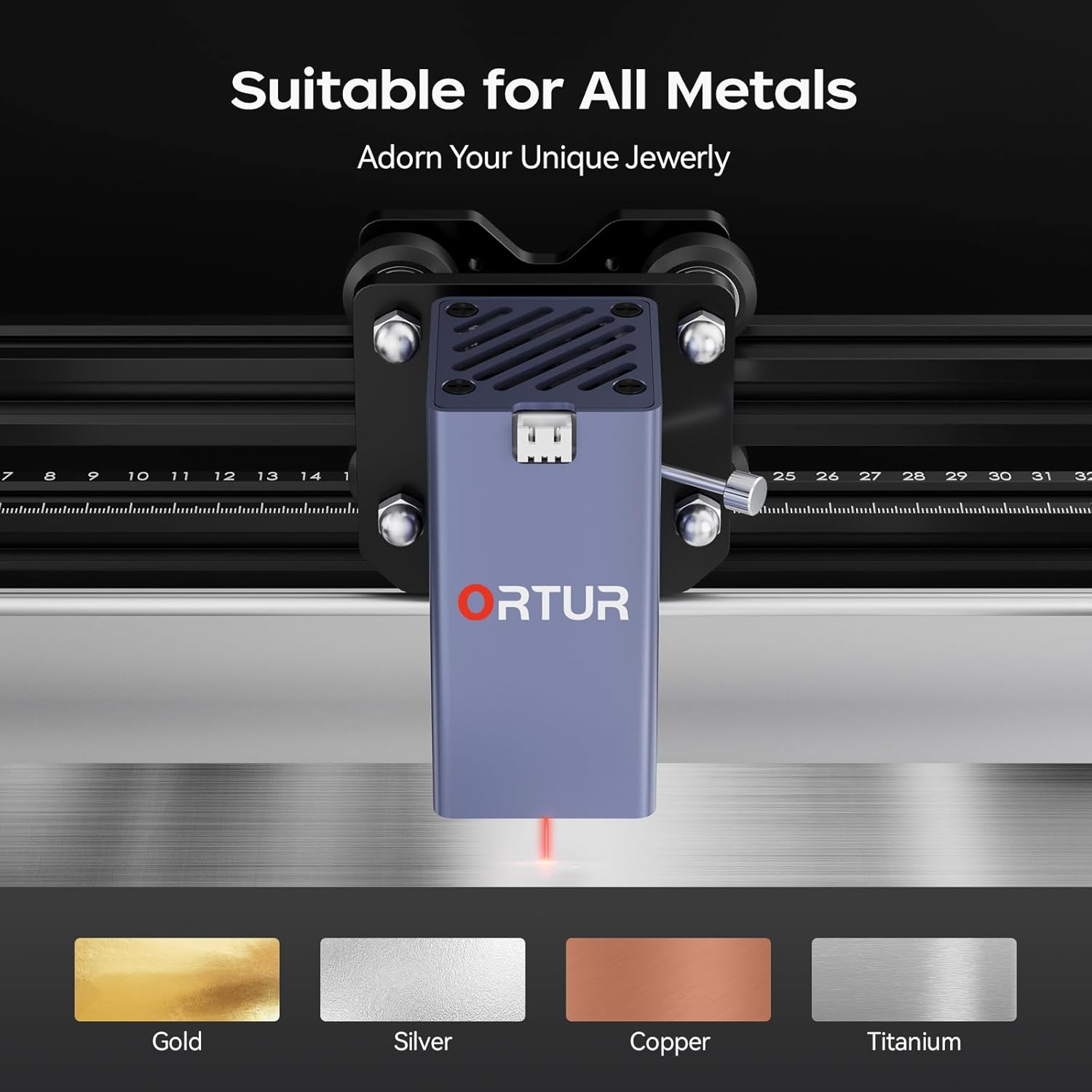
Image 5.1: The Ortur Laser Master 2 S2 is suitable for engraving on various metals, including gold, silver, copper, and titanium.

රූපය 5.2: උදාamples of materials that can be engraved, such as various metals, plastics, and acrylics.
6. මෘදුකාංග අනුකූලතාව
The Ortur Laser Master 2 S2 is compatible with widely used laser engraving software:
- LaserGRBL: A free, open-source software primarily for Windows users. It is suitable for basic engraving tasks and image processing.
- LightBurn: A powerful, paid software compatible with Windows, Mac, and Linux. It offers advanced features for design, layout, and control, making it suitable for more complex projects.
Ensure your software is updated to the latest version for optimal performance and compatibility.

Image 6.1: The laser engraver adapts to common software like LightBurn and LaserGRBL.
7. නඩත්තු කිරීම
නිතිපතා නඩත්තු කිරීම ඔබේ ලේසර් කැටයම්කරුගේ දීර්ඝායුෂ සහ ප්රශස්ත ක්රියාකාරිත්වය සහතික කරයි.
- පිරිසිදු කිරීම: Regularly clean the lens of the laser module with a lint-free cloth and isopropyl alcohol. Keep the rails and belts free of dust and debris.
- ලිහිසි තෙල්: Periodically apply a small amount of lubricant to the linear rails to ensure smooth movement.
- පටි ආතතිය: Check and adjust the tension of the timing belts as needed to prevent skipping or inaccurate engraving.
- ස්ථිරාංග යාවත්කාලීන කිරීම්: Check the official Ortur website for any firmware updates for your machine.
8. දෝශ නිරාකරණය
මෙම කොටසින් ඔබට මුහුණ දීමට සිදුවිය හැකි පොදු ගැටළු සාකච්ඡා කෙරේ.
| ගැටලුව | විය හැකි හේතුව | විසඳුම |
|---|---|---|
| ලේසර් වෙඩි නොතබයි හෝ දුර්වල ප්රතිදානයක්. | Incorrect focus, dirty lens, low power setting, faulty laser module. | Adjust focus, clean lens, increase power in software, contact support if module is faulty. |
| Engraving is inaccurate or distorted. | Loose belts, loose frame components, incorrect software settings, material movement. | Check and tighten belts, ensure frame is rigid, verify software settings, secure material. |
| Machine not connecting to computer. | USB cable issue, driver not installed, incorrect COM port selected. | Try a different USB port/cable, reinstall drivers, select correct COM port in software. |
| Machine powers on but does not move. | Motor cables disconnected, emergency stop engaged, software error. | Check motor connections, disengage emergency stop, restart software and machine. |
9. පිරිවිතර
| විශේෂාංගය | විස්තර |
|---|---|
| වෙළඳ නාමය | Ortur |
| ආකෘතිය | OLM2S2 |
| ලේසර් මොඩියුලය | 1000mW (1W) 1064nm Infrared Laser |
| කැටයම් ප්රදේශය | 390 x 410 මි.මී. (15.35" x 16.14") |
| කැටයම් වේගය | 10000mm/min දක්වා |
| චලන නිරවද්යතාවය | 0.03 මි.මී |
| සහාය දක්වන මෘදුකාංග | LaserGRBL, LightBurn |
| සහාය දක්වන OS | Windows 7/8/XP/10/11, Mac (LightBurn) |
| සහාය දුන්නා File ආකෘති | SVG, DXF, JPG, JPEG, PNG, BMP, TIF, CR2, ආදිය. |
| නිෂ්පාදන මානයන් | අඟල් 22.4 x 9 x 5.1 |
| අයිතමයේ බර | රාත්තල් 8.67 කි |

Image 9.1: The motion accuracy of 0.03mm ensures clear and detailed engraving patterns.
10. වගකීම් සහ සහාය
Ortur is committed to providing high-quality after-sales service. If you encounter any problems with your product, please contact our customer support team.
- පාරිභෝගික සේවාව: Professional technicians are available to provide solutions and assistance.
- සබඳතා තොරතුරු: Refer to the official Ortur website or product packaging for current contact methods (email, live chat, Facebook support).

Image 10.1: Ortur offers round-the-clock support via email, live chat, and Facebook.


