1. හැඳින්වීම
This manual provides essential information for the safe and efficient operation of your GooDee AC571 4K Smart Projector. Please read it thoroughly before use and retain it for future reference.
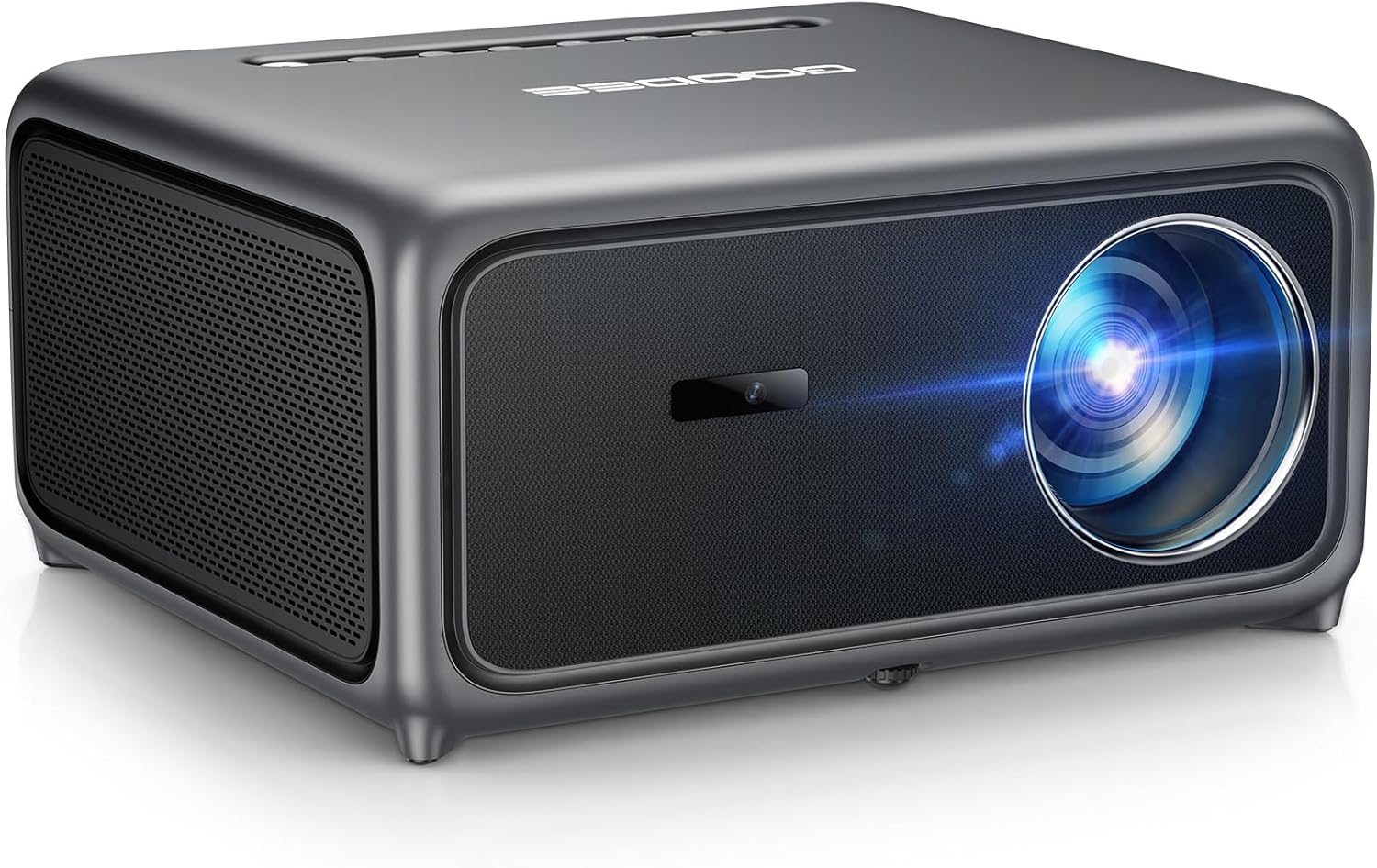
Image 1.1: The GooDee AC571 4K Smart Projector. This image displays the projector's front and side profile, highlighting its lens and speaker grille.
2. පෙට්ටියේ ඇති දේ
ඇසුරුම් ඉවත් කිරීමේදී සියලුම අයිතම තිබෙන බව තහවුරු කරගන්න:
- GooDee AC571 4K Smart Projector
- විදුලි රැහැන්
- HDMI කේබලය
- දුරස්ථ පාලකය
- පිරිසිදු කිරීමේ කට්ටලය
- ප්රොජෙක්ටර් කාච කවරය
- පරිශීලක අත්පොත (මෙම ලේඛනය)
3. සැකසුම් මාර්ගෝපදේශය
3.1 මූලික ස්ථානගත කිරීම
Place the projector on a stable, flat surface. Ensure adequate ventilation around the device. For optimal viewing, ප්රක්ෂේපකය ඔබේ ප්රක්ෂේපණ මතුපිට (බිත්තිය හෝ තිරය) ඉදිරිපිට කෙළින්ම ස්ථානගත කරන්න.
3.2 බල සම්බන්ධතාවය
- ප්රොජෙක්ටරයේ බල ආදානයට විදුලි රැහැන සම්බන්ධ කරන්න.
- විදුලි රැහැනේ අනෙක් කෙළවර සුදුසු විදුලි අලෙවිසැලකට සම්බන්ධ කරන්න.
3.3 බාහිර උපාංග සම්බන්ධ කිරීම
The projector supports various input sources. Refer to the port diagram below for connection points.

Image 3.1: Rear panel connections of the GooDee AC571 Projector. This image illustrates the available ports including HDMI, USB, and audio output, with labels indicating their functions.
- HDMI: Connect Blu-ray players, gaming consoles, or laptops using the provided HDMI cable.
- USB: මාධ්ය නැවත ධාවනය සඳහා USB ධාවක ඇතුළු කරන්න.
- 3.5mm ඕඩියෝ අවුට්: බාහිර හෙඩ්ෆෝන් හෝ ස්පීකර් සම්බන්ධ කරන්න.
3.4 Automatic Calibration (ToF Auto Focus & Keystone)
The projector features advanced AI + ToF Smart Sensing for automatic image calibration. Upon power-on or movement, the projector will automatically adjust focus, keystone correction, and screen adaptation for a clear, rectangular image.

Image 3.2: The GooDee AC571 Projector demonstrating 1ms ultra-low latency ToF Smart Sensing and AI Precision for auto-calibration. The image shows the projector automatically adjusting the projected image on a wall, ensuring optimal focus and keystone correction.
This process includes:
- ස්වයං අවධානය: Ensures a sharp image.
- ස්වයංක්රීය යතුරු ස්ටෝන්: ත්රපීසියම් විකෘතිය නිවැරදි කරයි.
- ස්වයංක්රීය බාධක වැළැක්වීම: Adjusts the image to avoid objects on the projection surface.
- Automatic Screen Adaptation: Fits the image to the available screen area.
4. මෙහෙයුම් උපදෙස්
4.1 බලය සක්රිය / අක්රිය
- ඒකකය සක්රිය හෝ අක්රිය කිරීමට ප්රොජෙක්ටරයේ හෝ දුරස්ථ පාලකයේ බල බොත්තම ඔබන්න.
4.2 Navigating the Smart OS
The GooDee AC571 features an intelligent operating system with built-in applications. Use the remote control to navigate the interface.

Image 4.1: The GooDee AC571's Smart OS interface, displaying various streaming app icons like Netflix, Prime Video, and YouTube. This image shows the user-friendly layout for accessing built-in entertainment.
- මුල් තිරය: Netflix, Prime Video, සහ YouTube වැනි පෙර-ස්ථාපිත යෙදුම් වෙත ප්රවේශ වන්න.
- යෙදුම් වෙළඳසැල: Download additional applications for personalized entertainment.
- සැකසීම්: Adjust display, audio, network, and system preferences.
4.3 Wireless Connectivity (WiFi & Bluetooth)
The projector supports WiFi 6 and Bluetooth 5.4 for seamless streaming and audio connections.

Image 4.2: The GooDee AC571 Projector demonstrating seamless streaming and effortless connectivity via WiFi 6 and Bluetooth 5.4. The image shows a smartphone mirroring content to the projector, highlighting its wireless capabilities.
- වයිෆයි සම්බන්ධතාවය: වෙත යන්න Settings > Network > WiFi to connect to your wireless network.
- බ්ලූටූත් සම්බන්ධතාවය: වෙත යන්න සැකසීම් > බ්ලූටූත් to pair with Bluetooth headphones or speakers.
- තිරයේ ප්රතිබිම්බය: Use AirPlay (iOS) or Miracast (Android/Windows) for wireless screen sharing.
4.4 Audio Settings (Dolby Audio & AI SoundBalance)
The projector features Dolby Audio-certified 30W dual speakers and AI SoundBalance technology.

Image 4.3: The GooDee AC571 Projector with Dolby Audio. The image visually represents sound waves emanating from the projector, emphasizing its immersive audio capabilities.
- ශබ්ද පාලනය: Adjust using the remote control.
- ශබ්ද මාදිලි: Access audio settings to select different sound profiles or enable/disable AI SoundBalance.
5. නඩත්තු කිරීම
5.1 කාච පිරිසිදු කිරීම
Use the provided cleaning kit to gently clean the projector lens. Avoid abrasive materials that could scratch the lens surface.
5.2 Dust Protection
The projector incorporates an advanced dust-shield triple-protection architecture. However, regular cleaning of the exterior with a soft, dry cloth is recommended to prevent dust buildup.

Image 5.1: Illustration of the GooDee AC571 Projector's advanced dust-shield triple-protection architecture. The image shows a transparent overlay highlighting the internal dust protection mechanisms, ensuring longevity and clear projection.
5.3 ගබඩා කිරීම
When not in use, cover the lens with the provided lens cap and store the projector in a cool, dry place away from direct sunlight and extreme temperatures.
6. දෝශ නිරාකරණය
පොදු ගැටළු සහ ඒවාට විසඳුම් සඳහා පහත වගුව බලන්න.
| කලාපය | විය හැකි හේතුව | විසඳුම |
|---|---|---|
| රූපයක් නොපෙන්වයි | Power not connected; Input source incorrect; Lens cap on | Check power connection; Select correct input source; Remove lens cap |
| රූපය බොඳ වී ඇත | අවධානයෙන් තොරයි; ප්රක්ෂේපකය චලනය විය. | Allow auto-focus to recalibrate; Manually adjust focus if needed via settings |
| රූපය විකෘති වී ඇත (ත්රපීසොයිඩ් හැඩය) | Keystone not corrected | Allow auto-keystone to recalibrate; Manually adjust keystone via settings |
| ශබ්දයක් නැත | Volume too low; External audio device not connected; Muted | Increase volume; Check external audio connections; Unmute projector |
| Cannot connect to WiFi/Bluetooth | Incorrect password; Device out of range; Network issue | Verify password; Move closer to router/device; Restart router/projector |
7. පිරිවිතර
Key technical specifications for the GooDee AC571 4K Smart Projector:
| විශේෂාංගය | පිරිවිතර |
|---|---|
| වෙළඳ නාමය | ගුඩී |
| ආදර්ශ අංකය | AC571 |
| සංදර්ශක විභේදනය | 1920 x 1080 (Native 1080P, 4K Decoding) |
| දීප්තිය | 3000 ANSI ලුමෙන්ස් |
| පරස්පර අනුපාතය | 20,000:1 |
| වර්ණ ගැමට් | 98% NTSC |
| විශේෂ ලක්ෂණ | ToF Auto Focus, Auto Keystone, Auto Obstacle Avoidance, Auto Screen Alignment, MEMC, Dolby Audio, AI SoundBalance Pro, AI Image Tech, Built-in Wi-Fi 6, Bluetooth 5.4, Built-in Speaker, Movin OS with Netflix/Prime Video/YouTube |
| සම්බන්ධතා තාක්ෂණය | බ්ලූටූත්, HDMI, USB, Wi-Fi |
| නිර්දේශිත භාවිතයන් | ව්යාපාර, අධ්යාපනය, ක්රීඩා, ගෘහ සිනමාව |
| අයිතමයේ බර | රාත්තල් 9.23 කි |
| පැකේජ මානයන් | අඟල් 12 x 10 x 9.25 |
8. වගකීම් සහ සහාය
8.1 වගකීම් තොරතුරු
Your GooDee AC571 4K Smart Projector is covered by a manufacturer's warranty. Please refer to the warranty card included in your product packaging for specific terms and conditions, including warranty duration and coverage details.
8.2 පාරිභෝගික සහාය
For technical assistance, troubleshooting not covered in this manual, or warranty claims, please contact GooDee customer support. Contact information can typically be found on the GooDee official webවෙබ් අඩවිය හෝ වගකීම් කාඩ්පත මත.

Image 8.1: A customer support representative, symbolizing reliable service and professional support available for GooDee products.


