1. හැඳින්වීම සහ අවසන්view
Welcome to the Vibox V-525 Gaming PC. This manual provides essential information for setting up, operating, maintaining, and troubleshooting your new computer. The Vibox V-525 is a high-performance gaming system featuring an AMD Ryzen 5 5500 processor, an Nvidia RTX 4060 8GB graphics card, 16GB of DDR4 RAM, and a 1TB SSD, pre-installed with Windows 11.
Please read this manual carefully before using your PC to ensure optimal performance and longevity.
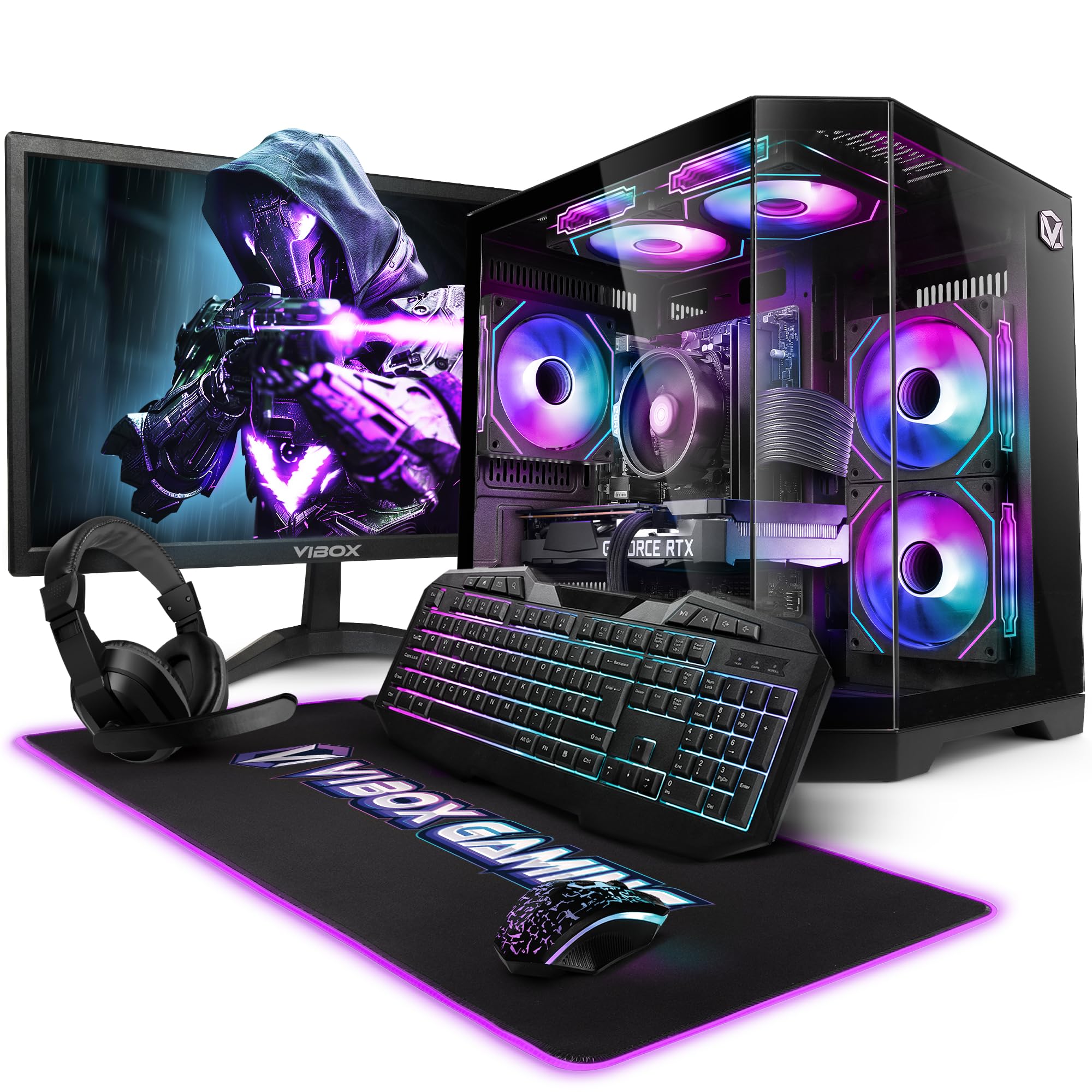
Figure 1.1: Vibox V-525 Gaming PC
2. සැකසුම් මාර්ගෝපදේශය
2.1 ඇසිරීම
Carefully remove all components from the packaging. Ensure you have the PC tower, 23-inch monitor, gaming keyboard, gaming mouse, headset, mouse pad, Wi-Fi adapter, and power cables.
2.2 සම්බන්ධක පර්යන්ත
- නිරීක්ෂණය: Connect the 23-inch monitor to the graphics card (Nvidia RTX 4060) using an HDMI or DisplayPort cable. Ensure the cable is securely fastened.
- යතුරුපුවරුව සහ මූසිකය: Connect the gaming keyboard and mouse to the available USB ports on the rear or front of the PC.
- හෙඩ්සෙට්: Plug your headset into the dedicated audio jacks on the front panel or rear I/O.
- Wi-Fi Adapter: Insert the 300 Mbps Wi-Fi adapter into an available USB port.
- බලය: Connect the power cable to the PC's power supply unit (PSU) and then to a wall outlet. Connect the monitor's power cable as well.
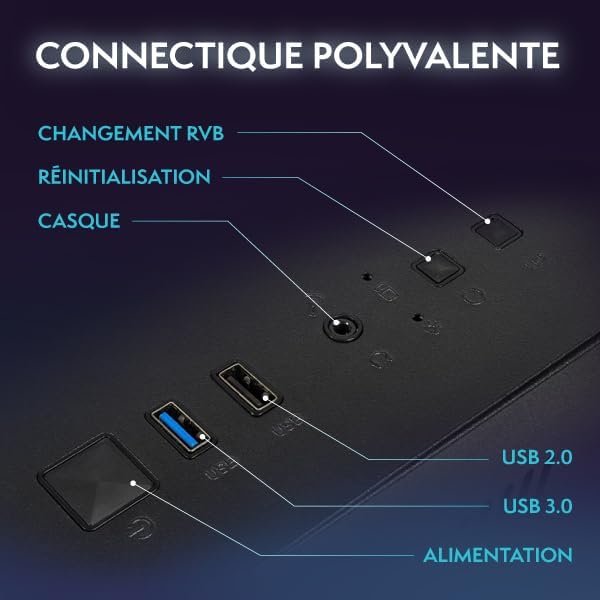
Figure 2.1: Front Panel Connectivity (Power, USB 2.0, USB 3.0, Headset, Reset, RGB Change)
2.3 Initial Boot-Up and Windows 11 Setup
- පරිගණකයේ ඉදිරිපස ඇති බල බොත්තම ඔබන්න.
- Follow the on-screen instructions to complete the Windows 11 setup process. This typically involves selecting your region, language, creating a user account, and connecting to a network.
- Once Windows 11 is set up, ensure all drivers are installed. You can check this in Device Manager.

Figure 2.2: Windows 11 Home Features
3. මෙහෙයුම් උපදෙස්
3.1 බලය සක්රිය / අක්රිය
- බල ගැන්වීමට: ඉදිරිපස පුවරුවේ බල බොත්තම ඔබන්න.
- වසා දැමීමට: Click the Start button in Windows, then select Power > Shut down. Avoid simply holding the power button to turn off, as this can lead to data loss.
- නැවත ආරම්භ කිරීමට: ආරම්භක බොත්තම ක්ලික් කරන්න, පසුව බලය > නැවත ආරම්භ කරන්න තෝරන්න.
3.2 Basic Windows 11 Navigation
Windows 11 features a redesigned user interface. The Start menu is centrally located, and widgets provide quick access to information. Explore the settings menu to personalize your experience.
3.3 Wi-Fi වෙත සම්බන්ධ කිරීම
- Ensure your USB Wi-Fi adapter is plugged in.
- Click the network icon (Wi-Fi symbol) in the taskbar.
- ලැයිස්තුවෙන් ඔබට අවශ්ය Wi-Fi ජාලය තෝරා 'සම්බන්ධ කරන්න' ක්ලික් කරන්න.
- විමසන්නේ නම් ජාල ආරක්ෂක යතුර (මුරපදය) ඇතුළත් කරන්න.
3.4 RGB ආලෝකකරණ පාලනය
Your Vibox V-525 features Hex RGB Infinity 120mm fans. Use the 'RGB Change' button on the front panel to cycle through various lighting modes and colors. Refer to the software provided by Vibox (if applicable) for more advanced customization.

Figure 3.1: Hex RGB Infinity 120mm Fans
4. නඩත්තු කිරීම
4.1 ඔබේ පරිගණකය පිරිසිදු කිරීම
Regular cleaning helps maintain optimal performance and extends the lifespan of your components.
- බාහිර: මෘදු, ඩී භාවිතා කරන්නamp cloth to wipe down the exterior of the case. Avoid harsh chemicals.
- Interior (Dust): Periodically, and with the PC powered off and unplugged, use compressed air to remove dust from inside the case, especially from fans, heatsinks, and vents. Pay attention to the Hex RGB Infinity fans and the GPU heatsink.
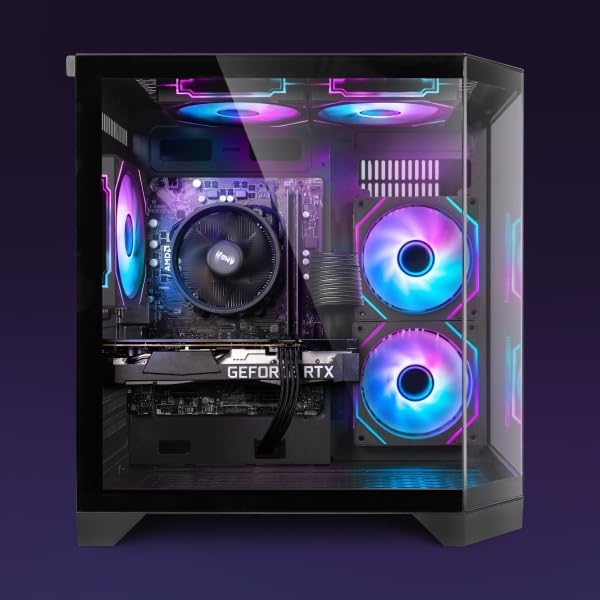
රූපය 4.1: අභ්යන්තර View of PC Components
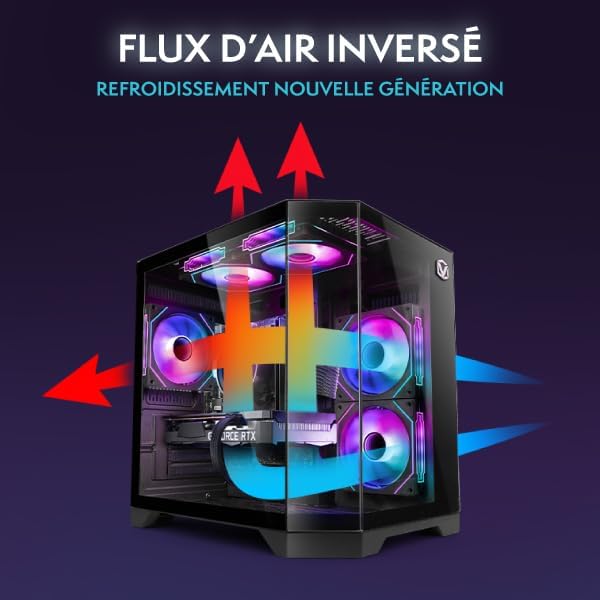
Figure 4.2: Reverse Airflow Next Generation Cooling Diagram
4.2 මෘදුකාංග යාවත්කාලීන
- වින්ඩෝස් යාවත්කාලීන: සැකසීම් > වින්ඩෝස් යාවත්කාලීන හරහා නිතිපතා වින්ඩෝස් යාවත්කාලීන කිරීම් පරීක්ෂා කර ස්ථාපනය කරන්න.
- ධාවක යාවත්කාලීන: Keep your graphics card drivers (Nvidia GeForce Experience) and other component drivers up to date for optimal performance and stability.
4.3 දත්ත උපස්ථය
ඔබේ වැදගත්කම නිතිපතා උපස්ථ කරන්න fileදත්ත නැතිවීම වැළැක්වීම සඳහා බාහිර ධාවකයකට හෝ වලාකුළු ගබඩාවකට s.
5. දෝශ නිරාකරණය
මෙම කොටසින් ඔබට මුහුණ දීමට සිදුවිය හැකි පොදු ගැටළු සාකච්ඡා කෙරේ.
5.1 බලය නැත
- විදුලි රැහැන පරිගණකයට සහ බිත්ති අලෙවිසැලට ආරක්ෂිතව සම්බන්ධ කර ඇති බවට වග බලා ගන්න.
- Check if the power switch on the PSU (at the back of the PC) is in the 'On' position.
- වෙනස් බල සැපයුමක් උත්සාහ කරන්න.
5.2 මොනිටරයේ සංදර්ශකයක් නොමැත
- Verify that the monitor's power cable is connected and the monitor is turned on.
- Ensure the video cable (HDMI/DisplayPort) is securely connected to both the graphics card (Nvidia RTX 4060) and the monitor.
- තිබේ නම් වෙනත් වීඩියෝ කේබලයක් හෝ මොනිටරයක් උත්සාහ කරන්න.
5.3 මන්දගාමී කාර්ය සාධනය
- අධික CPU, RAM හෝ තැටි සම්පත් පරිභෝජනය කරන යෙදුම් සඳහා කාර්ය කළමනාකරු (Ctrl+Shift+Esc) පරීක්ෂා කරන්න.
- වින්ඩෝස් සහ ධාවක යාවත්කාලීනව පවතින බවට වග බලා ගන්න.
- වෛරස් ස්කෑන් එකක් ක්රියාත්මක කරන්න.
- Ensure adequate airflow and clean any dust buildup (refer to Section 4.1).
5.4 ජාල සම්බන්ධතා ගැටළු
- Verify the Wi-Fi adapter is properly installed and recognized by Windows.
- ඔබේ රවුටරය/මොඩමය නැවත ආරම්භ කරන්න.
- Windows Network Troubleshooter එක ක්රියාත්මක කරන්න.
6. පිරිවිතර
The following table details the key specifications of your Vibox V-525 Gaming PC:
| සංරචකය | පිරිවිතර |
|---|---|
| ප්රොසෙසරය | AMD Ryzen 5 5500 (6 Cores, Max 4.2 GHz) |
| ග්රැෆික් කාඩ්පත | Nvidia GeForce RTX 4060 (8 GB GDDR6 RAM, HDMI 2.1, DisplayPort 1.4a) |
| RAM | 16 GB DDR4 Dual Channel (3200 MHz) |
| ගබඩා කිරීම | 1 TB SSD |
| මෙහෙයුම් පද්ධතිය | Windows 11 Home |
| නිරීක්ෂණය කරන්න | 23-inch (Max Resolution: 1920 x 1080) |
| සම්බන්ධතාවය | Wi-Fi (300 Mbps adapter included), 4 Total USB Ports |
| හැඹිලි මතකය | 16 MB |
| සිද්ධි නිර්මාණය | 3-Panel Tempered Glass |
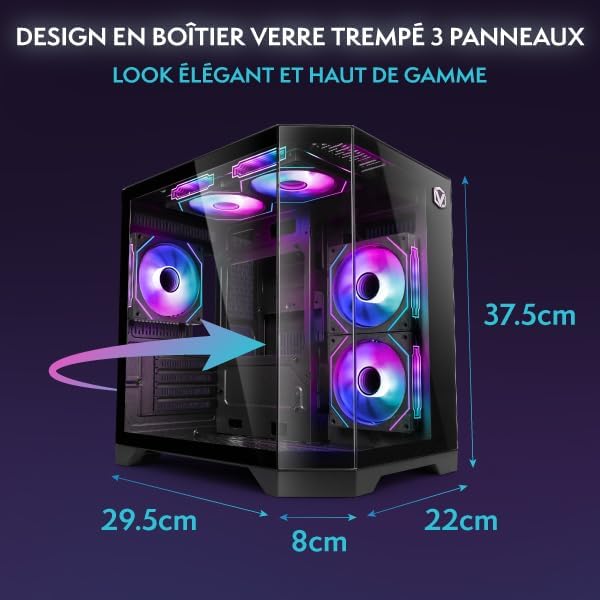
Figure 6.1: PC Case Dimensions
7. වගකීම් සහ සහාය
Your Vibox V-525 Gaming PC comes with a manufacturer's warranty. Please refer to the warranty card included in your product packaging for specific terms and conditions, including the warranty period and coverage details.
For technical support, troubleshooting assistance beyond this manual, or warranty claims, please contact Vibox customer service through their official webවෙබ් අඩවිය හෝ ඔබේ මිලදී ගැනීමේ ලියකියවිලි සමඟ සපයා ඇති සම්බන්ධතා තොරතුරු.
Always provide your product model (V-525) and purchase date when contacting support.


