1. නිෂ්පාදන අවසන්view
The VEVOR T31 GPS Navigator is a versatile navigation system designed for various vehicle types, including cars, trucks, and RVs. It features a 9-inch touchscreen display, lifetime map updates, and intelligent voice guidance to enhance your travel experience. This manual provides detailed instructions for its proper use and maintenance.
ප්රධාන ලක්ෂණ:
- අඟල් 9 HD ස්පර්ශ තිරය: Responsive display with 800x480 resolution.
- Lifetime Map Updates: Ensures you always have the latest map data.
- Voice Turn-by-Turn Guidance: Clear audio instructions in 30 languages.
- ආරක්ෂක ඇඟවීම්: Includes overspeed, speed camera, and traffic light warnings.
- අභිරුචි ට්රක් රථ මාර්ගගත කිරීම: Avoids restricted roads based on vehicle dimensions.
- Multiple Vehicle Modes: Supports Car, Pedestrian, Bicycle, Emergency, Bus, Taxi, and Truck modes.
- POI Search: ඒ සඳහා සොයන්න points of interest, addresses, and coordinates.
- FM සම්ප්රේෂණය: Transmit audio to your vehicle's stereo system.
2. පැකේජ අන්තර්ගතය
Carefully unpack your VEVOR GPS Navigator and ensure all items are present. If any items are missing or damaged, please contact VEVOR customer support.
- 1 x VEVOR GPS Navigator (Model T31)
- 1 x Car Charger (Cable Length: 1.5m, DC 12-40V to 5V/2.5A)
- 1 x චූෂණ මවුන්ට්
- 1 x Data Cable (USB, Cable Length: 50cm)
- 1 x පරිශීලක අත්පොත (මෙම ලේඛනය)
- 1 x රෙදි බෑගය
- 1 x Round Pad

Image: The VEVOR GPS Navigator T31 shown with its car charger, suction mount, USB data cable, cloth bag, and round pad.
3. පිහිටුවීම සහ ස්ථාපනය
3.1 මූලික ආරෝපණය
Before first use, fully charge the GPS navigator using the provided car charger. Connect the car charger to the device and your vehicle's power outlet. A full charge ensures optimal performance.
3.2 උපාංගය සවි කිරීම
The VEVOR GPS Navigator offers two primary mounting options: windshield mount and dashboard mount, using the included suction mount and round pad.
- සවිකරන ප්රදේශය සකස් කරන්න: Clean the desired area on your windshield or dashboard with a damp cloth and allow it to dry completely. If using the dashboard, apply the round pad first for better adhesion.
- Attach Suction Mount to Device: Align the suction mount with the mounting holes on the back of the GPS navigator and slide it into the slot until it clicks securely.
- වාහනයට ආරක්ෂිතයි: Press the suction cup firmly against the cleaned surface (windshield or round pad on dashboard) and engage the lever to create a strong vacuum seal.
- කෝණය සීරුමාරු කරන්න: Adjust the arm and ball joint of the mount to achieve the optimal viewing angle without obstructing your view මාර්ගයේ.
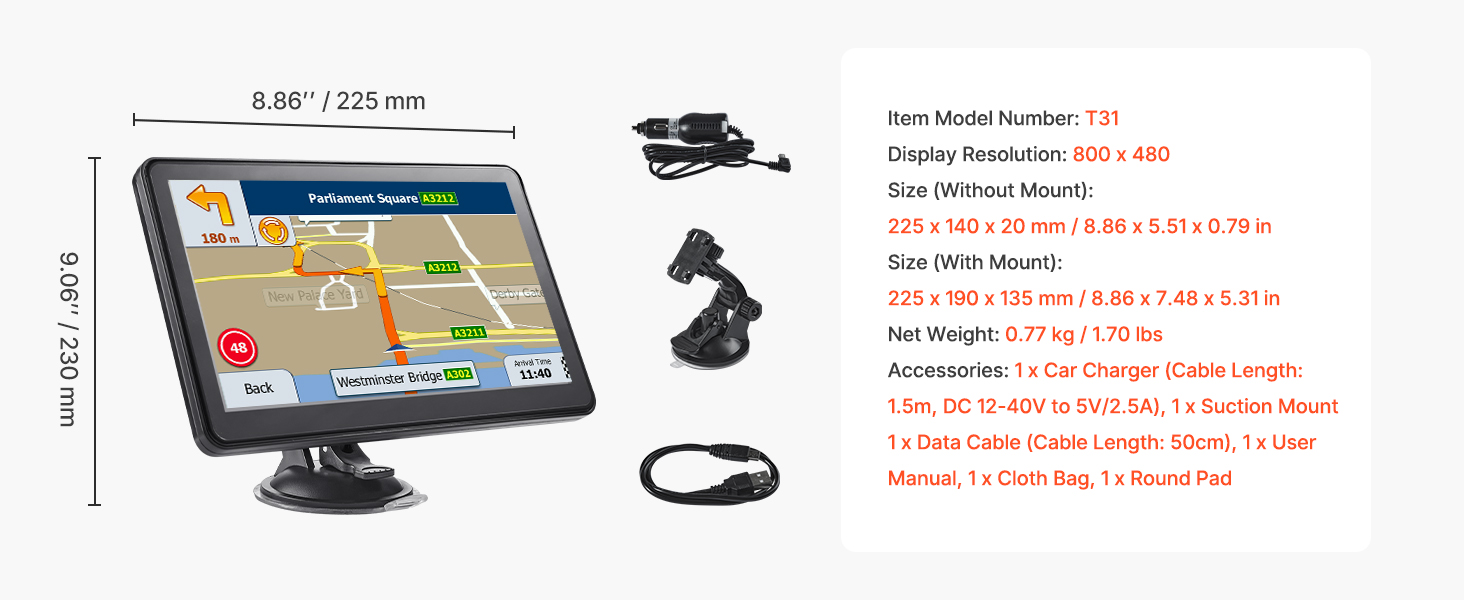
Image: Visual guide demonstrating how to attach the suction mount to the GPS device and then secure it to a vehicle's dashboard or windshield.
4. මෙහෙයුම් උපදෙස්
4.1 බල ගැන්වීම සක්රිය / අක්රිය කිරීම
- බල ගැන්වීමට: තිරය ආලෝකමත් වන තුරු බල බොත්තම ඔබාගෙන සිටින්න.
- බලය අක්රිය කිරීමට: Press and hold the power button until a power-off prompt appears, then select 'Power Off'. A short press will put the device into sleep mode.
4.2 මූලික සංචාලනය
From the main menu, tap 'Navigation' to access the map interface. You can input your destination using various methods:
- Address Search: Enter the street name, house number, city, and state/country.
- Zip Code Search: Enter the postal code for your destination.
- POI (Points of Interest) Search: ඒ සඳහා සොයන්න categories like restaurants, gas stations, hotels, etc.
- Coordinate Search: Input specific latitude and longitude coordinates.
- ප්රියතම: Select from previously saved destinations.
Once a destination is set, the device will calculate the route and provide turn-by-turn voice guidance. The 9-inch touchscreen allows for easy map manipulation (zoom, pan).

Image: A close-up of the VEVOR GPS Navigator T31 screen showing a detailed map with a highlighted route and navigation instructions.
4.3 Vehicle Mode Selection
The GPS navigator supports 7 different vehicle modes to optimize routing based on your vehicle type. This is particularly important for trucks to avoid restricted roads.
To switch to 'Truck' mode or other modes:
- ප්රධාන මෙනුව වෙත යන්න.
- Tap 'Navigation'.
- Select 'Settings'.
- Choose 'Route Settings'.
- Select 'Vehicle'.
- Choose your desired vehicle type (e.g., 'Truck', 'Car', 'RV', 'Bus', 'Taxi', 'Bicycle', 'Pedestrian', 'Emergency').
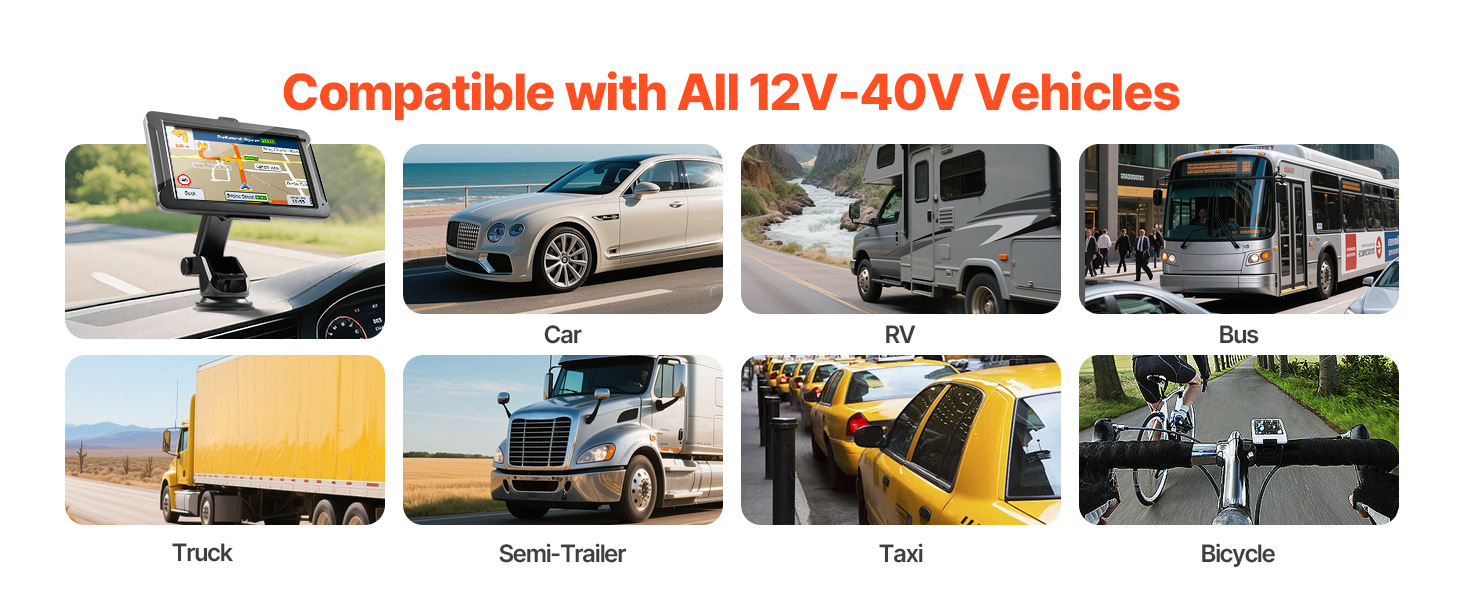
Image: The VEVOR GPS Navigator T31 displayed in various vehicle environments, illustrating its compatibility with cars, RVs, buses, trucks, semi-trailers, taxis, and bicycles.
4.4 Safety Features and Alerts
The device provides several alerts to enhance driving safety:
- Overspeed Alerts: Notifies you when exceeding the speed limit.
- Speed Camera Warnings: Alerts you to upcoming speed cameras.
- Traffic Light Warnings: Provides warnings for traffic lights.
- මංතීරු සහාය: Guides you into the correct lane for upcoming turns or exits.
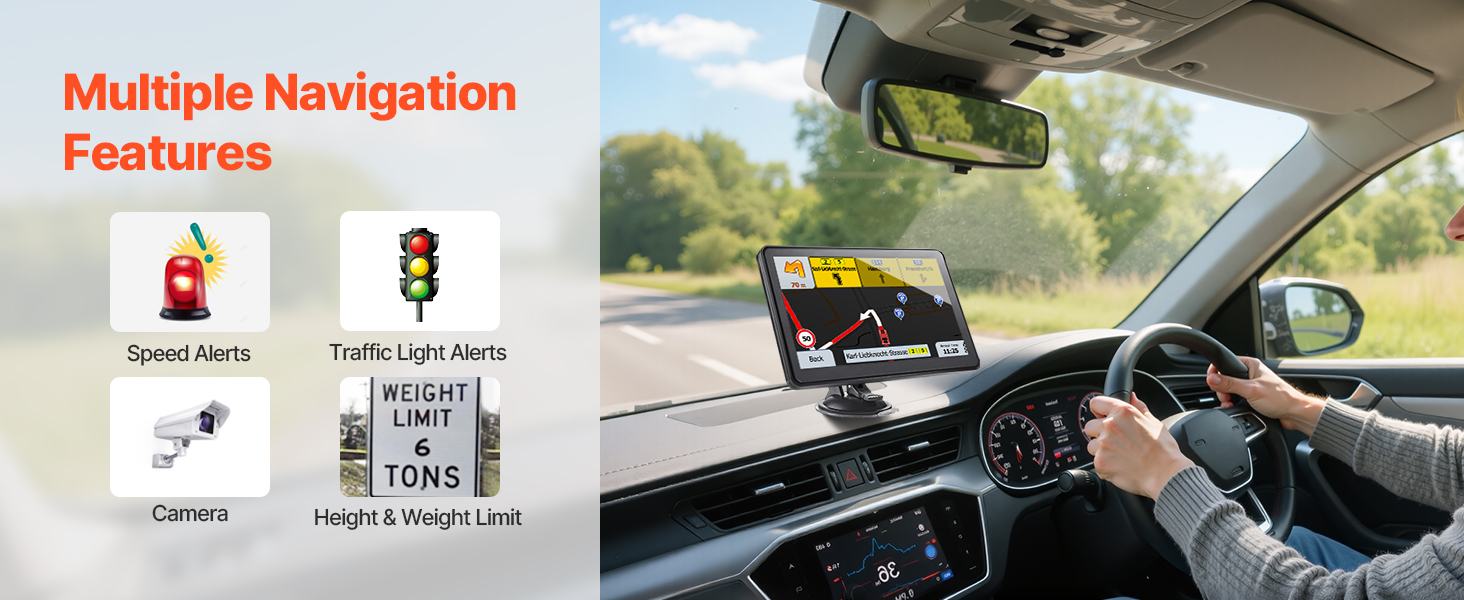
Image: A dashboard view with the VEVOR GPS Navigator T31, highlighting icons for speed limit alerts, traffic light warnings, route planning, speed camera alerts, FM transmission, and 30 language options.
4.5 සිතියම් යාවත්කාලීන කිරීම්
The VEVOR GPS Navigator comes with lifetime map updates. There are two methods for updating maps:
- Via PC (USB Connection): Connect the GPS navigator to your computer using the provided USB data cable. Follow the instructions on the device or VEVOR's official website to download and install map updates.
- TF කාඩ්පත හරහා: Download map update files to a TF card (not included) from VEVOR's official website. Insert the TF card into the device's slot and follow the on-screen prompts to update the maps.

Image: A setup showing the VEVOR GPS Navigator T31 connected to a computer for map updates via USB, and an alternative method using a TF card.
5. නඩත්තු කිරීම
- තිර පිරිසිදු කිරීම: Use a soft, lint-free cloth to clean the touchscreen. Do not use abrasive cleaners or solvents.
- ගබඩා: දිගු කාලයක් භාවිතයේ නොමැති විට, උපාංගය සෘජු හිරු එළියෙන් සහ අධික උෂ්ණත්වයන්ගෙන් ඈත්ව සිසිල් වියළි ස්ථානයක ගබඩා කරන්න.
- බැටරි සත්කාර: To prolong battery life, avoid fully discharging the battery frequently. Charge the device regularly, especially before long trips.
- මෘදුකාංග යාවත්කාලීන: Regularly check for and install software updates to ensure optimal performance and access to new features.
6. දෝශ නිරාකරණය
If you encounter issues with your VEVOR GPS Navigator, refer to the following common troubleshooting steps:
| ගැටලුව | හැකි විසඳුම |
|---|---|
| උපාංගය බලගන්වන්නේ නැත. | Ensure the device is fully charged. Connect it to the car charger and wait a few minutes before attempting to power on again. If the issue persists, perform a soft reset by pressing and holding the power button for 10-15 seconds. |
| GPS සංඥාව නැති වී හෝ සාවද්යයි. | උපාංගයේ පැහැදිලි බව සහතික කර ගන්න view of the sky. Move away from tall buildings, tunnels, or dense foliage. Check for updated maps. |
| ස්පර්ශ තිරය ප්රතිචාර නොදක්වයි. | Restart the device. Ensure the screen is clean and free of debris. If the issue continues, a factory reset might be necessary (note: this will erase personal data). |
| Voice guidance is not working. | Check the volume settings on the device. Ensure the correct language is selected. If using FM transmission, verify the frequency and your car stereo settings. |
| Map updates fail. | Ensure a stable internet connection for PC updates. Verify the TF card is properly formatted and has sufficient space for TF card updates. Follow the update instructions precisely. |
වැඩිදුර සහාය සඳහා, කරුණාකර VEVOR පාරිභෝගික සහාය අමතන්න.
7. පිරිවිතර
| විශේෂාංගය | විස්තර |
|---|---|
| මාදිලියේ නම | T31 |
| තිර ප්රමාණය | අඟල් 8.86 (අඟල් 9 පන්තිය) |
| සංදර්ශක විභේදනය | 800 x 480 |
| මතක ගබඩා ධාරිතාව | 16 GB (අභ්යන්තර) |
| RAM | 256 MB |
| සම්බන්ධතා තාක්ෂණය | USB |
| මානව අතුරු මුහුණත් ආදානය | ස්පර්ශ තිරය |
| වාහන සේවා වර්ගය | Car, Truck, RV, Bus, Taxi, Bicycle, Pedestrian, Emergency |
| සිතියම් වර්ගය | වීදිය |
| බල ආදානය | DC 12-40V (via car charger) |
| බැටරි | Built-in 2500mAh (Nonstandard Battery) |
| අයිතමයේ බර | රාත්තල් 1.7 (කිලෝ ග්රෑම් 0.77) |
| පැකේජ මානයන් | අඟල් 10.24 x 10.24 x 6.1 |
| සවිකිරීමේ වර්ගය | Windshield Mount, Dashboard Mount |

Image: A diagram illustrating the physical dimensions of the VEVOR GPS Navigator T31, along with its included accessories like the car charger, suction mount, and USB cable.
8. වගකීම් සහ සහාය
VEVOR products are designed for reliability and performance. For specific warranty information regarding your VEVOR GPS Navigator T31, please refer to the warranty card included in your product packaging or visit the official VEVOR webඅඩවිය.
If you require technical assistance, have questions about product operation, or need to report an issue, please contact VEVOR customer support through their official channels. Provide your product model (T31) and purchase details for efficient service.
VEVOR නිල Webඅඩවිය: www.vevor.com


