1. හැඳින්වීම
This manual provides comprehensive instructions for the setup, operation, maintenance, and troubleshooting of your ZORNHER ZH100 Wireless Mechanical Keyboard. Please read this manual carefully before use to ensure optimal performance and longevity of your device.

Image 1: ZORNHER ZH100 Wireless Mechanical Keyboard.
2. පැකේජ අන්තර්ගතය
සියලුම අයිතම පැකේජයේ ඇති බව තහවුරු කරගන්න:
- 1 x ZORNHER ZH100 Keyboard Body
- 1 x USB Cable (1.8m nylon USB-C)
- 1 x Keycap Puller
- 3 x ආදේශන ස්විච
- 1 x පරිශීලක අත්පොත (මෙම ලේඛනය)
3. පිහිටුවීම
3.1 මූලික සම්බන්ධතාවය
The ZORNHER ZH100 keyboard supports three connection modes: 2.4GHz wireless, Bluetooth 5.0, and USB-C wired.
- වයර් ප්රකාරය: Connect the provided USB-C cable to the keyboard and your computer. The keyboard will automatically switch to wired mode and begin charging.
- 2.4GHz රැහැන් රහිත මාදිලිය: Insert the 2.4GHz USB receiver into an available USB port on your computer. Switch the keyboard to 2.4GHz mode using the switch located on the keyboard. The keyboard should connect automatically.
- බ්ලූටූත් 5.0 මාදිලිය:
- යතුරුපුවරුව බ්ලූටූත් මාදිලියට මාරු කරන්න.
- On your device (PC, laptop, tablet), enable Bluetooth and search for new devices.
- Select "ZORNHER ZH100" from the list of available devices to pair.
- The keyboard can connect to up to 5 devices via Bluetooth. Refer to the specific key combinations on your keyboard for switching between paired Bluetooth devices.

Image 2: Multi-mode connectivity options for the ZORNHER ZH100.
3.2 යතුරු පුවරුව ආරෝපණය කිරීම
The keyboard is equipped with a 4000mAh battery. Connect the USB-C cable to the keyboard and a power source (computer USB port or USB wall adapter) to charge. An indicator light will typically show charging status.
4. මෙහෙයුම් උපදෙස්
4.1 යතුරුපුවරු පිරිසැලසුම
The ZH100 features a 98% layout, retaining a full number pad, F-row, arrow keys, and navigation keys in a compact form factor.

Image 3: 98-key compact layout of the ZORNHER ZH100.
4.2 RGB ආලෝකකරණය
The keyboard features vibrant RGB lighting with 22 preset modes, including north-facing LEDs and edge glow. Specific key combinations (often involving the 'Fn' key) are used to cycle through modes, adjust brightness, and change colors. Refer to the quick start guide or keyboard legends for these functions.
Video 1: Demonstration of the ZORNHER ZH100 keyboard's RGB lighting and typing sound.
4.3 Customization and Software
The keyboard is hot-swappable, allowing for easy replacement of 3-pin and 5-pin mechanical switches without soldering. Driver software is available for advanced customization, including key remapping, macro creation, and detailed RGB effect adjustments. Please visit the official ZORNHER webමෘදුකාංග බාගැනීම් සහ උපදෙස් සඳහා අඩවිය.
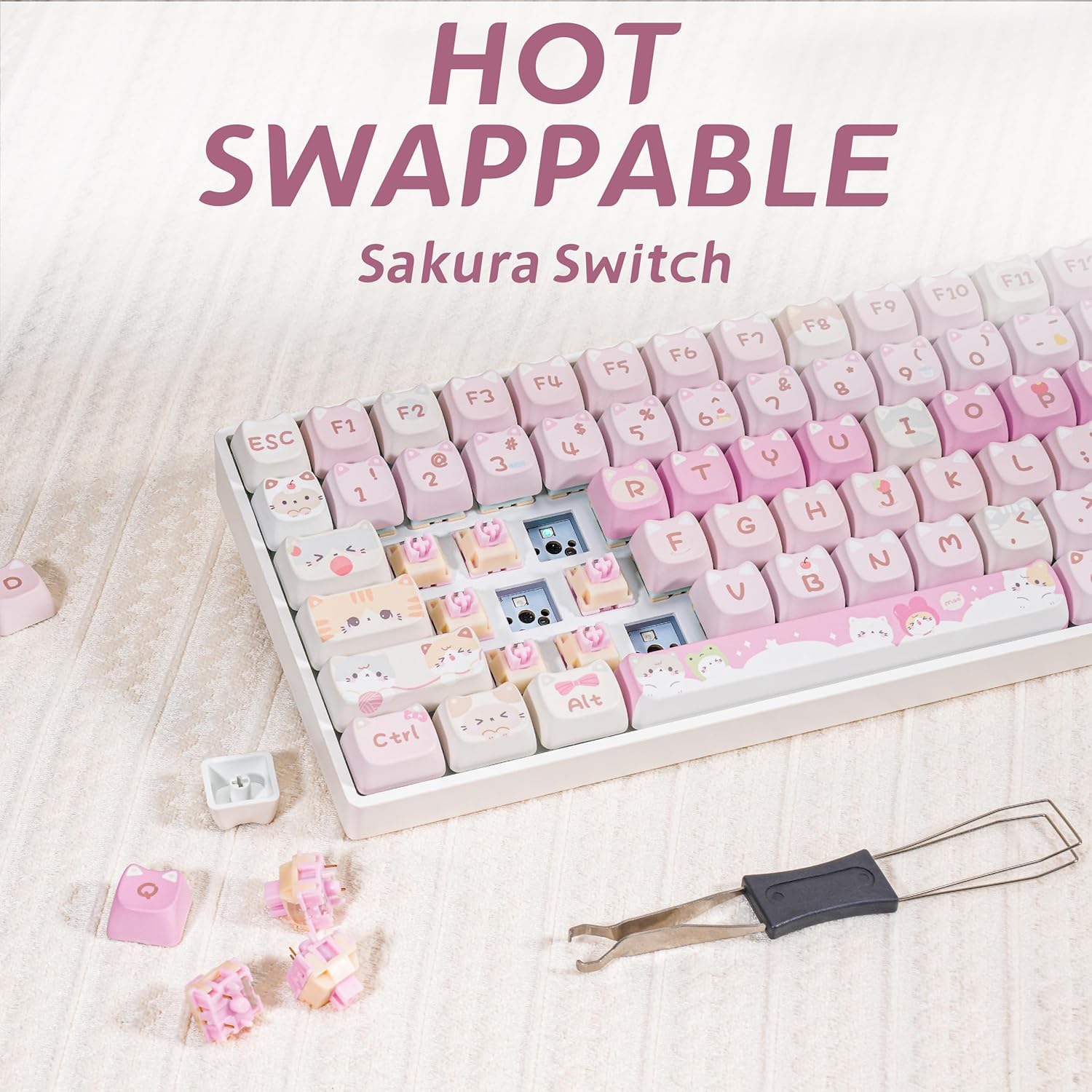
Image 4: Hot-swappable switch feature of the ZORNHER ZH100.
5. නඩත්තු කිරීම
5.1 පිරිසිදු කිරීම
යතුරුපුවරුවේ පෙනුම සහ ක්රියාකාරීත්වය පවත්වා ගැනීමට:
- යතුරු පුවරුවේ මතුපිට පිස දැමීමට මෘදු වියළි රෙද්දක් භාවිතා කරන්න.
- For deeper cleaning, use the provided keycap puller to remove keycaps and clean underneath with compressed air or a small brush.
- Avoid using harsh chemicals or abrasive materials, as these can damage the keycaps and finish.
5.2 යතුරු කැප් සහ ස්විච් සත්කාරය
The PBT dye-sublimation keycaps are designed to resist shine and wear, and the cat illustrations are resistant to fading. The hot-swappable design allows for easy replacement of individual switches if needed. Use the provided switch puller for this purpose.
6. දෝශ නිරාකරණය
If you encounter issues with your ZORNHER ZH100 keyboard, consider the following:
- යතුරුපුවරුව ප්රතිචාර නොදක්වයි: Ensure the keyboard is charged. Check the connection mode (wired, 2.4GHz, Bluetooth) and ensure it matches your device's connection. For wireless modes, verify the receiver is properly inserted or Bluetooth is paired.
- ලියාපදිංචි නොවන යතුරු: If individual keys are not working, try removing and re-inserting the switch using the switch puller. If the issue persists, replace the switch with one of the spares provided.
- සම්බන්ධතා ගැටළු: Try restarting your computer or device. For Bluetooth, unpair and re-pair the keyboard. For 2.4GHz, try a different USB port for the receiver.
- RGB ආලෝකකරණය ක්රියා නොකරයි: Ensure the keyboard is powered on and not in a low-power state. Cycle through RGB modes using the designated key combinations.
If these steps do not resolve the issue, please contact ZORNHER customer support for further assistance.
7. පිරිවිතර
| විශේෂාංගය | විස්තර |
|---|---|
| ආදර්ශ අංකය | ZH100 |
| මානයන් (L x W x H) | අඟල් 14.96 x 7.99 x 2.75 |
| අයිතමයේ බර | රාත්තල් 2.4 කි |
| සම්බන්ධතාවය | 2.4GHz රැහැන් රහිත, බ්ලූටූත් 5.0, USB-C රැහැන් සහිත |
| බැටරි ධාරිතාව | 4000mAh ලිතියම් අයන (ඇතුළත්) |
| යතුරුපුවරු වර්ගය | යාන්ත්රික |
| ස්විචයන් | Sakura Linear (Creamy Switches), Hot-Swappable (3-pin & 5-pin compatible) |
| යතුරු කැප් | PBT Dye-Sublimation, MAO-profile |
| පසුතල ආලෝකය | RGB (22 preset modes) |
| පිරිසැලසුම | 98% with Number Pad |
| ගැළපුම | වින්ඩෝස්, macOS |
8 වගකීම් සහතිකය
The ZORNHER ZH100 Wireless Mechanical Keyboard comes with a 2-year warranty from the date of purchase. This warranty covers manufacturing defects and ensures reliable support. Please retain your proof of purchase for warranty claims.
9. පාරිභෝගික සහාය
For technical assistance, warranty claims, or any questions regarding your ZORNHER ZH100 keyboard, please visit the official ZORNHER website or contact our customer support team through the contact information provided on our webඅඩවිය.


