1. නිෂ්පාදන අවසන්view
The avedio links VHS to Digital Converter is a USB capture device designed to convert analog video signals from various sources into a digital USB format. This allows for the preservation and playback of older media on modern computers.
- ඇනලොග් සිට ඩිජිටල් පරිවර්තනය: Converts analog video (RCA/Composite) to digital USB signals, supporting resolutions up to 1080p at 30Hz.
- පුළුල් අනුකූලතාව: Ideal for connecting old camcorders, set-top boxes, DVD players, VHS recorders, and DVRs.
- ප්ලග් සහ ප්ලේ: Designed for ease of use with most current laptops, ensuring stable video recording and transmission.
- දිගු කේබල්: Features a 1-meter USB cable for flexible connection options.
- පද්ධති සහාය: Compatible with Windows and macOS operating systems.
- මෘදුකාංග ඒකාබද්ධ කිරීම: Works seamlessly with popular recording software such as OBS and PotPlayer for video capture and screen recording.

Image 1.1: The avedio links VHS to Digital Converter, showing its RCA (yellow, white, red) and S-Video input connectors, and the USB output connector. This device facilitates the conversion of analog audio and video to a digital format.
2. පැකේජ අන්තර්ගතය
සියලුම අයිතම පැකේජයේ ඇති බව තහවුරු කරගන්න:
- RCA and S-Video to USB Capture Adapter
- USB-A සිට USB-C පරිවර්තකය
- ධාවක සංයුක්ත තැටිය
- උපදෙස් අත්පොත (මෙම ලේඛනය)
3. සැකසුම් උපදෙස්
Follow these steps to set up your avedio links VHS to Digital Converter:
- ධාවක ස්ථාපනය කරන්න: Insert the included Driver CD into your computer's CD/DVD drive and follow the on-screen instructions to install the necessary drivers. If your computer does not have a CD drive, drivers may be available for download from the avedio links support webඅඩවිය.
- සම්බන්ධක ප්රතිසම මූලාශ්රය: Connect your analog video source (e.g., VCR, camcorder, DVD player) to the converter using the appropriate RCA (yellow for video, white for left audio, red for right audio) or S-Video cables. Ensure all connections are secure.
- පරිගණකයට සම්බන්ධ කරන්න: Plug the USB connector of the capture device into an available USB 2.0 port on your laptop or PC. If your computer only has USB-C ports, use the provided USB-A to USB-C converter.
- Install Recording Software: Install your preferred video recording software (e.g., OBS Studio, PotPlayer). These applications are widely available and offer robust features for video capture.
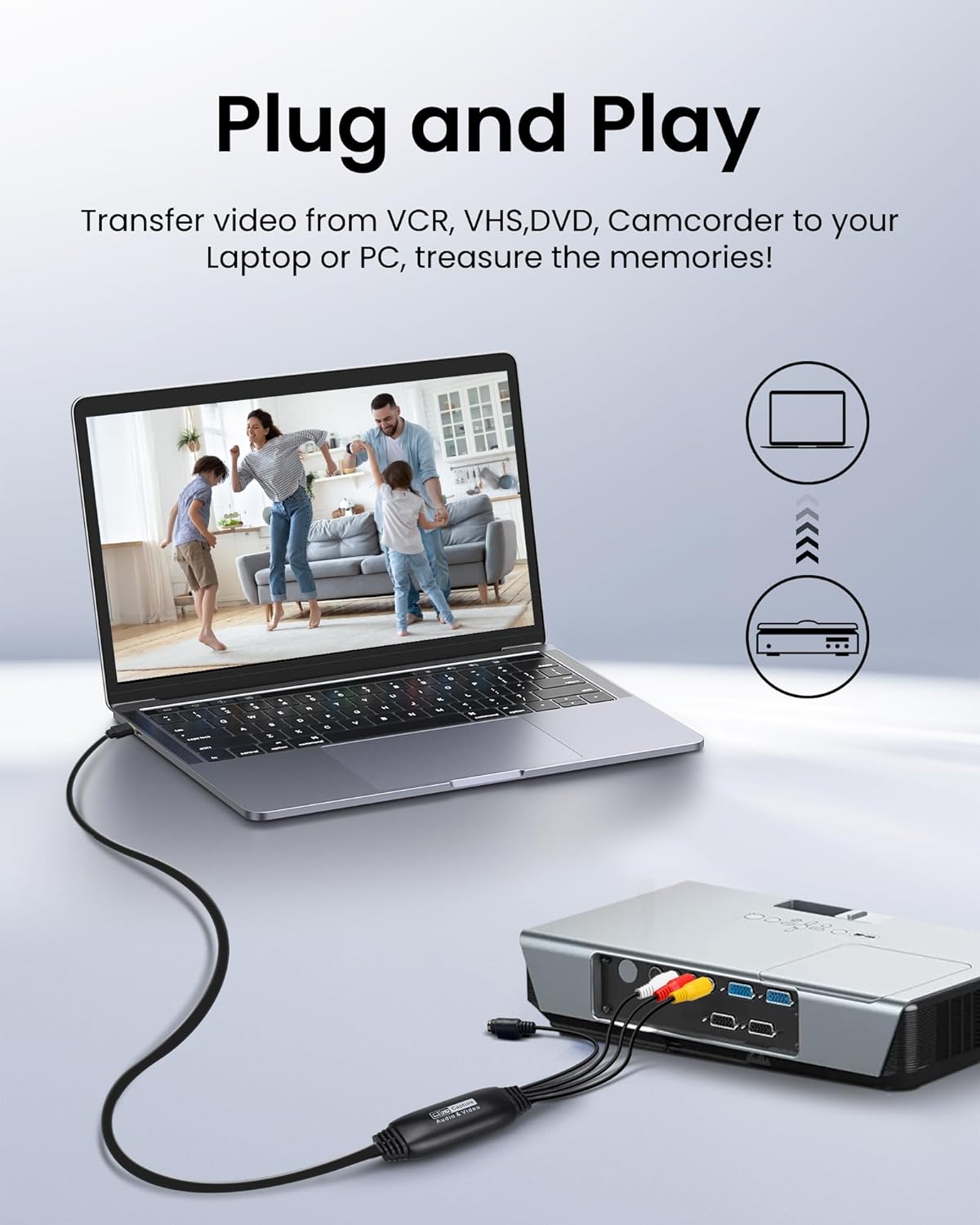
Image 3.1: Connection diagram illustrating how to connect an analog source (VCR) to the avedio links converter and then to a laptop for digital conversion.

Image 3.2: The converter is compatible with various operating systems including Mac OS, Windows, Android, and Linux, and supports software like OBS, Xsplit, VLC, and Skype for video capture.
4. මෙහෙයුම් උපදෙස්
Once the setup is complete, follow these steps to capture video:
- උපාංග බල ගැන්වීම: Ensure your analog video source (VCR, camcorder) and computer are powered on.
- මෘදුකාංග දියත් කරන්න: Open your chosen video recording software (e.g., OBS Studio).
- Select Video Input: In the software settings, locate the video input source selection. Choose the avedio links capture device (it may appear as 'USB Video Device' or similar).
- Select Audio Input: Similarly, select the audio input source, which should also correspond to the avedio links capture device.
- සැකසුම් වින්යාස කරන්න: Adjust video resolution, frame rate, and audio settings within the software as needed. For optimal quality, aim for 1080p at 30Hz if supported by your source and software.
- නැවත ධාවනය ආරම්භ කරන්න: Begin playing the video on your analog source device.
- පටිගත කිරීම ආරම්භ කරන්න: In your software, click the 'Record' button to begin capturing the video. Monitor the preview window to ensure the signal is being received correctly.
- පටිගත කිරීම නවත්වන්න: Once the playback is complete, stop the recording in your software. Save the captured video file to your desired location on your computer.
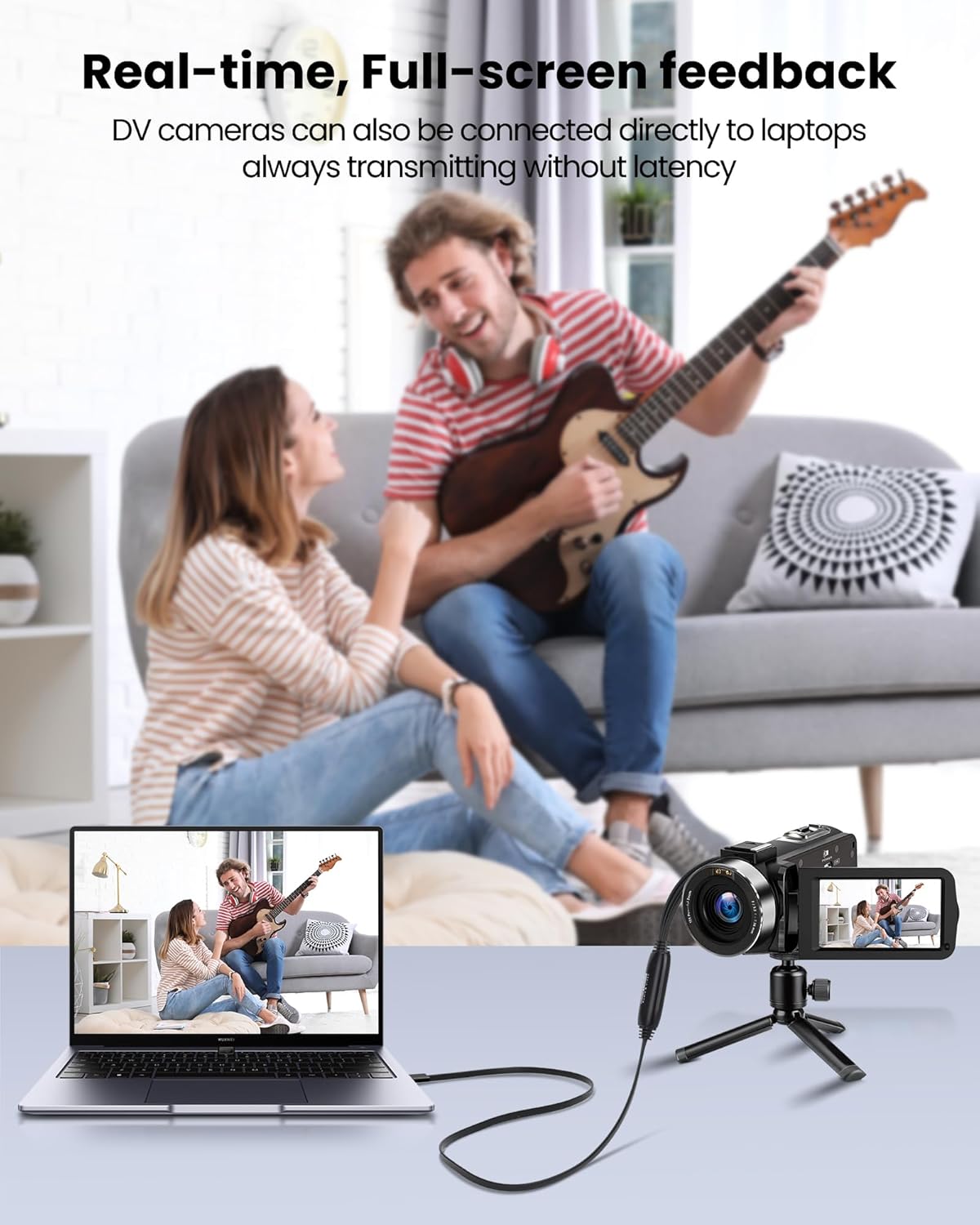
Image 4.1: Demonstrates real-time, full-screen feedback when a DV camera is connected directly to a laptop using the converter, ensuring no latency during transmission.

Image 4.2: The converter supports up to 1080P@30Hz output, as shown with a gaming console connected to a television.
5. නඩත්තු කිරීම
To ensure the longevity and optimal performance of your avedio links converter:
- පිරිසිදු කිරීම: උපාංගය පිරිසිදු කිරීම සඳහා මෘදු වියළි රෙද්දක් භාවිතා කරන්න. දියර පිරිසිදු කරන්නන් හෝ උල්ෙල්ඛ ද්රව්ය භාවිතා කිරීමෙන් වළකින්න.
- ගබඩා: පරිවර්තකය සෘජු හිරු එළියෙන් සහ අධික උෂ්ණත්වයන්ගෙන් ඈත්ව සිසිල් වියළි ස්ථානයක ගබඩා කරන්න.
- කේබල් රැකවරණය: Avoid bending or kinking the cables excessively. Do not pull on the cables to disconnect the device.
- මෘදුකාංග යාවත්කාලීන: Periodically check for updated drivers or software for your operating system and recording application to ensure compatibility and performance.
6. දෝශ නිරාකරණය
If you encounter issues, refer to the following troubleshooting tips:
- වීඩියෝ/ශ්රව්ය සංඥා නැත:
- Ensure all cables (RCA/S-Video, USB) are securely connected.
- Verify that the analog source device (VCR, camcorder) is powered on and playing content.
- Check if the correct video and audio input sources are selected in your recording software.
- Confirm that the drivers for the capture device are correctly installed. Reinstall if necessary.
- දුර්වල වීඩියෝ/ශ්රව්ය ගුණත්වය:
- Ensure the analog source is providing a clean signal. Test with a different tape or DVD if possible.
- Check cable quality. Damaged or low-quality cables can degrade the signal.
- Adjust resolution and bitrate settings in your recording software. Higher settings generally result in better quality but larger file ප්රමාණ.
- උපාංගය හඳුනා නොගන්නා මෘදුකාංගය:
- Ensure drivers are installed correctly. Try uninstalling and reinstalling them.
- ධාවක ස්ථාපනය කිරීමෙන් පසු ඔබේ පරිගණකය නැවත ආරම්භ කරන්න.
- ඔබේ පරිගණකයේ වෙනත් USB පෝට් එකක් උත්සාහ කරන්න.
- Update your recording software to the latest version.
- මෘදුකාංග ස්ථාපන ගැටළු:
- If you experience issues installing software from the CD, try downloading the latest version directly from the software developer's website (e.g., OBS Studio).
- Ensure your operating system meets the minimum requirements for the software.
7. පිරිවිතර
| වෙළඳ නාමය | avedio සබැඳි |
| ආදර්ශ අංකය | 9799240a-5448-44ed-a7ce-1925c09da1aa |
| නිෂ්පාදන මානයන් | 16.3 x 13.1 x 1.5 සෙ.මී |
| බර | ග්රෑම් 110 කි |
| වර්ණය | කළු |
| ආදාන අතුරුමුහුණත | RCA (Composite), S-Video |
| ප්රතිදාන අතුරුමුහුණත | USB 2.0 (with USB-A to USB-C converter) |
| උපරිම විභේදනය | 1080p @ 30Hz |
| ගැළපෙන උපාංග | ලැප්ටොප්, පීසී |
| මෙහෙයුම් පද්ධති | Windows, macOS (also compatible with Android, Linux) |

Image 7.1: The avedio links converter featuring its 1-meter extended USB cable, providing increased flexibility for connections.
8. වගකීම් සහ සහාය
For technical support, driver updates, or warranty inquiries, please visit the official avedio links webවෙබ් අඩවියට හෝ ඔවුන්ගේ පාරිභෝගික සේවය අමතන්න. වගකීම් හිමිකම් සඳහා ඔබේ මිලදී ගැනීමේ රිසිට්පත තබා ගන්න.


