1. හැඳින්වීම
ස්තූතියි, උදව් කළාටasing the BOIFUN MT06 Motorcycle Smart Monitor. This device is designed to enhance your riding experience by integrating smartphone functionalities like navigation, music, and calls directly onto your motorcycle's handlebars. It features a 6.25-inch high-brightness display, CarPlay and Android Auto compatibility, and robust IP65 dust and water resistance. This manual provides essential information for proper installation, operation, and maintenance of your new smart monitor.
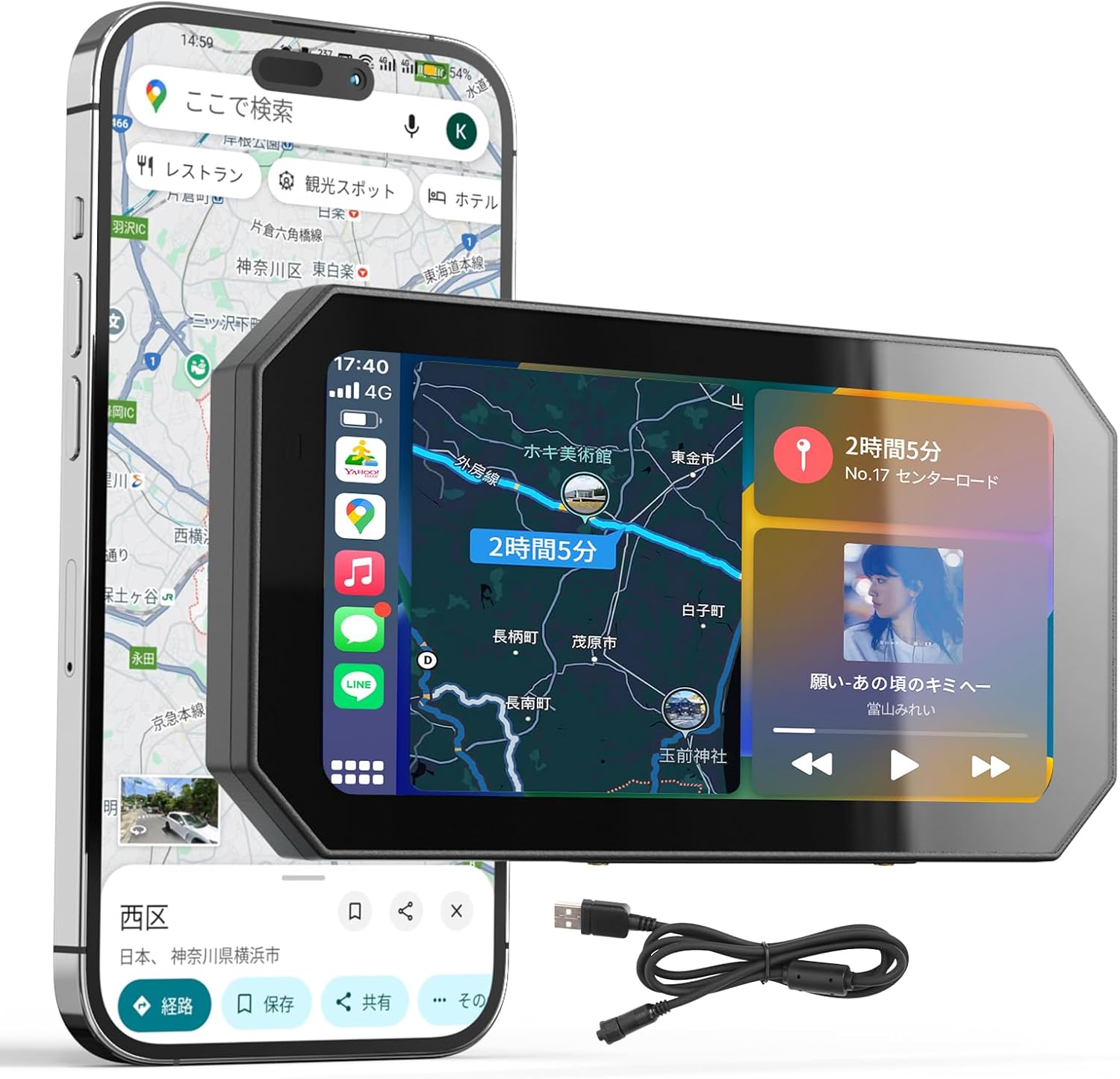
Image 1.1: BOIFUN MT06 Motorcycle Smart Monitor in use.
2 ආරක්ෂිත තොරතුරු
- Always prioritize safe riding. Do not operate the device in a way that distracts you from the road.
- Perform all installation and wiring procedures when the motorcycle is turned off and cool.
- Ensure all connections are secure to prevent dislodgement during riding.
- Avoid prolonged exposure to extreme temperatures outside the specified operating range (-25°C to 50°C).
- උපාංගය විසුරුවා හැරීමට හෝ වෙනස් කිරීමට උත්සාහ නොකරන්න. මෙය වගකීම් සහතිකය අවලංගු කළ හැකි අතර ආරක්ෂක අවදානම් ඇති කළ හැකිය.
- In case of malfunction, consult the troubleshooting section or contact customer support.
3. පැකේජ අන්තර්ගතය
පහත ලැයිස්තුගත කර ඇති සියලුම අයිතම ඔබේ පැකේජයට ඇතුළත් කර ඇති බව තහවුරු කරගන්න:
- BOIFUN MT06 Motorcycle Smart Monitor Unit
- Mounting Bracket Kit (for handlebars 22mm, 25.4mm, 28mm)
- හිරු ආවරණ ආවරණය
- Tool Set (Allen wrench, screwdriver)
- USB Power Cable (approx. 1.5m, requires 5V/1A output)
- ACC Power Cable (approx. 2m, requires 12V-24V output)
- Main Unit Stand and Anti-vibration Pad
- Decorative Strips x2
- පරිශීලක අත්පොත (මෙම ලේඛනය)

Image 3.1: All included accessories.
4. නිෂ්පාදන අවසන්view
The BOIFUN MT06 Smart Monitor features a 6.25-inch IPS high-resolution display, designed for clear visibility even in direct sunlight. Key features include:
- CarPlay/Android Auto Compatibility: Seamlessly integrate your smartphone.
- 1400 Nit High Brightness: Automatic and manual brightness adjustment for optimal viewing.
- IP65 Dustproof & Waterproof: Durable for various weather conditions.
- බ්ලූටූත් 5.2: For stable wireless connections.
- හඬ පාලනය: Hands-free operation with Siri or Google Assistant.
- කම්පන ප්රතිරෝධය: Robust construction for motorcycle use.

Image 4.1: Key features of the MT06 Smart Monitor.
5. පිහිටුවීම
5.1 මොනිටරය සවි කිරීම
- Select a suitable position on your motorcycle's handlebar that does not obstruct your view හෝ පාලනයන්.
- Use the appropriate gasket from the mounting kit (22mm, 25.4mm, or 28mm) to fit your handlebar diameter. If the bracket size does not match, use spacers for adjustment.
- Securely attach the mounting bracket to the handlebar using the provided tools.
- Attach the monitor unit to the mounting bracket. The holder is highly adaptable and allows for multi-directional adjustment to achieve your preferred viewing කෝණය.

Image 5.1: Adjustable mounting holder.
5.2 බල සම්බන්ධතාවය
The MT06 offers two power connection methods:
- USB Power (5V/1A or higher): Connect the provided USB cable to a compatible USB power source on your motorcycle or a mobile battery. This offers flexibility and ease of installation.
- ACC Power (12V-24V): For a stable and continuous power supply, connect the provided ACC power cable directly to your motorcycle's battery or ACC circuit. This is recommended for long rides to avoid battery drain concerns.
Ensure all power connections are properly insulated and secured to prevent short circuits or damage.

Image 5.2: Power connection options.
6. මෙහෙයුම් උපදෙස්
6.1 බලය සක්රිය / අක්රිය
The monitor will power on automatically when connected to a power source and the motorcycle ignition is turned on (if using ACC power). To manually power off, press and hold the power button.
6.2 CarPlay and Android Auto Connection
The MT06 supports wireless Apple CarPlay (iOS 9.0 or later) and Android Auto (Android 11 or later, 5G compatible). To connect:
- ඔබගේ ස්මාර්ට් ජංගම දුරකතනයේ බ්ලූටූත් සබල කර ඇති බව සහතික කර ගන්න.
- On the monitor, navigate to the Bluetooth settings and pair with your smartphone.
- Once paired, select the CarPlay or Android Auto icon on the monitor to initiate the connection.

Image 6.1: Apple CarPlay connection.

Image 6.2: Android Auto connection.
6.3 Audio Output (Intercom/Earphones)
The monitor can connect to motorcycle intercom systems or Bluetooth earphones via your smartphone. This allows you to hear navigation voice guidance, music, and calls clearly while riding.
- Ensure Bluetooth is enabled on your intercom or earphones.
- Pair your intercom/earphones with your smartphone.
- The audio from the monitor (via CarPlay/Android Auto) will then be routed through your smartphone to your connected audio device.

Image 6.3: Earphone/Intercom setup.
6.4 දර්ශන සැකසුම්
The 6.25-inch IPS display offers 1400 nits brightness for excellent visibility. It supports both automatic and manual brightness adjustment. The included sunshade cover further reduces glare and reflections, improving readability in bright conditions.

Image 6.4: Brightness adjustment in action.

Image 6.5: High brightness IPS monitor with sunshade.
6.5 ස්පර්ශ තිර ක්රියාකාරිත්වය
The touch panel LCD is designed for intuitive operation, even when wearing motorcycle gloves. Use taps and swipes to navigate menus and control functions.

Image 6.6: Touchscreen operation with gloves.
6.6 හඬ පාලනය
Utilize voice commands through Siri (for Apple CarPlay) or Google Assistant (for Android Auto) for hands-free control of navigation, music playback, and calls. This minimizes visual distraction while riding.

Image 6.7: Voice control functionality.
6.7 Navigation, Music, and Calls
Access your smartphone's navigation apps, music streaming services, and make/receive calls directly from the monitor interface. The split-screen function allows you to view එකවර බහු යෙදුම්.

Image 6.8: Call and Navigation display.

Image 6.9: Music playback and Split screen display.
6.8 Rain Mode (Anti-Mistouch Function)
To prevent unintended touches from raindrops during wet weather, the monitor features a rain mode. Press and hold the settings button for 5 seconds to activate this mode, which disables touchscreen operation to ensure a focused driving environment.

Image 6.10: Rain mode with anti-mistouch function.
6.9 පද්ධති සැකසුම්
Access the system settings menu to configure language, time, touch sensitivity, sleep mode, and other preferences. This menu also includes options for factory reset and version information.

Image 6.11: System settings menu.
6.10 TPMS (Tire Pressure Monitoring System) Function
The monitor is compatible with TPMS sensors (sold separately). When connected, it can monitor your tire pressure and temperature in real-time, providing immediate alerts for abnormalities. This feature helps prevent potential issues such as reduced fuel efficiency, poor ride comfort, increased tire wear, and tire bursts.
සටහන: This product does not include TPMS sensors. Please contact customer support if you require dedicated monitoring sensors.

Image 6.12: TPMS compatibility display.
7. නඩත්තු කිරීම
7.1 පිරිසිදු කිරීම
Wipe the monitor screen and body with a soft, damp cloth. Avoid using abrasive cleaners or solvents that could damage the display or casing.
7.2 උෂ්ණත්ව ප්රතිරෝධය
The BOIFUN MT06 is designed to operate stably in a wide range of temperatures, from -25°C to 50°C. This ensures reliable performance in various climates, from extreme cold to hot summer conditions. While the device is heat-resistant, some heat generation during use is normal for electronic products.
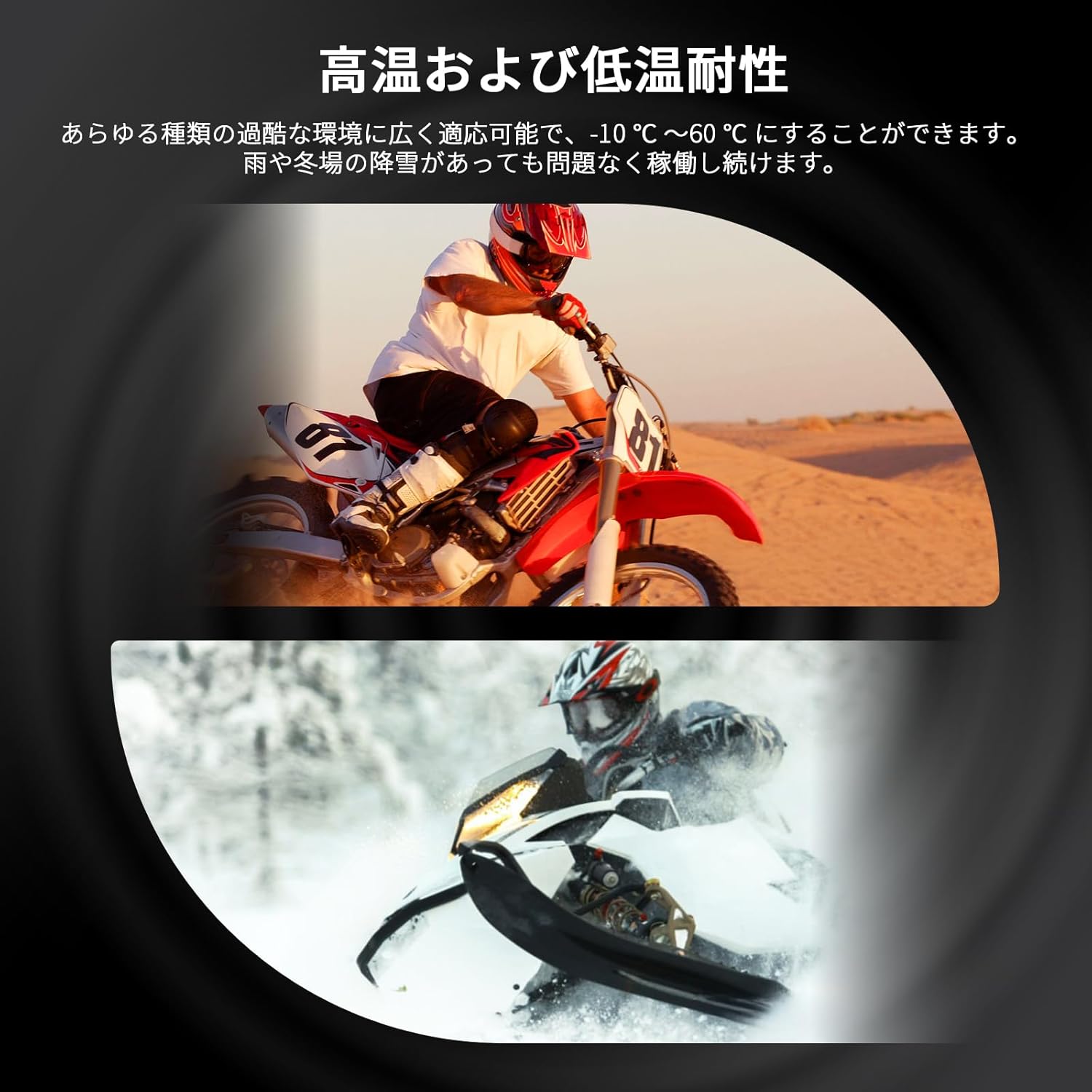
Image 7.1: High and low temperature resistance.
7.3 ජල ආරක්ෂිත සහ දූවිලි ආරක්ෂිත
With an IP65 rating, the monitor is protected against dust ingress and low-pressure water jets from any direction. This makes it suitable for use in rain or dusty environments. The screen is also reinforced to be shatterproof, protecting it from impacts and scratches.

Image 7.2: IP65 waterproof demonstration.
8. දෝශ නිරාකරණය
| ගැටලුව | විය හැකි හේතුව | විසඳුම |
|---|---|---|
| මොනිටරය ක්රියාත්මක නොවේ. | බල සැපයුමක් හෝ ලිහිල් සම්බන්ධතාවයක් නොමැත. | Check power cable connection. Ensure power source (USB or ACC) is active. |
| CarPlay/Android Auto fails to connect. | Bluetooth not enabled, phone OS not compatible, or pairing issue. | Ensure Bluetooth is on. Check phone OS version. Re-pair the device. Restart both phone and monitor. |
| තිරය ඉතා අඳුරු/දීප්තිමත්. | Brightness settings incorrect. | Adjust brightness manually in settings or ensure auto-brightness is enabled. Use sunshade. |
| ස්පර්ශ තිරය ප්රතිචාර නොදක්වයි. | Rain mode activated or temporary software glitch. | Deactivate rain mode if active. Restart the monitor. |
| Audio issues (no sound, distorted). | Bluetooth connection to intercom/earphones unstable or volume too low. | Check Bluetooth connection to audio device. Adjust volume on both monitor and audio device. |
9. පිරිවිතර
| විශේෂාංගය | විස්තර |
|---|---|
| මාදිලියේ නම | MT06 |
| තිර ප්රමාණය | අඟල් 6.25 |
| සංදර්ශක වර්ගය | IPS LCD Touchscreen |
| දීප්තිය | 1400 nits (Automatic & Manual Adjustment) |
| මෙහෙයුම් පද්ධති අනුකූලතාව | Apple CarPlay (iOS 9.0+), Android Auto (Android 11+, 5G compatible) |
| සම්බන්ධතාවය | බ්ලූටූත් 5.2 |
| ජල ආරක්ෂිත / දූවිලි ආරක්ෂිත ශ්රේණිගත කිරීම | IP65 |
| උෂ්ණත්ව ප්රතිරෝධය | -25 ° C සිට 50 ° C දක්වා |
| බල ආදානය | USB (5V/1A+), ACC (12V-24V) |
| සවිකිරීමේ වර්ගය | Handlebar Mount (22mm, 25.4mm, 28mm) |
| නිෂ්පාදන මානයන් | 8.6 x 3.1 x 17.2 සෙ.මී |
| නිෂ්පාදන බර | 690 ග්රෑම් |
| සහතික | Japan Technical Conformity (GITEKI) R210-181571 |
10. වගකීම් සහ සහාය
10.1 වගකීම් තොරතුරු
The BOIFUN MT06 Smart Monitor comes with a manufacturer's warranty. In case of any issues during the warranty period, support is available. The product has obtained Japan Technical Conformity certification (GITEKI certification number: R210-181571), ensuring its compliance with Japanese wireless communication laws and standards for quality and safety.
10.2 පාරිභෝගික සහාය
For technical assistance, troubleshooting, or warranty claims, please contact BOIFUN customer support. We are committed to providing dedicated support to ensure your satisfaction.
Please refer to the contact information provided with your purchase or visit the official BOIFUN webසහාය විස්තර සඳහා අඩවිය.


