1. හැඳින්වීම
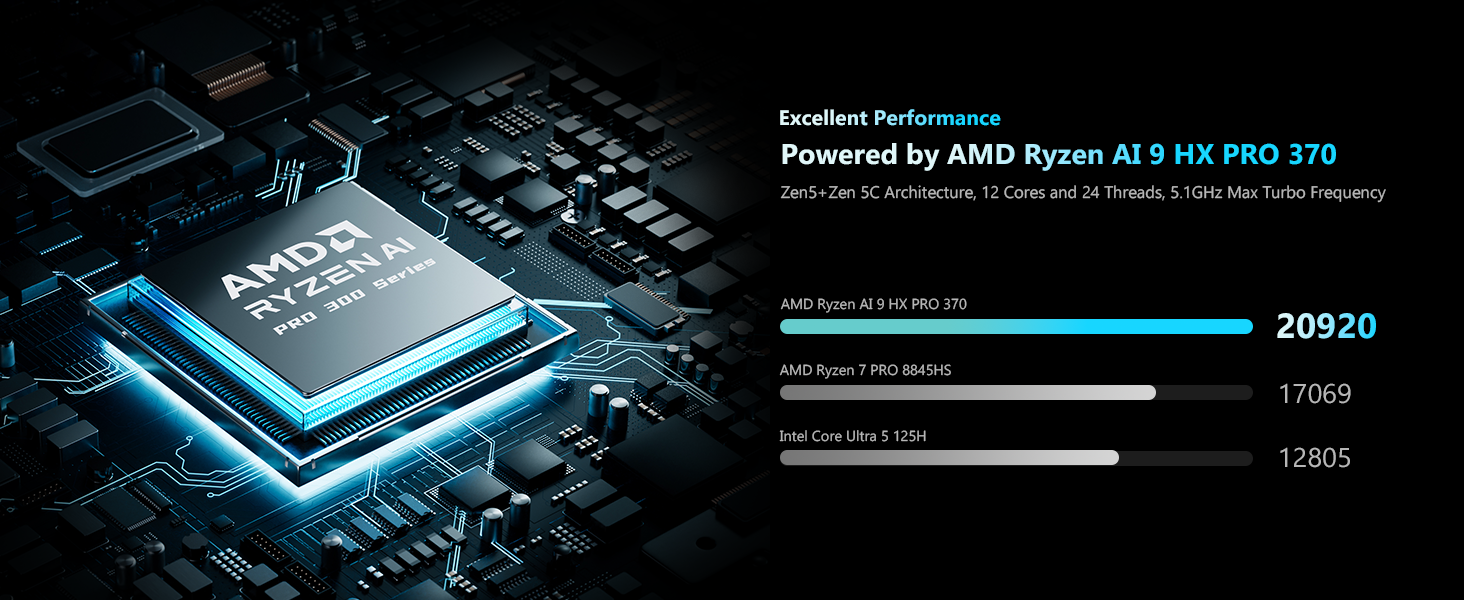
The MINISFORUM N5 Pro-P370 is a high-performance 5-bay desktop Network Attached Storage (NAS) device designed for both home and business use. It features an AMD Ryzen AI 9 HX PRO 370 processor, offering extreme AI-accelerated performance for tasks like 4K transcoding, stable multitasking, and AI training. This manual provides essential information for setting up, operating, maintaining, and troubleshooting your N5 Pro NAS.
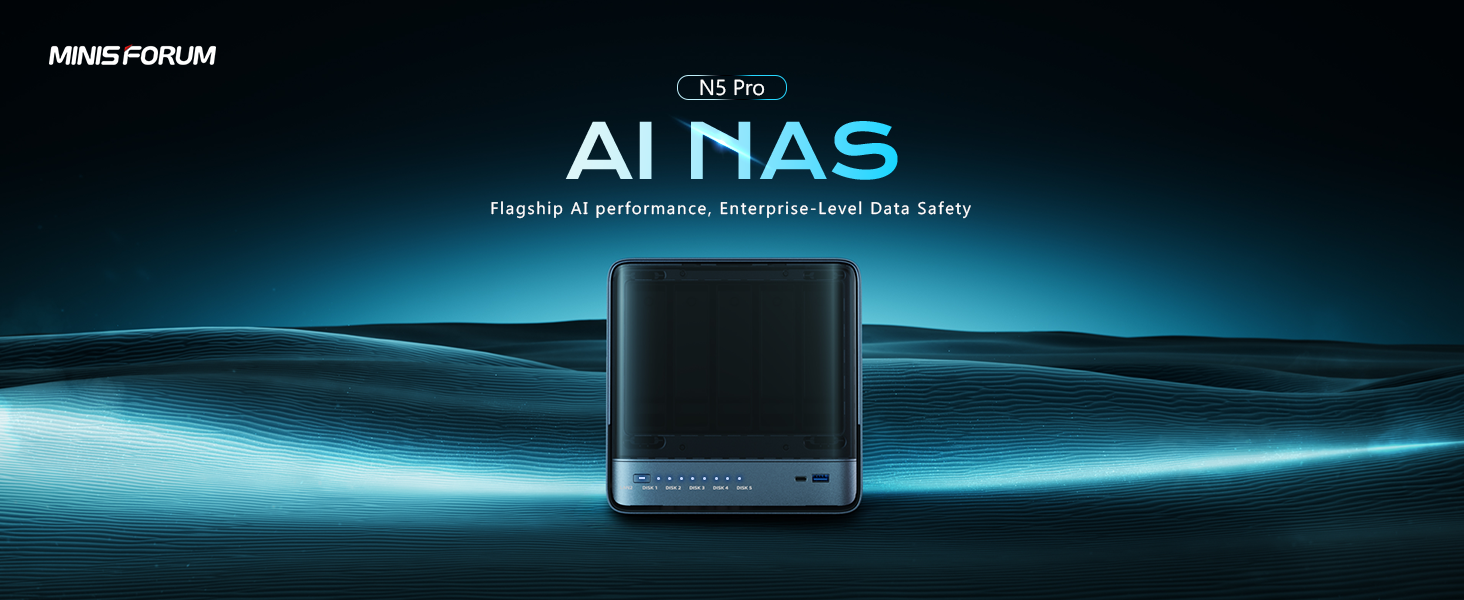
Image: The MINISFORUM N5 Pro AI NAS highlighting its flagship AI performance capabilities.
වීඩියෝ: ඉවරයිview of the N5 Pro NAS features and design.
2 ආරක්ෂිත තොරතුරු
උපාංගයට හානි වීම හෝ ඔබටම තුවාල වීම වැළැක්වීම සඳහා කරුණාකර සියලු ආරක්ෂක උපදෙස් හොඳින් කියවා අනුගමනය කරන්න. අනාගත යොමුව සඳහා මෙම අත්පොත තබා ගන්න.
- Use only the power adapter and cables provided with the device.
- Ensure proper ventilation to prevent overheating. Do not block any ventilation openings.
- උපාංගය ජලය, තෙතමනය හෝ අධික උෂ්ණත්වයන්ට නිරාවරණය නොකරන්න.
- උපාංගය ප්රබල බලපෑම්වලට වැටීමෙන් හෝ යටත් කිරීමෙන් වළකින්න.
- For OCuLink connections, ensure the NAS is turned off before plugging or unplugging the external graphics card to prevent damage.
3. පැකේජ අන්තර්ගතය
පහත ලැයිස්තුගත කර ඇති සියලුම අයිතම ඔබේ පැකේජයට ඇතුළත් කර ඇති බව තහවුරු කරගන්න. කිසියම් අයිතමයක් අස්ථානගත වී හෝ හානි වී ඇත්නම්, කරුණාකර පාරිභෝගික සහාය අමතන්න.
- MINISFORUM N5 Pro-P370 NAS Unit
- බල ඇඩැප්ටරය
- බල කේබලය
- ඊතර්නෙට් කේබලය
- HDMI කේබලය
- U.2 ඇඩප්ටරය
- U.2 Adapter Cable
- 2.5-inch Screws
- U.2 Screws
- උපදෙස් අත්පොත
Video: Unboxing the N5 Pro and displaying all included accessories.
4. නිෂ්පාදන අවසන්view
The N5 Pro NAS features a robust design with accessible ports and indicators for easy management.
ඉදිරිපස පුවරුව
- බල බොත්තම: උපාංගය සක්රිය/අක්රිය කිරීමට.
- තත්වය LED: පද්ධතියේ තත්ත්වය පෙන්නුම් කරයි.
- NIC LED: Network Interface Card activity indicator.
- HDD LED: Hard Disk Drive activity indicator for each bay.
- USB4 (Alt DP 2.0): High-speed USB port with DisplayPort alternate mode.
- USB 3.2 Gen2: High-speed USB port.
පසුපස පුවරුව
- Anti-theft Lock Hole: For securing the device.
- USB4 (Alt DP 2.0): Additional high-speed USB port with DisplayPort alternate mode.
- සිදුර යළි පිහිටුවන්න: For system reset.
- HDMI2.1: වීඩියෝ ප්රතිදාන තොට.
- OCuLink: Interface for external GPUs.
- USB 3.2 Gen2: Additional high-speed USB port.
- 5G LAN (RJ45): 5 Gigabit Ethernet port.
- 10G LAN (RJ45): 10 Gigabit Ethernet port.
- USB 2.0: සම්මත USB port.
- DC 19V: බලය යෙදවුම්.
රූපය: විස්තරාත්මක view of the front and rear connectivity ports on the N5 Pro NAS.
Video: A detailed look at the N5 Pro AI NAS, highlighting its flagship performance and features.
5. පිහිටුවීම
දෘඪාංග ස්ථාපනය
The N5 Pro features a modular sliding design for easy access to internal components for upgrades and installation.
HDD / SSD ස්ථාපනය
The NAS supports 5 x 3.5"/2.5" HDDs (up to 22TB each for a total of 110TB) and 3 x M.2 SSDs or 1 x M.2 + 2 x U.2 SSDs (up to 34TB total). To install drives:
- Gently pull the front panel to access the drive bays.
- Slide out an empty drive tray.
- Secure your HDD or SSD to the tray using the provided screws.
- Slide the tray back into the bay until it clicks into place.
- For M.2/U.2 SSDs, you will need to open the chassis to access the M.2 slots. The device comes with a built-in 128GB system drive occupying one M.2 slot. To use all three M.2 slots, this system drive must be removed.

රූපය: අභ්යන්තර view of the N5 Pro, showing the drive bays and M.2 SSD slots.
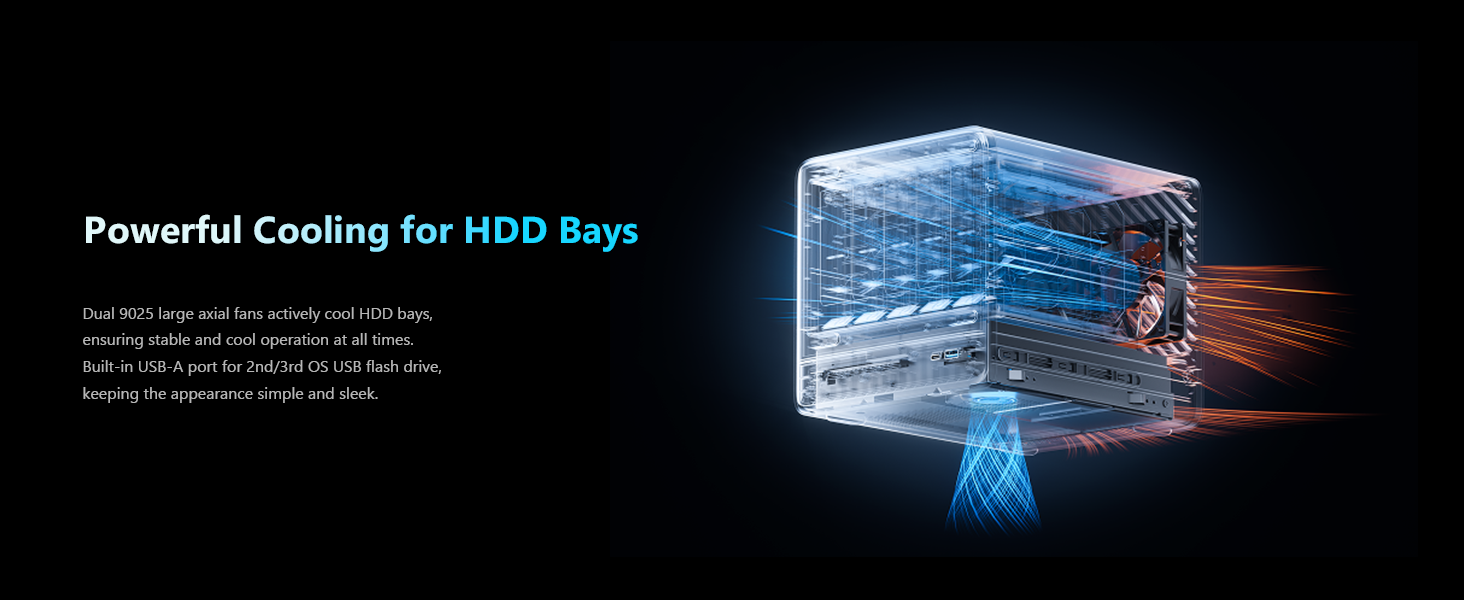
Image: Illustration of the N5 Pro's storage capacity, supporting 5 HDDs and 3 SSDs for up to 144TB.
RAM ස්ථාපනය
The N5 Pro supports DDR5 ECC memory up to 96GB for increased stability. To install or upgrade RAM:
- Open the chassis to access the SO-DIMM slots.
- Align the RAM module with the slot and press down firmly until the clips on both sides lock into place.

Image: Visual representation of the expandable DDR5 memory in the N5 Pro, supporting up to 96GB.
ආරම්භක බලය-ක්රියාත්මකයි
- Connect the power cable to the NAS and a power outlet.
- Connect an Ethernet cable from the NAS to your network router or switch.
- Press the power button on the front panel. The Status LED will illuminate.
OS Installation/Configuration
The N5 Pro comes pre-installed with MinisCloud OS. You can begin using the system immediately after initial setup. If you wish to install a third-party operating system, MinisCloud OS and its features will be unavailable. Refer to the specific OS installation guide for your chosen operating system.
Video: An unboxing and initial setup guide for the Minisforum N5 Pro AI NAS.
6. ක්රියාත්මක වීම
MinisCloud OS Features
MinisCloud OS provides a secure and user-friendly system supporting Windows, macOS, iOS, and Android devices. Key features include:
- AI Photo Library: Features face recognition and semantic search for effortless photo organization.
- හෝම් රඟහල: HDMI output, poster wall, and fast 4K transcoding for a rich multimedia experience. Supports lossless decoding and DSD for Hi-Fi audio.
- Integrated Docker: With namespace isolation for smart application deployment.
- One-Click Backup & Sync: Easy backup and multi-device synchronization.
- Multi-User Isolation & Encrypted Sharing: Secure data management for multiple users.
- One-Click Remote Access: Convenient remote access with NAT traversal.

Image: MinisCloud OS interface displayed across multiple devices, showcasing එහි බහුකාර්යතාව.
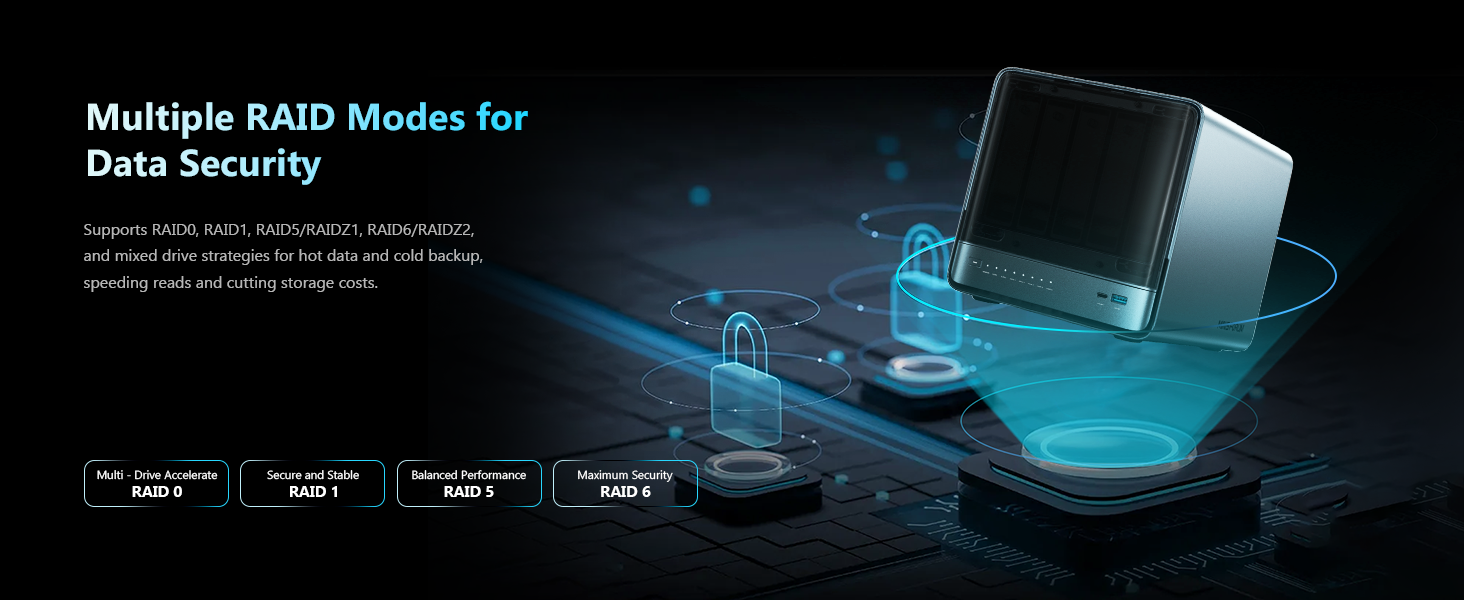
Image: Conceptual image illustrating flexible access control and multi-level spaces for data management.
දත්ත කළමනාකරණය
The N5 Pro supports various RAID modes and ZFS features for robust data protection.
- RAID Modes: Supports RAID 0, 1, 5, 6, and RAIDZ for different levels of performance and redundancy.
- ZFS Snapshots: Provides enterprise-level data protection with ZFS snapshots and LZ4 compression.
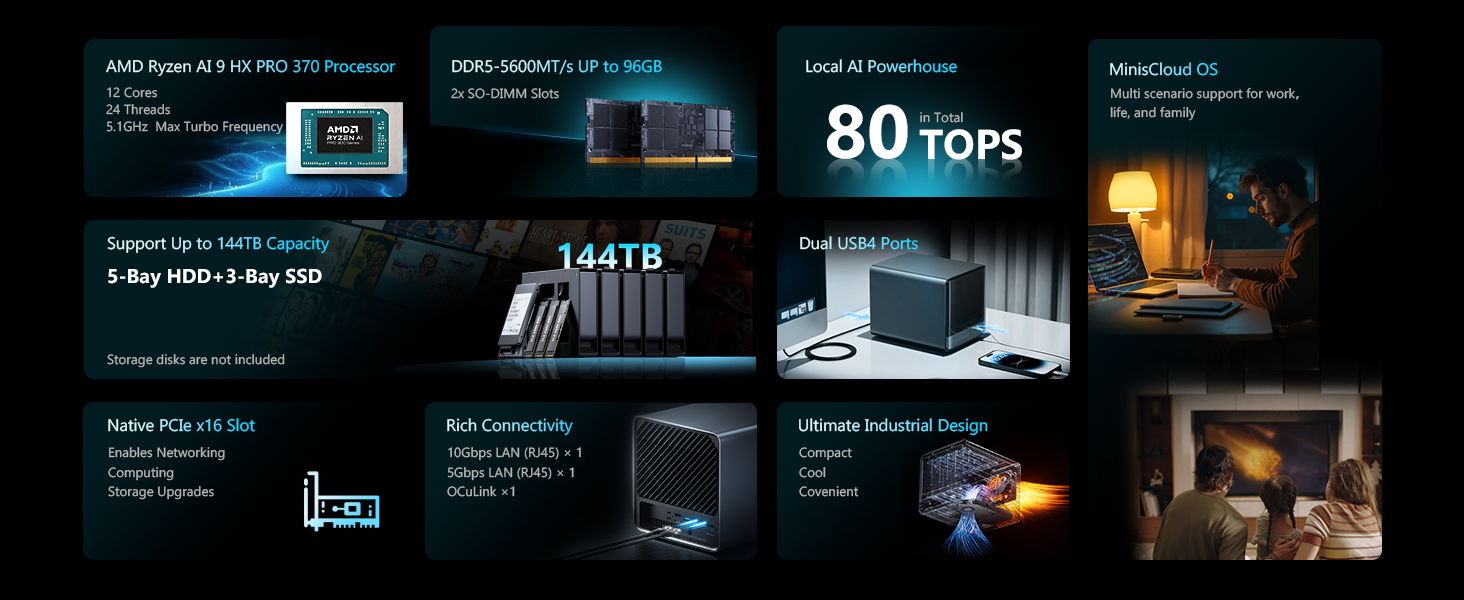
Image: Visual explanation of multiple RAID modes supported by the N5 Pro for enhanced data security.
සම්බන්ධතාවය
The N5 Pro offers high-speed connectivity options for various applications.
- Dual LAN Ports: 2 x 10GbE + 5GbE LAN ports with aggregation up to 15 Gbps.
- USB4 Ports: 2 x USB4 ports (20 Gbps) for ultra-fast data transmission.
- PCIe Slot: A 16x PCIe slot for advanced expansion, including NICs, SSD cache arrays, or external GPUs.
- OCuLink Interface: Connect to an external discrete graphics card for improved gaming and AI capabilities. Note: This interface does not support hot-swapping. Plug and unplug only when the NAS is off.
- Triple Screen Display: Supports efficient work with 3-screen display via USB4 (8K@60Hz | 4K@144Hz) and HDMI 2.1 FRL (8K@60Hz | 4K@144Hz).
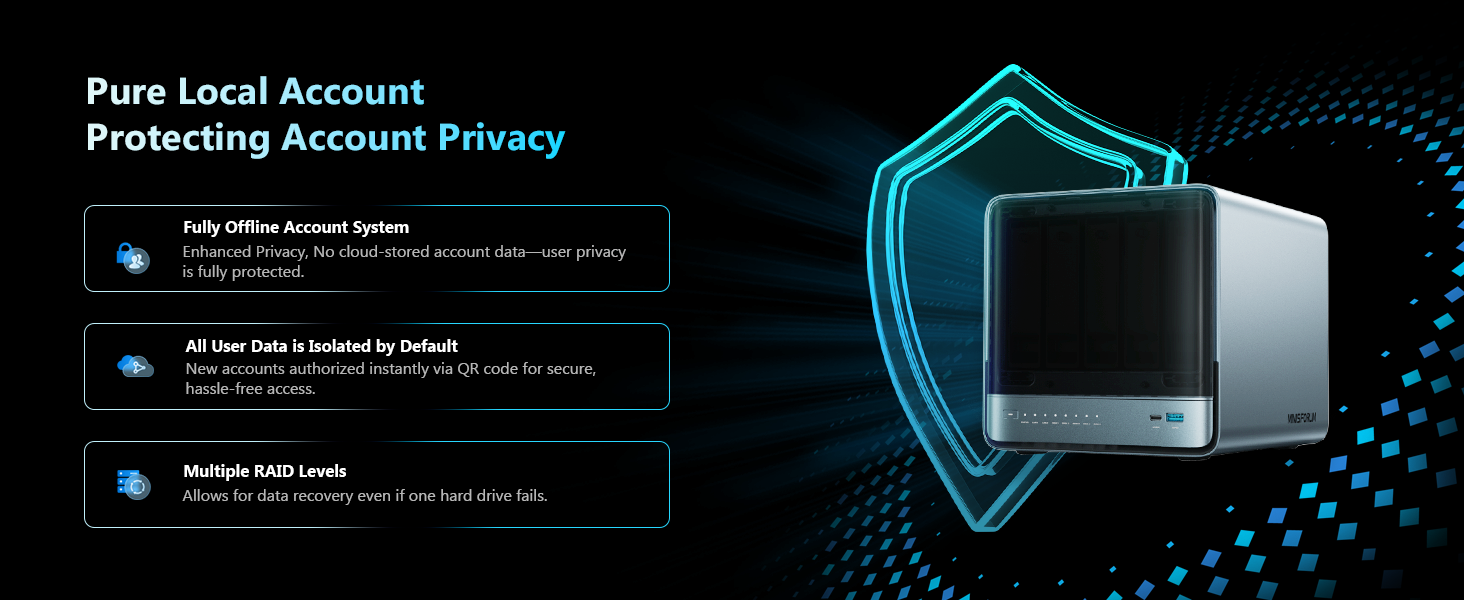
Image: Highlighting the ultra-fast data transfer capabilities of the N5 Pro with its dual LAN and USB4 ports.
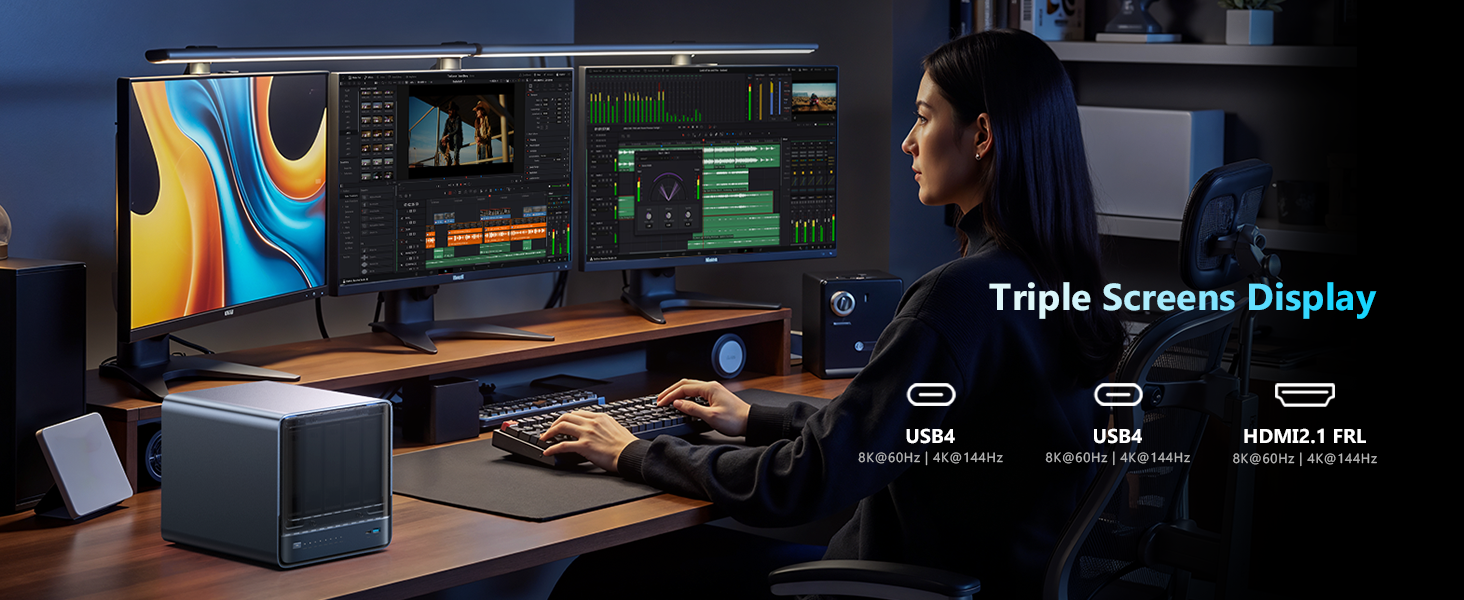
Image: Diagram showing the PCIe x16 slot for advanced expansion options.
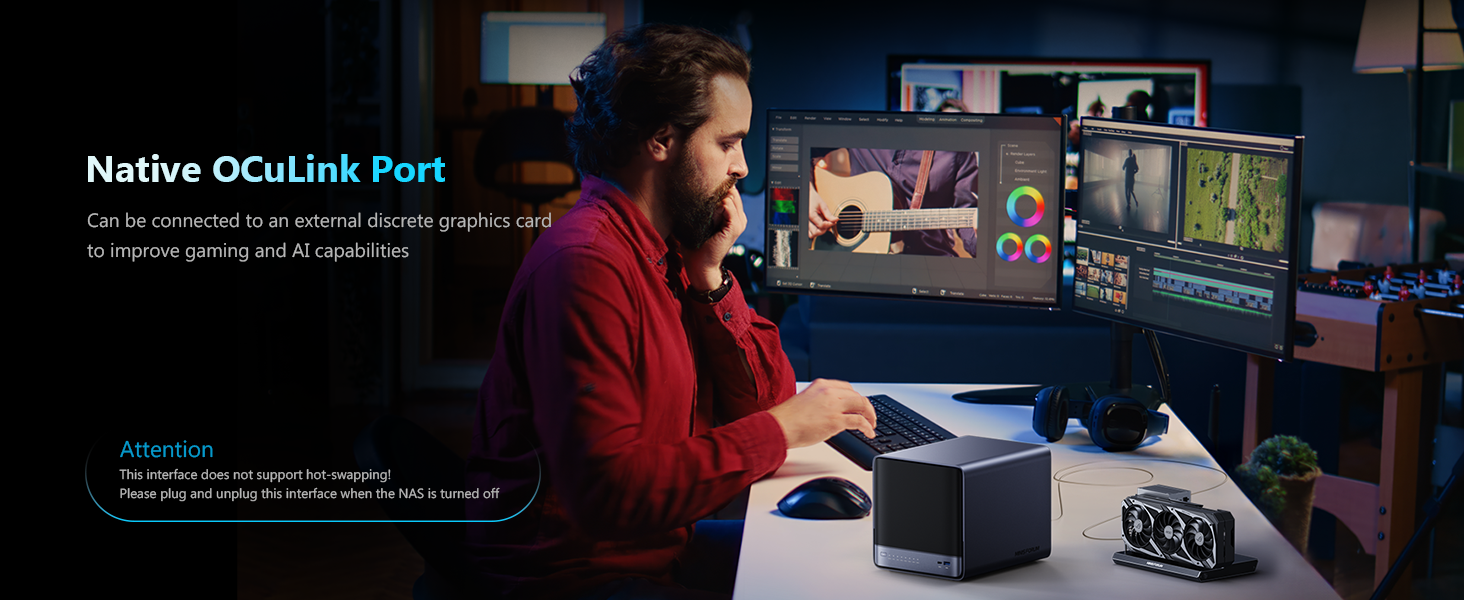
Image: The N5 Pro's native OCuLink port, demonstrating its use with an external discrete graphics card.
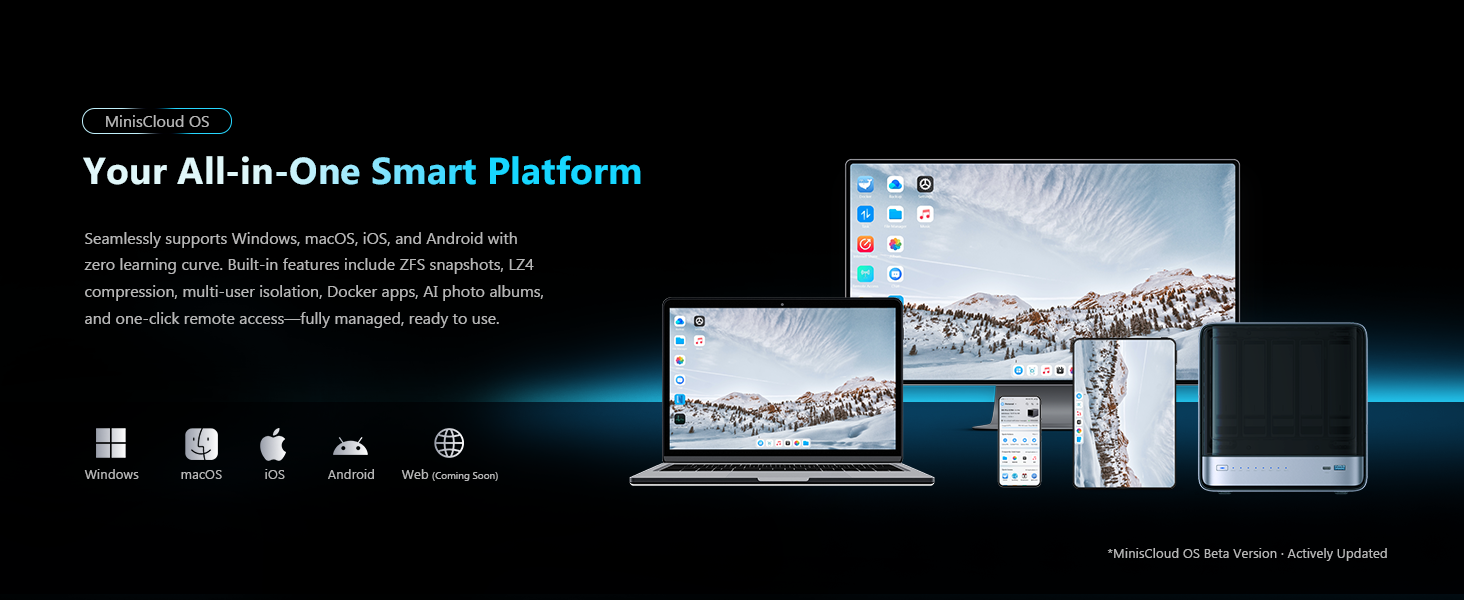
Image: A workstation setup utilizing the N5 Pro for a triple screen display, enhancing productivity.
7. නඩත්තු කිරීම
Regular maintenance ensures optimal performance and longevity of your N5 Pro NAS.
- පිරිසිදු කිරීම: Periodically clean the exterior of the device with a soft, dry cloth. Ensure ventilation grilles are free from dust and debris.
- ස්ථිරාංග යාවත්කාලීන කිරීම්: Keep your MinisCloud OS or chosen operating system updated to the latest version for security and performance improvements.
- Hardware Upgrades: The modular sliding design allows for easy RAM and SSD upgrades. Refer to the installation section for guidance.
- සිසිලන පද්ධතිය: The dual 9025 large axial fans actively cool the HDD bays, ensuring stable and cool operation. Ensure adequate airflow around the device.
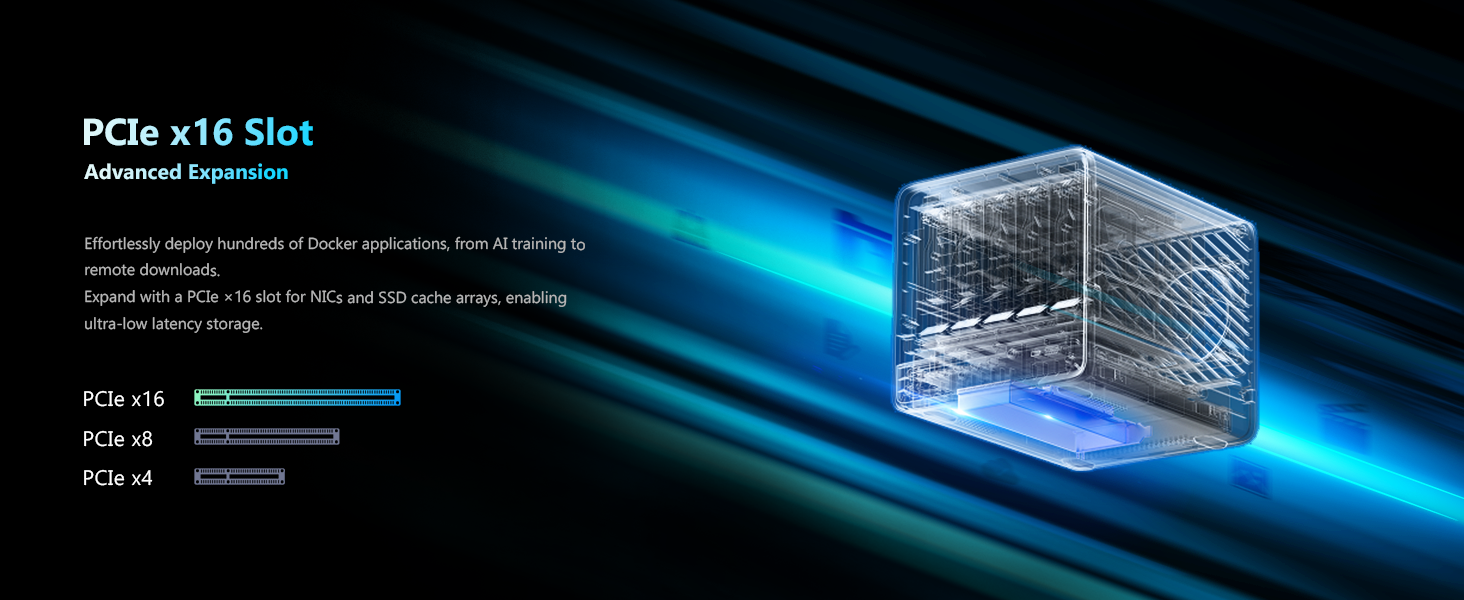
Image: Diagram illustrating the powerful cooling system for the HDD bays in the N5 Pro.
8. දෝශ නිරාකරණය
If you encounter issues with your N5 Pro NAS, refer to the following common troubleshooting steps:
- උපාංගය ක්රියාත්මක නොවේ: Check all power connections. Ensure the power adapter is securely plugged into both the NAS and the power outlet.
- ජාල සම්බන්ධතා ගැටළු: Verify that the Ethernet cable is properly connected to both the NAS and your network device. Check network settings in MinisCloud OS or your chosen operating system.
- Hard Drive/SSD Not Detected: Ensure drives are correctly seated in their bays or M.2/U.2 slots. If recently installed, check the physical connections.
- මෙහෙයුම් පද්ධති ගැටළු: If experiencing software-related problems, consider reinstalling MinisCloud OS or your third-party operating system. Note that reinstalling a third-party OS will make MinisCloud OS features unusable.
- BIOS ප්රවේශය: If unable to access the BIOS/boot menu, ensure your display is connected and try different key combinations (e.g., DEL, F2) during startup.
9. පිරිවිතර
| ප්රොසෙසරය | AMD Ryzen AI 9 HX PRO 370 (12 cores/24 threads, up to 5.1 GHz) |
| NPU | 50 ඉහළ |
| GPU | Radeon 890M GPU |
| RAM | Up to 96 GB DDR5 ECC |
| HDD බොක්ක | 5 x 3.5"/2.5" (up to 22 TB each, 110 TB total) |
| SSD Slots | 3 x M.2 SSDs or 1 x M.2 + 2 x U.2 SSDs (up to 34 TB total) |
| LAN වරාය | 2 x 10 GbE + 5 GbE (aggregation up to 15 Gbps) |
| USB Ports | 2 x USB4 (20 Gbps), 2 x USB 3.2 Gen2, 1 x USB 2.0 |
| වීඩියෝ ප්රතිදානය | HDMI 2.1 FRL, USB4 (Alt DP 2.0) for triple screen display |
| පුළුල් කිරීමේ ස්ලට් | 1 x PCIe x16, 1 x OCuLink |
| මෙහෙයුම් පද්ධතිය | MinisCloud OS (pre-installed) |
| මානයන් | අඟල් 14.09 x 12.09 x 12.05 |
| බර | රාත්තල් 15.31 කි |
10. වගකීම් සහ සහාය
MINISFORUM products come with a standard manufacturer's warranty. For detailed warranty terms and conditions, please refer to the warranty card included in your package or visit the official MINISFORUM website. For technical support, troubleshooting assistance, or service requests, please contact MINISFORUM customer support through their official channels.


